
Easy Flashing Enable ADB Failed? 3 Fixes & 1 Ultimate Solution
Many users turn to Easy Flashing FRP Bypass Tool to remove Google Factory Reset Protection after resetting an Android phone. However, the "Easy Flashing Enable ADB Failed" error can interrupt the process before Android Debug Bridge (ADB) is activated.
This guide introduces 3 popular ways to fix Easy Flashing Enable ADB Failed and explains how to bypass the Google FRP lock on Samsung/Android devices via a tool professionally when Easy Flashing still fails.
Part 1: What Is Easy Flashing FRP Bypass Tool
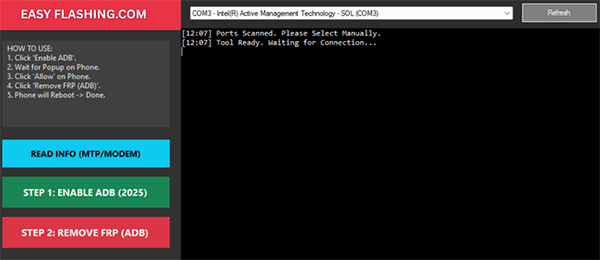
Easy Flashing FRP Bypass Tool is a computer program mainly used for Samsung devices to remove the Factory Reset Protection (FRP) lock and bypass Google account verification after a factory reset. It helps users regain access to their phones if they forget their Google credentials or get stuck on the FRP verification screen.
The tool can also assist with enabling ADB (Android Debug Bridge) during the unlocking process to fix errors like "Enable ADB Failed."
Part 2: Why Does Easy Flashing Enable ADB Fail to Work
Many users rely on Easy Flashing FRP Bypass Tool to enable ADB and proceed with unlocking or bypassing Google verification on Android devices. However, the "Enable ADB Failed" error may appear during the process due to several technical or connection-related issues, which are outlined below:
- USB connection problems: A damaged USB cable or unstable connection can prevent the tool from communicating with the phone.
- Faulty USB port: A malfunctioning computer or phone USB port may interrupt the ADB connection process.
- Hardware issues on the Android device: Internal hardware problems can stop the phone from responding to ADB commands.
- Missing or outdated ADB drivers: If the required ADB drivers are not installed or updated on the computer, the tool cannot detect the device.
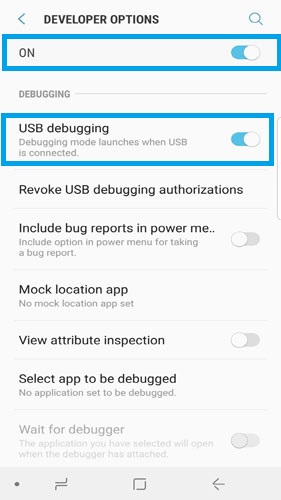
- Lack of permissions or authorization: The device may not allow USB debugging or ADB access, causing the enable process to fail.
- Security software blocking the process: Firewall or antivirus programs can block ADB communication and lead to the error.
- New Android security restrictions: Stronger security measures in newer Android versions (such as Android 13) may cause the "Enable ADB Failed" error during FRP bypass attempts.
Part 3: How to Fix Easy Flashing Enable ADB Failed (3 Solutions)
Fix 1: Using Easy Flashing FRP Bypass Tool
- Download and install the latest Easy Flashing FRP Bypass Tool on your computer to ensure compatibility with newer Android security patches.
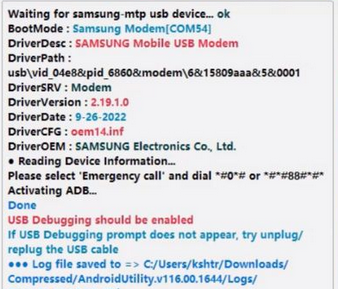
- Open the Emergency Dialer on the FRP-locked phone and dial #0# to enter Samsung's test mode, which helps the tool communicate with the device.
- Connect the Android phone to the computer using a USB cable and wait for the device to be detected by the tool.
- Launch the Easy Flashing tool and choose the "Samsung" option, then click the main operation menu in the interface.
- Select "Samsung Activate ADB" in the program to attempt enabling Android Debug Bridge on the connected device.
- Allow the "USB debugging" permission on the phone screen when the prompt appears to complete the ADB activation process.
Fix 2: Update ADB Drivers
A common cause is outdated or missing drivers. On Windows:
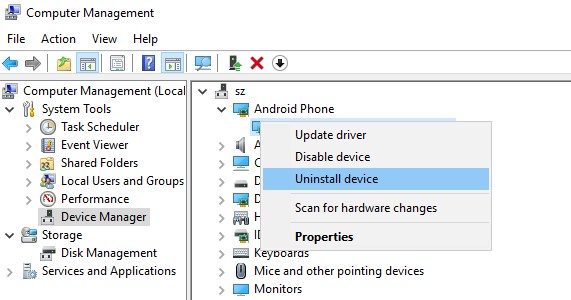
- Open Device Manager on your computer.
- Locate your Android phone under "Portable Devices" or "Other Devices."
- If it appears with a warning icon, the driver may not be installed correctly.
- Right-click the device and choose "Update driver" > "Search automatically for drivers."
- Windows will then try to install the proper driver for the connected phone.
- You can also manually install the latest Universal ADB Driver or the official USB driver from your phone manufacturer's website.
- After the installation finishes, reconnect the device to the computer and run Easy Flashing again to check if the ADB issue is resolved.
Fix 3. Restart ADB Server
Sometimes the ADB service just needs a refresh:
- Open Command Prompt on Windows or Terminal on Mac/Linux on your computer.
- Type the following commands one by one to restart the ADB service:
adb kill-server
adb start-server
adb devices - These commands stop the current ADB process, restart it, and then display a list of connected Android devices.
- Check whether your phone appears in the device list before trying Easy Flashing again.
Part 4: FAQs about Easy Flashing Enable ADB Failed
Q1: Can a USB cable affect the "Enable ADB Failed" error?
Yes. A faulty or low-quality USB cable may prevent stable communication between the phone and computer, which can lead to the ADB activation failure.
Q2. Will updating Android affect the success of enabling ADB with Easy Flashing?
It might. Newer Android versions and security patches sometimes block older FRP bypass techniques, which can cause Easy Flashing to fail when enabling ADB.
Q3. Can I fix the Easy Flashing Enable ADB Failed error without reinstalling the tool?
Yes. Many users solve the problem by updating ADB or USB drivers, restarting the ADB server, reconnecting the device, switching USB ports, or restarting the computer and phone.
Q4. Does the Easy Flashing tool work on all Android phones?
No. The tool is mainly designed for certain Samsung devices, and compatibility may vary depending on the phone model, firmware version, and Android security patch level.
Q5. Is it safe to use Easy Flashing FRP Bypass Tool?
The tool can help remove FRP locks, but it should only be used on devices you own or have permission to unlock. Using unofficial tools may carry risks such as software conflicts or system instability.
Q6. What should I do if Easy Flashing still cannot enable ADB after troubleshooting?
If the issue continues, consider reinstalling the tool, installing updated drivers, or trying a different FRP unlocking method or professional Android unlocking software like Android Lock Wiper to complete the process safely and efficiently.
Part 5: Fix Failed to Enable ADB via an Expert Tool [Seamless]
When the "Enable ADB Failed" error continues to appear, Android Lock Wiper can be an alternative solution for removing the FRP (Factory Reset Protection) lock.
The program allows users to bypass Google account verification on many Android and Samsung devices without relying on manually enabling ADB. With a guided interface and broad device support, it can help regain access to the phone even when common FRP bypass tools fail.
|
Situation/Feature
|
How Android Lock Wiper Helps
|
|
Easy Flashing Enable ADB Failed |
Bypasses FRP without relying on manually enabling ADB, allowing the unlocking process to continue even when Easy Flashing cannot activate ADB. |
|
Google FRP lock after factory reset |
Removes the Google verification screen so you can access the Android or Samsung device again without entering the previous Google account. |
|
Unsupported device in Easy Flashing |
Supports many Android brands and Samsung models, offering an alternative when Easy Flashing FRP Bypass Tool does not recognize the device. |
|
Driver or connection issues with ADB tools |
Uses a guided unlocking process that reduces dependence on manual ADB commands or complicated driver configurations. |
|
Forgot Google account credentials |
Lets users remove the FRP lock and set up the phone with a new Google account after unlocking. |
|
Complex manual bypass procedures |
Provides step-by-step instructions on the screen, making the FRP removal process easier for beginners and non-technical users. |
How to use the best Samsung FRP bypass tool - Android Lock Wiper?
- Initiate the process by downloading and installing the software on your computer.
- Select 'Remove Google Lock (FRP)' and choose 'Advanced Mode.'
- Connect your phone to the PC using a USB cable, then click 'Start.'
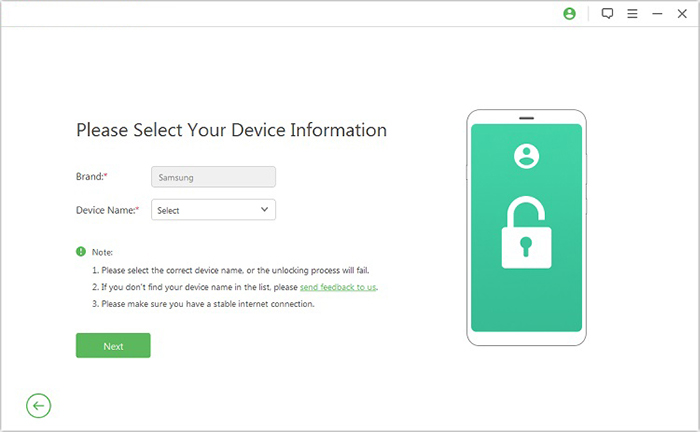
- Follow the instructions to provide the necessary information regarding your device and click 'Next.'
- Ensure that you adhere to the on-screen prompts to enter recovery mode.
- On the subsequent screen, select the appropriate PDA, country, and carrier, then click 'Download' to obtain the required data package.
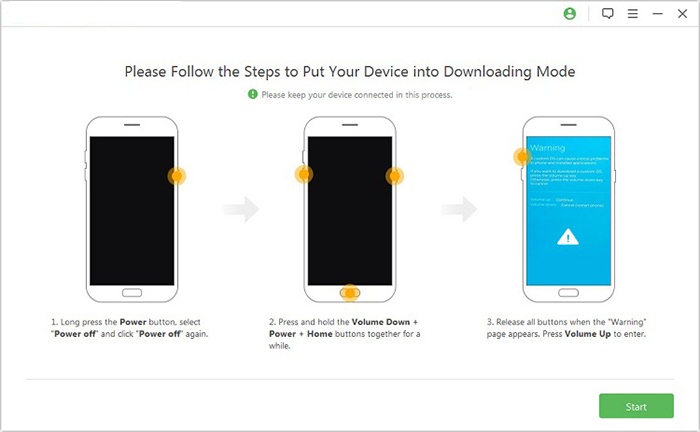
- Afterward, click 'Start to Extract' and follow the on-screen instructions to place your device into Download Mode.
- Ultimately, enable USB debugging, activate OEM unlock, and extract the firmware, among other critical tasks.

In Conclusion
The "Easy Flashing Enable ADB Failed" error can occur due to driver issues, connection problems, or Android security restrictions. Trying the troubleshooting methods above may restore Android Debug Bridge (ADB) and allow Easy Flashing FRP Bypass Tool to continue the FRP removal process.
If the problem remains unresolved, using Android Lock Wiper offers another way to bypass the Google verification screen on Samsung and other Android devices. With the proper approach, regaining access to the phone becomes much easier.
Related Articles:
Easy Samsung FRP Tool Review: Objective Analysis [Up-to-date]
5 Easy Tactics to Delete Everything on Your Phone Samsung Galaxy
5 Verified Ways: How to Recover Data after Factory Reset on Samsung
Top 9 Methods to Unlock Samsung Phone Forgot Password [Easy]
