
FoneGeek iPhone Passcode Unlocker Review: Detailed Explanation
So, you forgot your iPhone passcode. Now the device shows "iPhone is disabled." Before you spend any money on unlocking software like FoneGeek iPhone Passcode Unlocker review, you want to know one thing: does it actually work?
This passage provides an in-depth FoneGeek iPhone Passcode Unlocker review. The goal is simple - help you understand whether the tool actually works before paying for it. We tested the software on multiple iOS versions and lock scenarios. No marketing fluff, no hidden catches.
- Section 1: What Is FoneGeek iPhone Passcode Unlocker
- Section 2: FoneGeek iPhone Passcode Unlocker - Core Functions
- Section 3: FoneGeek iPhone Passcode Unlocker - Safety & Pricing
- Section 4: Can I Download FoneGeek iPhone Passcode Unlocker Crack
- Section 5: How to Use FoneGeek iPhone Passcode Unlocker
- Section 6: FoneGeek iPhone Passcode Unlocker - Pros and Cons
- Section 7: Best FoneGeek iPhone Passcode Unlocker Replacement
Section 1: What Is FoneGeek iPhone Passcode Unlocker
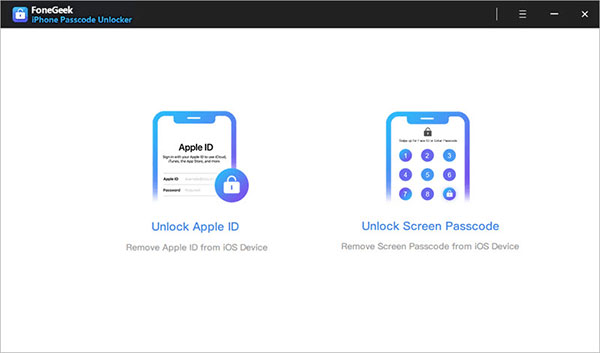
FoneGeek iPhone Passcode Unlocker is a desktop software tool that helps remove screen locks and Apple ID restrictions from iPhones and iPads. It can bypass passcodes such as 4-digit, 6-digit, Face ID, and Touch ID when a device is locked or disabled. The program also works through a computer connection by using recovery or DFU mode to reinstall firmware and regain access to the device.
Section 2: FoneGeek iPhone Passcode Unlocker - Core Functions
This tool is often used when users need to regain access to an iPhone or remove restrictions that block normal device use. The table below offers its core features to give a clear view of what FoneGeek iPhone Passcode Unlocker can do:
|
Core Function
|
Description
|
|
Screen passcode removal |
Removes iPhone/iPad lock screens including 4-digit, 6-digit, Face ID, Touch ID, and alphanumeric passcodes to regain access. |
|
Apple ID removal |
Deletes the existing Apple ID from a device without requiring the password, allowing setup of a new account. |
|
Screen Time passcode bypass |
Removes or resets Screen Time restrictions when the passcode is forgotten or unavailable. |
|
MDM removal |
Bypasses Mobile Device Management profiles so users can regain full control of the device. |
|
Disabled device recovery |
Unlocks disabled iPhones by restoring access through system repair and firmware reinstall. |
|
iOS system unlocking process |
Uses recovery or DFU mode on a computer to reinstall firmware and complete the unlock procedure. |
|
Wide device compatibility |
Supports multiple iPhone and iPad models across various iOS versions, including newer releases. |
Section 3: FoneGeek iPhone Passcode Unlocker - Safety & Pricing
Safety:
- The software is generally considered safe to install and run on Windows or Mac systems, with no common reports of malware in typical reviews.
- It works through Recovery Mode or DFU Mode, using Apple's firmware restore process during unlocking.
- The operation is carried out on a computer, which helps keep the process controlled and stable.
- Data loss can occur after unlocking, since the device is often restored to factory settings.
- It is recommended only for use on devices you legally own, to avoid misuse or policy issues.
Pricing:
- 1-Month Plan - around $23.95 (Windows)/about $45.95 (Mac) for short-term use.
- 1-Year Plan - around $33.95 (Windows)/about $49.95 (Mac) for extended access.
- Lifetime Plan - around $45.95 (Windows)/about $59.95 (Mac) for permanent use on supported devices.
- Standard vs Full Toolkit tiers - higher bundles may increase the price (up to about $89.95) depending on added features and license scope.
Section 4: Can I Download FoneGeek iPhone Passcode Unlocker Crack
No, downloading a cracked version of FoneGeek iPhone Passcode Unlocker is not safe or recommended. Cracked software often contains malware, spyware, or hidden scripts that can damage your computer or steal personal data. It also violates software licensing rules and can lead to legal and security risks. If you need the tool, it is safer to use the official version from the developer to avoid these problems.
To get a 20% discount on FoneGeek iPhone Passcode Unlocker, you can usually apply a special coupon code shown in promotional sections of review articles. In this case, the code mentioned is UNLOCKCODES20, which is entered during checkout to reduce the price. After applying it, the total cost will automatically update before payment is completed. Make sure the offer is still valid on the official checkout page before purchasing.
Section 5: How to Use FoneGeek iPhone Passcode Unlocker
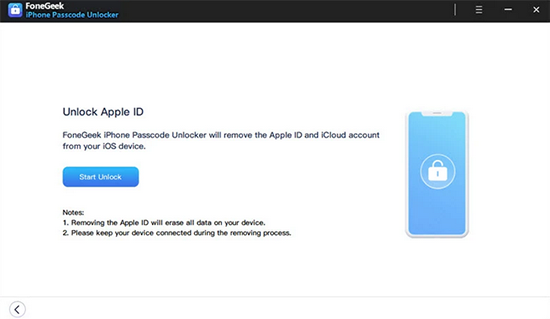
The FoneGeek iPhone Passcode Unlocker provides a guided process that helps users regain access to locked iPhones through a computer-based setup. The steps below outline how to use the tool from installation to completing the unlock process (Let's assume you're to unlock your Apple account on your iPhone):
- Install and launch FoneGeek iPhone Passcode Unlocker on a computer, then choose the required mode such as "Unlock Screen Passcode" or "Unlock Apple ID".
- Connect the iPhone or iPad to the computer using a USB cable and follow prompts to trust the device if required.
- Put the device into Recovery Mode or DFU Mode according to the on-screen instructions so it can be detected properly.
- Download the matching firmware package shown by the software for your device model and iOS version.
- Click Start Unlock to begin removing the passcode, then wait until the process completes and the device restarts.
Section 6: FoneGeek iPhone Passcode Unlocker - Pros and Cons
Pros
- It provides an easy way to remove screen passcodes, including 4-digit, 6-digit, Face ID, and Touch ID locks, helping users regain access to locked devices.
- The tool can bypass Apple ID, Screen Time, and MDM restrictions, giving broader device control in one software package.
- It works through a computer-based recovery or DFU mode process, which makes the unlocking procedure structured and guided.
- Many user reviews highlight a simple interface and fast operation when the device is properly recognized.
Cons
- The unlocking process often results in data loss, since the device is typically restored during the procedure.
- Some users report device detection or compatibility issues, where the software may not recognize certain iPhones or iOS versions.
- It is a paid tool with no fully free version, which may be a limitation for casual users.
- Customer feedback is mixed, with some complaints about refund handling or unsuccessful unlocking attempts in certain cases.
Section 7: Best FoneGeek iPhone Passcode Unlocker Replacement
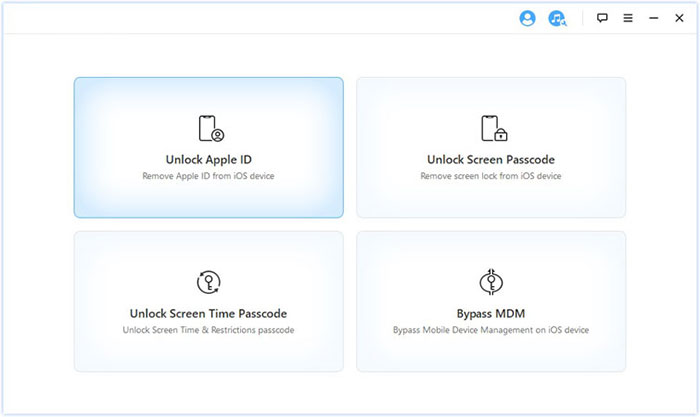
A desktop unlocking tool like iOS Lock Wiper is often used to remove different types of iOS locks such as screen passcodes, Apple ID restrictions, and Screen Time limits through a guided computer process. Its structure allows users to switch between multiple unlocking modules, which makes handling different lock situations more flexible.
Compared with FoneGeek iPhone Passcode Unlocker, it is commonly seen as more capable in complex scenarios due to broader function coverage and stronger device support:
|
iOS Lock Wiper - Core Function
|
Description
|
|
Screen passcode removal |
Unlocks 4/6-digit passcodes, Face ID, and Touch ID locks on iPhone and iPad devices. |
|
Apple ID unlocking |
Removes existing Apple ID so the device can be set up with a new account. |
|
Screen Time removal |
Clears Screen Time passcodes even when the password is forgotten. |
|
MDM bypass |
Removes Mobile Device Management restrictions from supervised devices. |
|
Activation lock help |
Bypasses Activation Lock in limited supported situations. |
|
Wide compatibility |
Supports many iPhone and iPad models and iOS versions, including newer iPhone series (iPhone 17 included). |
|
High success rate |
Maintains a relatively high unlock success rate when devices meet supported conditions. |


How to unlock an iPhone using iOS Lock Wiper (using screen unlocking as an example).
- Download and install iOS Lock Wiper, then launch the program and choose the "Unlock Screen Passcode" option from the main interface.
- Connect your iPhone to the computer via a USB cable, and then click Start to allow the software to recognize your device.
- Verify and confirm the details of your device; if necessary, adhere to the on-screen prompts to enter Recovery Mode or DFU Mode for accurate detection.
- Download the appropriate firmware package provided by the tool and wait for the verification process to complete.
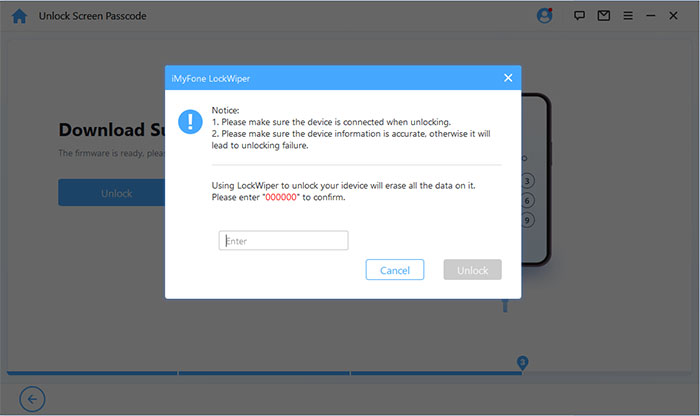
- Input the required confirmation code (typically "000000") and click Unlock to initiate the removal of the screen lock.
- Ensure the device remains connected throughout the process; once completed, your iPhone will reboot without the passcode and can be reconfigured.
In a Nutshell
After this full FoneGeek iPhone Passcode Unlocker review, the verdict is clear: FoneGeek works for basic passcode removal, but iOS Lock Wiper is the better alternative. Lock Wiper offers a higher success rate, supports more lock types (Apple ID, MDM, Screen Time), and provides a smoother, three-step process. You pay more, but you get reliability.
Related Articles:
BLU FRP Bypass: 6 Wise Tactics to Bypass Google FRP Lock on BLU
Apeaksoft iOS Unlocker Reviews: Is It Worth Investing in?
How to Recover Data from iPhone after Factory Reset? 3 Solutions Are Here!
[Answered] Do I Need to Back Up My iPhone? How to Back Up Your iPhone?
