
FRP Bypass Tool by Mohammed Ali Review: Detailed Explanation
Factory Reset Protection (FRP) can prevent access to an Android device after a reset, leaving many users searching for a reliable way to regain control. The FRP Bypass Tool by Mohammed Ali allows users to bypass FRP without rooting the device, making it a practical choice for situations where other official or paid FRP tools fail to work on certain models or Android versions.
This article provides a comprehensive FRP Bypass Tool by Mohammed Ali review, covering its key features, compatibility, usage guidance, and more.
- Part 1: What Is FRP Bypass Tool by Mohammed Ali
- Part 2: FRP Bypass Tool by Mohammed - Pricing & Security
- Part 3: How to Download & Use FRP Bypass Tool by Mohammed
- Part 4: How to Fix FRP Bypass Tool Ali by Mohammed Not Working
- Part 5: FAQs for FRP Bypass Tool by Mohammed Ali
- Part 6: FRP Bypass Tool by Mohammed Ali - Pros & Cons
- Part 7: Best FRP Bypass Tool by Mohammed Alternative [Higher Success Rate]
Part 1: What Is FRP Bypass Tool by Mohammed Ali
The FRP Bypass Tool by Mohammed is an unofficial Windows utility used to remove Google Factory Reset Protection (FRP) locks on Android devices when users forget their Google account details. It mainly works by connecting the phone to a PC and using methods like MTP or ADB to access system settings and bypass the lock. However, its success depends on the device model and Android version, and it may not work on newer, more secure systems.
Key Features:
- FRP removal function - Helps bypass Google FRP lock on Android devices after reset.
- MTP/ADB support - Uses MTP or ADB connections to interact with the device.
- App-based access - Installs helper apps to reach hidden system settings.
- Permission access - Enables temporary admin-level access during the process.
- Limited compatibility - Works mainly on older Android versions and some Samsung devices.
You Might Also Need: Android USB Debugging Enabled But the Detection Failed? 11 Fixes
Part 2: FRP Bypass Tool by Mohammed - Pricing & Security
The FRP Bypass Tool by Mohammed is often discussed for being freely available, but its pricing structure and security aspects are not as straightforward as official software. The table below highlights its cost model and key security considerations to give a clearer overview.
|
Category
|
Details
|
|
Pricing |
Generally listed as a free tool with no official subscription or licensing fee. It is often distributed through third-party websites rather than an official vendor page. |
|
Security - File safety |
Download files are frequently flagged by antivirus software or browser protection systems as potentially unsafe or unknown software. |
|
Security - Source reliability |
No official website or verified developer distribution channel, making authenticity difficult to confirm. |
|
Security - System risk |
Users are often advised to disable antivirus temporarily during installation, which increases exposure risk. |
|
Security - Update support |
Limited or no official updates; compatibility may degrade on newer Android versions and security patches. |
Part 3: How to Download & Use FRP Bypass Tool by Mohammed Ali
Bypassing FRP on a Samsung/Android device using Mohammed Ali requires a few straightforward steps that connect your phone to a PC and run the bypass process. The list below summarizes the essential actions to download, set up, and execute the tool successfully. Here's the user guide:
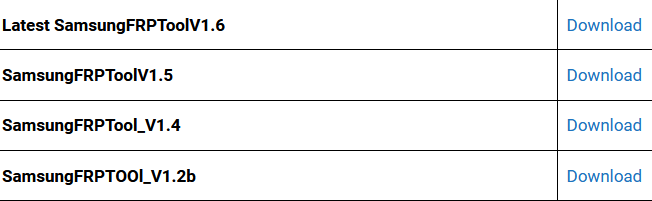
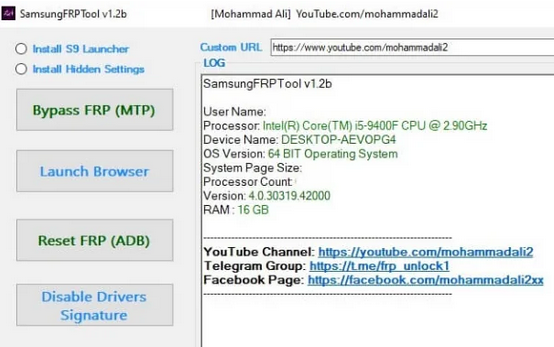
- Download the Samsung FRP Bypass Tool by Mohammad Ali from a trusted site like bypassfrpfiles.com.
- Extract and run the tool as Administrator on a Windows PC; install Samsung USB drivers if prompted.
- Connect your phone via USB and set it to MTP mode if needed.
- Select the FRP bypass option in the tool (e.g., MTP bypass, ADB, or helper app installation).
- Start the bypass process and follow any on-screen instructions.
- Restart your device and complete setup without FRP verification.
Part 4: How to Fix FRP Bypass Tool by Mohammed Ali Not Working
If the FRP Bypass Tool by Mohammed is not working, it is usually due to compatibility or setup issues rather than a single error. Here are the most effective fixes:
- Check Android version compatibility - The tool often fails on Android 13-16 because newer security patches block older bypass methods.
- Reinstall and use the latest version - Old or corrupted tool files can cause crashes or failed FRP detection, so downloading the newest available build may help.
- Disable antivirus or Windows Defender temporarily - Security software may block the tool or delete required files during setup.
- Use the correct connection mode (MTP/ADB) - The tool requires proper USB drivers and the right mode; incorrect setup often causes failure.
- Try a different method if it still fails - Many bypass methods get patched, so switching to an updated PC-based FRP tool is often necessary.
Part 5: FAQs for FRP Bypass Tool by Mohammed Ali
Q1. Which devices does it support?
It mainly works on older Samsung devices and some Android phones running earlier versions like Android 5 to 12.
Q2. Why is the tool not working on my device?
It may fail due to newer Android security patches, incorrect USB drivers, or outdated tool versions.
Q3. Is the internet required during the process?
In most cases, a stable connection is needed for driver installation or app downloads during the bypass process.
Q4. Does it require ADB or USB debugging?
Yes, many methods used by the tool rely on ADB or enabling USB debugging through connected steps.
Q5. Is installation complicated?
The process involves multiple steps like installing drivers, connecting via USB, and running scripts, which can be technical for beginners.
Q6. Does it erase data on the device?
It does not directly erase data, but FRP bypass usually applies after a factory reset where data is already removed.
Part 6: FRP Bypass Tool by Mohammed - Pros & Cons
Advantages:
- Free to use - No official payment required for basic features.
- Simple interface - Easy for beginners with basic steps.
- Multi-brand support - Works with several Android brands like Samsung, Huawei, and Xiaomi (mainly older models).
- No root required - Can operate without rooting the device.
- Quick FRP bypass process - Designed for fast unlocking on compatible devices.
Disadvantages:
- Limited Android support - Often fails on Android 11 and above.
- No official developer support - No verified website or customer service.
- Inconsistent success rate - Works only on certain devices and versions.
- Outdated tool design - The interface and methods are not updated regularly.
- Compatibility issues after updates - New security patches can block its function.
Part 7: Best FRP Bypass Tool by Mohammed Alternative [Higher Success Rate]
For Android users struggling with FRP locks, Android Lock Wiper offers a reliable solution that can bypass Google account verification quickly. It provides step-by-step guidance and supports a wide range of devices, making it a practical alternative to the FRP Bypass Tool by Mohammed. Its interface is user-friendly, and it can also handle other screen locks, giving users more flexibility in device recovery.
|
Android Lock Wiper - Core Features
|
Main Details
|
|
FRP Lock Removal |
Bypasses Google account verification on most Android devices without original credentials. |
|
Wide Device Support |
Works with Samsung, Huawei, Xiaomi, and many other Android brands. |
|
Screen Lock Removal |
Unlocks PINs, patterns, passwords, and fingerprint locks. |
|
Step-by-Step Guidance |
Provides clear instructions for each device and Android version. |
|
High Android Compatibility |
Supports newer Android versions that the Mohammed tool may fail on. |
|
User-Friendly Interface |
Simple design suitable for beginners while offering advanced functions. |
How-to Guide:
- Start by downloading and installing the phone unlocking software on your computer.
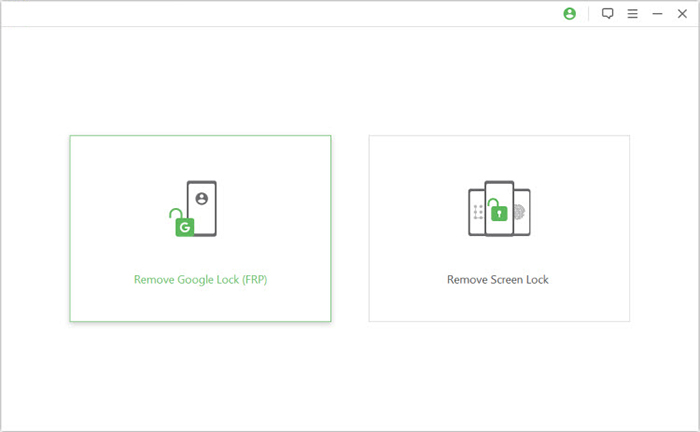
- Once installed, select "Remove Google Lock (FRP)" and then choose "Advanced Mode."
- Use a USB cable to connect your Android device to the computer, and click the "Start" button to begin removing the Google lock.
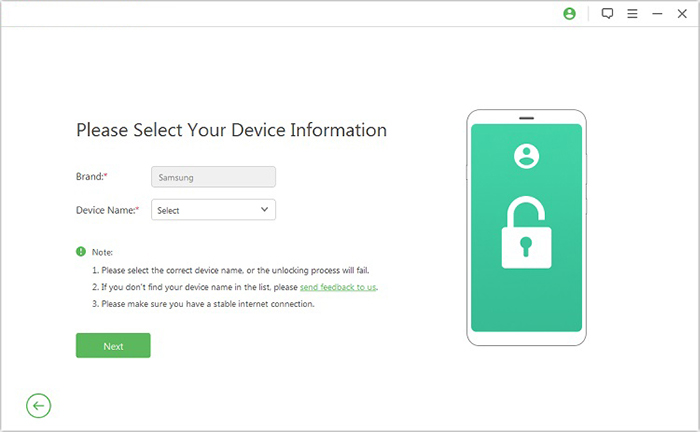
- When prompted, enter your device information and click "Next."
- Follow the on-screen instructions to boot it into recovery mode.
- On the next screen, select the correct PDA, country, and carrier settings, then click "Download" to retrieve the required data package.
- Click "Start to Extract" and follow the prompts to put your device into Download Mode.
- Then, enable USB debugging, activate OEM unlock, extract the firmware, and complete any other necessary steps.

Closing Remarks
The FRP Bypass Tool by Mohammed Ali can simplify regaining access to locked devices, especially older Android models that struggle with newer official methods. For a more reliable user experience with a higher success rate, try Android Lock Wiper. Before use, please ensure your device is fully charged before attempting the bypass to avoid interruptions.
Related Articles:
UnlockJunky Review: Is UnlockJunky Reliable for FRP Removal?
BLU FRP Bypass: 6 Wise Tactics to Bypass Google FRP Lock on BLU
How to Recover Contacts from Broken Phone? 5 Hassle-free Solutions
How to Unlock Android Phone without Password? 7 Latest Approaches
