
Qualcomm FRP Tool: Overview, Features, Use, Pros, Cons, FAQs, etc
When Android users forget their Google account credentials or purchase second-hand devices that are FRP-locked, regaining access can be a real challenge. Many turn to specialized software for help. This Qualcomm FRP Tool review explores how the tool works, its capabilities, and what users can expect when attempting to bypass FRP locks on Qualcomm-powered devices.
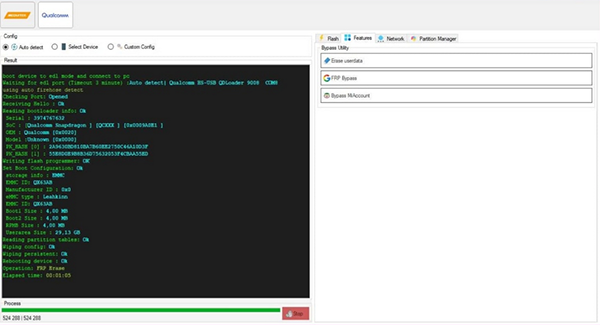
Part 1: What Is Qualcomm FRP Tool
Qualcomm FRP Tool is a software solution designed to bypass Google's Factory Reset Protection on Android devices with Qualcomm chipsets. It allows users to regain access to their devices when locked out due to forgotten Google credentials. The tool is widely used in scenarios where standard account recovery methods fail.
You May Also Need: UnlockJunky Review: Is UnlockJunky Reliable for FRP Removal?
Part 2: Qualcomm FRP Tool: Key Features & Supported Devices
Qualcomm FRP Tool offers a range of powerful functions that make bypassing Google FRP locks on Android devices simple and secure. The table below highlights its main features and how they benefit users during the unlocking process.
|
Characteristics
|
Key Details
|
|
Bypass FRP |
Easily remove Google FRP lock from Android devices |
|
User-Friendly |
Simple interface, suitable for non-technical users |
|
Fast Process |
Quickly unlock FRP without long waiting times |
|
Secure |
Ensures stable and safe FRP removal |
|
Multiple Modes |
Supports different FRP removal methods |
|
Wide Compatibility |
Works with many Qualcomm-based Android devices |
|
No Data Loss |
Unlocks certain FRP without affecting personal data |
|
Offline Operation |
Can perform FRP removal without an internet connection |
Supported Smartphones:
Samsung
- Galaxy S series (e.g., S10, S20, S21, S22, S23)
- Galaxy Note series (e.g., Note 10, Note 20)
- Galaxy A series (e.g., A30, A50, A70, A80, A90)
- Galaxy M series (e.g., M20, M30, M40)
OPPO
- Reno series (e.g., Reno4, Reno5, Reno6)
- Find series (e.g., Find X2, Find X3)
- A series (e.g., A53, A74, A96)
vivo
- V series (e.g., V21, V23)
- Y series (e.g., Y20, Y21, Y33)
- X series (e.g., X60, X70)
Xiaomi/Redmi/Poco
- Mi/Xiaomi series (e.g., Mi 10, Mi 11, Mi 12)
- Redmi series (e.g., Redmi Note 9, Note 10, Note 11)
- Poco series (e.g., Poco X3, Poco F4)
Lenovo
- K series (e.g., K12, K13)
- Z series (e.g., Z6, Z5 Pro)
Other Android devices with Qualcomm chipsets.
- Devices from brands like realme, Asus, OnePlus, Motorola, and more.
More to Explore: BLU FRP Bypass: 6 Wise Tactics to Bypass Google FRP Lock on BLU
Part 3: How to Use Qualcomm FRP Tool
Bypassing Google FRP on Qualcomm-based Android devices can be straightforward with the right tool and guidance. The following steps outline how to download, install, and use Qualcomm FRP Tool to safely remove FRP locks. (NOTE: Always back up important data before using FRP removal tools, and ensure your computer has the necessary Qualcomm USB drivers installed for proper device detection.)
Step 1: Download Qualcomm FRP Tool
- Go to a trusted source from here.
- Click the Download button.
- Save the .exe setup file to your computer.
Step 2: Install the Tool
- Double-click the downloaded setup file to start installation.
- Follow the on-screen instructions to complete installation.
- Launch UltFone Qualcomm FRP Tool once installation finishes.
Step 3: Prepare Your Android Device
- Power off your phone.
- Enter EDL mode (Emergency Download Mode). This can vary depending on the phone brand; usually it involves pressing a combination of Volume Up + Volume Down + Power or using a test point.
- Connect your phone to the computer via USB.
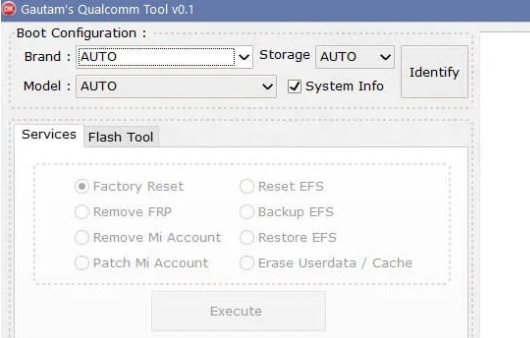
Step 4: Bypass FRP
- Once the tool detects your device, it will display device information.
- Click Start or Remove FRP to begin the bypass process.
- Wait for the operation to complete; the phone may automatically restart.
Step 5: Finish and Verify
- Disconnect the device from the computer.
- Power it on and check if the Google FRP lock has been removed.
- You can now set up the device without needing the previous Google account.
This software supports many recent Android versions, but very new releases may not be fully compatible until the tool is updated. Moreover, bypassing FRP may be considered tampering by manufacturers, which could void the device's warranty.
Part 4: Qualcomm FRP Tool: Pros and Cons
Qualcomm FRP Tool offers several advantages for users needing to bypass Google FRP locks on Android devices. The table below highlights its main pros and cons to help you evaluate its effectiveness and limitations.
|
Why We Like It
|
Why We Don't Like It
|
|
Easy and quick FRP bypass process. |
Only works on Qualcomm-based devices. |
|
User-friendly interface, suitable for non-technical users. |
Some devices may still require a factory reset. |
|
Supports multiple FRP removal modes. |
Windows version only, no Mac support. |
|
Secure |
Ensures stable and safe FRP removal |
|
Can bypass FRP without data loss on supported devices. |
Requires proper Qualcomm USB drivers for detection. |
Part 5: Best Replacement for Qualcomm FRP Tool
Android Lock Wiper offers a more versatile unlocking experience compared to Qualcomm FRP Tool, as it can remove both Google FRP locks and various screen locks like PINs, patterns, and passwords. It supports a wider range of Android devices, including those with damaged or disabled screens, making it more flexible for different scenarios.
Additionally, Lock Wiper often allows FRP removal without data loss and provides a simpler, user-friendly interface, which enhances convenience and reliability.
Main Features of Android Lock Wiper:
- Remove Google FRP lock without a password.
- Bypass screen locks including PIN, pattern, password, and fingerprint.
- Unlock Samsung (no data loss) and other Android devices quickly and safely.
- Works even if the device is disabled or broken.
- User-friendly interface suitable for non-technical users.
- Provides a fast and stable unlocking process.
- Supports Android devices running Android 6.0 and above.
How-to Guide:
Step 1: Install and Prepare
- Begin by downloading and installing the phone unlocking software on your computer.
- After installation, select "Remove Google Lock (FRP)" and opt for "Advanced Mode."
- Connect your cell phone to the computer using a USB cable.

Step 2: Set Device Modes and Inputs
- Click the "Start" button to initiate the process.
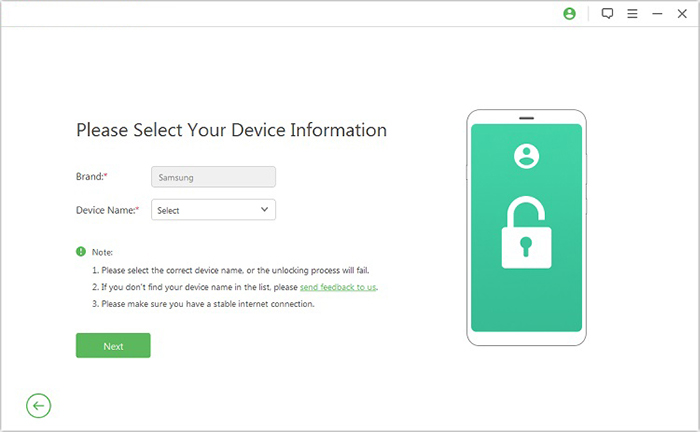
- Follow the prompts to input your device information, then click "Next."
- Continue with the on-screen instructions to place your phone into Recovery Mode.
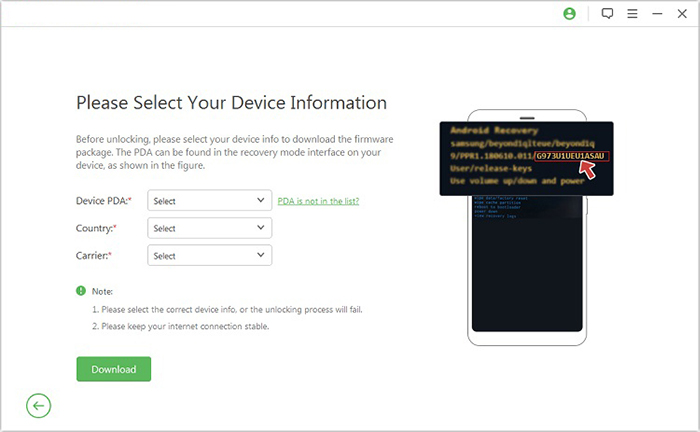
- On the subsequent screen, select the correct PDA, country, and carrier.
- Tap "Download" to acquire the necessary data package, then click "Start to Extract" and follow instructions to set your device in Download Mode.
Step 3: Enable Settings and Unlock
- Enable USB debugging and activate OEM unlock on your device.
- Extract the firmware and complete any additional required steps.
- Once completed, the program will commence the unlocking of the FRP lock.
FAQs for Qualcomm FRP Tool
Q1. Is Qualcomm FRP Tool free?
The tool usually offers a free trial with limited functions, but full features require a paid version. It offers a free trial with limited features, while full functionality requires a paid license. Prices typically range from around $29.95 for a single PC license to $99.95 for a lifetime or multi-PC license, depending on the provider.
Q2. Do I need special drivers to use Qualcomm FRP Tool?
Yes, Qualcomm USB drivers must be installed for the tool to detect and communicate with your device.
Q3. How long does it take to bypass FRP using this tool?
The process is usually fast, often taking a few minutes, depending on the device and connection speed.
Q4. Can I use Qualcomm FRP Tool if my device is locked or disabled?
Yes, the tool is specifically designed to bypass Google FRP even if you cannot access the device normally.
Q5. Is it safe to use Qualcomm FRP Tool?
Yes, it is generally stable and secure, but it's recommended to back up important data before use.
Q6. What if Qualcomm FRP Tool fails to work?
If Qualcomm FRP Tool fails to work, it may be due to device incompatibility, missing Qualcomm drivers, or a newer Android version not supported by the tool. In such cases, you can try updating the tool, reinstalling drivers, or using an alternative FRP bypass solution. If all else fails, seeking professional service or using another reputable FRP removal tool is recommended.
Related Articles:
12 Easy Solutions to 3uTools Virtual Location Not Working [Proven]
Top 11 Android Flashing Software for PC/Mac You Wish You'd Known Sooner
5 Tactics to Recover Formatted Data from Android Phone with/without Backup
How to Switch Android Phones without Trouble? 6 Ways & Some Helpful Tips
