
SamFw FRP Tool Review: Main Performance & 1 Alternative
"Anyone heard about SamFw FRP Tool? I saw a video where it all worked flawlessly to remove an FRP lock. It seems a bit fishy tho." -- from Reddit
In this SamFw FRP Tool review, we will help you understand whether the software is effective and safe for bypassing FRP on Samsung devices. The article covers the tool's pros and cons, compatibility, ease of use, potential risks, and more, giving you a clear picture before deciding to download or use it.
- Key reminders before starting an FRP bypass:
- FRP protects your phone after a factory reset.
- Bypassing FRP may break policies or void the warranty.
- Data won't be restored automatically afterward.
- Updates may block certain bypass methods.
- You may still need Wi-Fi and a Google account.
- Methods vary by brand and Android version.
- Back up any data you can before starting.
Disclaimer: This passage is intended for legal purposes only and should not be used to bypass security protections on devices you do not own or have permission to access. The information provided is for educational and informational use, and we do not encourage the misuse of FRP bypass tools. Users are responsible for ensuring compliance with local laws, carrier policies, and device warranties.
Part 1: SamFw FRP Tool: Overview & Core Features
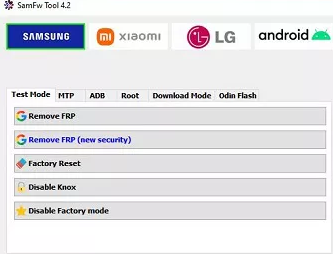
SamFw FRP Tool is a Windows-based utility designed to help users remove Google's Factory Reset Protection (FRP) lock from Samsung Android devices. It can also perform additional functions like factory reset, ADB activation, and some device maintenance tasks. This tool is mainly used when a user is locked out after a reset and needs to regain access to their own device.
|
Features
|
Main Details
|
|
FRP Bypass |
Removes Google Factory Reset Protection (FRP) lock on Samsung/Xiaomi/LG devices. |
|
ADB Activation |
Enables ADB mode without full device setup. |
|
Factory Reset |
Allows users to reset Samsung devices directly. |
|
CSC Change |
Lets users modify Country/Carrier CSC settings. |
|
Remove Bloatware |
Uninstalls pre-installed apps from Samsung phones. |
|
Knox Info Check |
Displays Knox security status and device info. |
|
One-Click Operations |
Performs many tasks with simple, automated commands. |
Part 2: SamFw FRP Tool: Download & Install
- Visit the official SamFw website to find the latest information, downloads, and update details for SamFw FRP Tool. For security, always confirm the file's digital signature or checksum before installing any third-party utility. The tool currently supports Windows 7/8/10/11 (64-bit only).
- For release details, you can check the official blog post for SamFw Tool v4.9, which explains the newest features and fixes.
- Older versions such as v4.7.1, v4.1, v3.2, and v2.7.1 have been removed from the official site for several years. Although some of these builds may still be hosted on Android File Host, which is a legitimate Android file-hosting platform, it's still recommended to use the latest v4.9 for the best stability and compatibility.
- To install the tool, download the SamFw Tool ZIP file to your Windows PC, extract the content, then right-click the installer (.exe) file and choose "Run as Administrator." Follow the prompts to complete the setup.
Part 3: SamFw FRP Tool: How to Use
- Charge your Samsung phone to at least 50%.
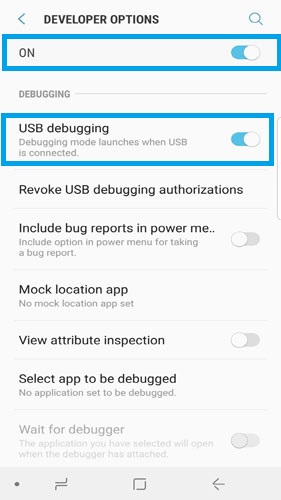
- Enable USB Debugging if possible (SamFw may help enable it automatically).
- Install the official Samsung USB driver on your PC.
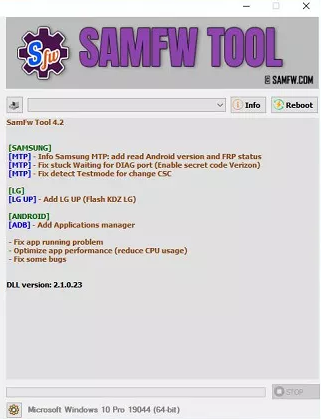
- Launch SamFw FRP Tool on your Windows computer.
- Connect your Samsung phone to the PC via USB.
- Wait for the tool to detect your device.
- On the phone's Welcome screen, tap Emergency Call and dial #0# to enter Test Mode.
- Make sure the device is connected to Wi-Fi or mobile data.
- Select your connected device in the tool.
- Click "Remove FRP" in the main menu.
- Accept any USB debugging prompts on the phone.
- Wait while the tool removes FRP and reboots the phone.
- After the restart, set up the device with a new Google account.
Part 4: SamFw FRP Tool: Common Bug Fixes
If you encounter issues with SamFw FRP Tool not working, it can be frustrating and confusing, especially when trying to unlock your Samsung device. The following solutions will help you troubleshoot common problems and ensure a smoother FRP bypass process.
- Ensure Samsung USB drivers are properly installed and up to date.
- Use a high-quality USB cable and connect directly to the PC (avoid hubs).
- Run the tool as Administrator to prevent permission errors.
- Make sure the phone has at least 50% battery before starting.
- Reboot the device and try again if it isn't detected by the tool.
- Check that the phone is connected to Wi-Fi or mobile data when required.
- Update to the latest SamFw FRP Tool version (v4.9) for improved stability.
- Disable any antivirus or firewall temporarily if the tool is blocked.
- Retry entering Test Mode correctly using the emergency call code
- Restart the PC if the tool crashes or freezes during operation.
Part 5: SamFw FRP Tool: FAQs
Q1: Is SamFw FRP Tool safe to use?
Yes, it is generally safe if downloaded from the official SamFw website. To ensure security, always verify the digital signature or checksum before installation to avoid tampered or malicious files.
Q2: Can I use older versions of SamFw Tool?
Older versions like v4.7.1, v4.1, v3.2, and v2.7.1 are no longer hosted on the official website. While some may be found on safe platforms like Android File Host, it's recommended to use the latest v4.9 for stability and better performance.
Q3: Is it legal to use SamFw FRP Tool?
Using SamFw FRP Tool is legal only on devices you own or have permission to access. Bypassing FRP on phones that don't belong to you or without authorization is considered illegal and may result in legal consequences.
Q4: How long does it take to bypass FRP with SamFw FRP Tool?
The time varies depending on the device model and Android version but typically takes 5–15 minutes. Complex devices or older models may take slightly longer.
Part 6: SamFw FRP Tool: Advantages & Disadvantages
The following table highlights the main advantages and disadvantages of using SamFw FRP Tool, helping you weigh its benefits against potential drawbacks. This overview provides a quick reference for users considering the tool for Samsung FRP removal and device maintenance:
|
Pros
|
Cons
|
|
Supports a wide range of Samsung devices and Android versions. |
Only works on Samsung phones and tablets, not other brands. |
|
One-click operations simplify FRP removal and maintenance tasks. |
Bypassing FRP may void warranty or violate policies. |
|
Can help enable USB Debugging automatically if not active. |
Older versions are no longer officially supported. |
|
Includes extra features like CSC change and Knox info check. |
Some operations may fail on devices with newer security updates. |
|
Easy to install and compatible with Windows 7/8/10/11 (64-bit). |
Requires basic technical knowledge for safe operation. |
|
Freely available from official sources and safe if verified. |
The Internet connection may be needed for certain operations. |
Part 7: What Could Be Better than SamFw FRP Tool
SamFw FRP Tool is not recommended for all users because it mainly works on Samsung devices and may fail on phones with the latest security updates, posing risks of incomplete bypass or errors. It can also void warranties and requires careful handling, making it less beginner-friendly.
As a safer alternative, Android Lock Wiper supports a wider range of Android brands and provides a more reliable, user-friendly FRP bypass process. Additionally, LockWiper minimizes risks of device errors and data loss, offering a smoother and more professional solution for unlocking Android devices.
Why Choose Android Lock Wiper?
|
Feature/Advantage
|
Android Lock Wiper
|
SamFw FRP Tool
|
|
FRP Removal
|
Works on Samsung & other Android brands. |
Not well compatible with Xiaomi (Mainly for Samsung) |
|
Screen Lock Removal
|
Removes password, PIN, pattern, fingerprint, face. |
Not available. |
|
Data Preservation
|
Can unlock without data loss on some devices. |
No data-preservation option. |
|
User-Friendliness
|
Simple interface, beginner-friendly. |
Requires technical steps. |
|
Auto Detection
|
Detects device profile automatically. |
No auto detection. |
|
Extra Functions
|
Factory reset & screen unlock included. |
Only FRP & basic maintenance. |
Next, download Android Lock Wiper securely and adhere to the steps to learn how it works:

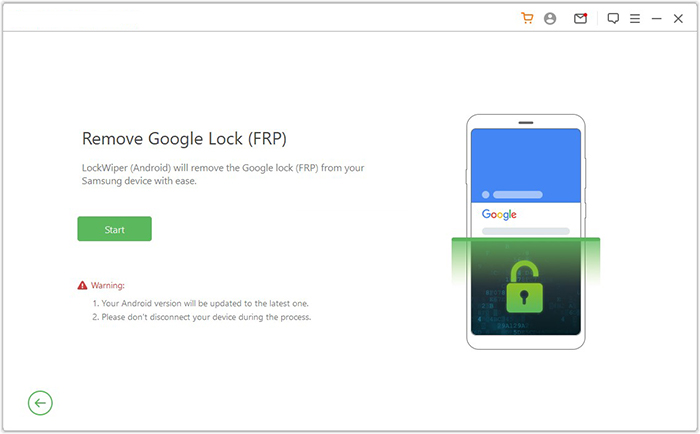
Step 1. Begin the procedure by downloading and installing the software on your computer. Choose 'Remove Google Lock (FRP)' and opt for 'Advanced Mode.' Connect your phone to the PC using a USB cable, then click 'Start.' It is recommended to back up your phone to avoid any possible data loss during the unlocking process.
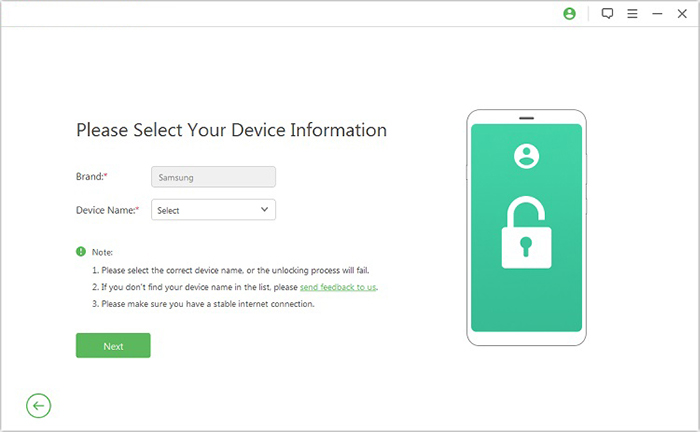
Step 2. Adhere to the instructions to provide the required information about your device and click 'Next.' Make sure to follow the on-screen prompts to enter recovery mode.
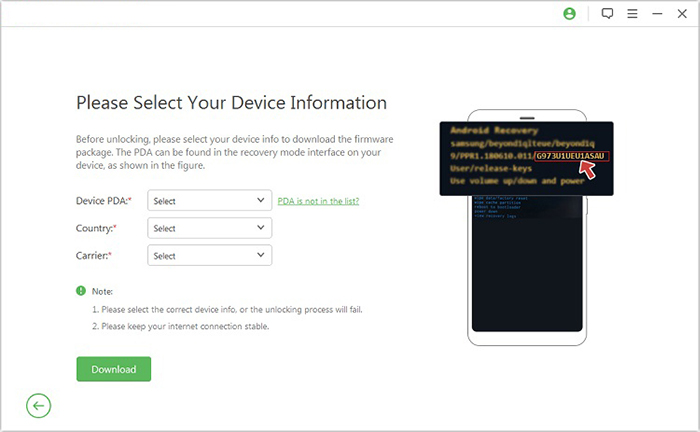
Step 3. On the following screen, select the correct PDA, country, and carrier, then click 'Download' to retrieve the necessary data package.
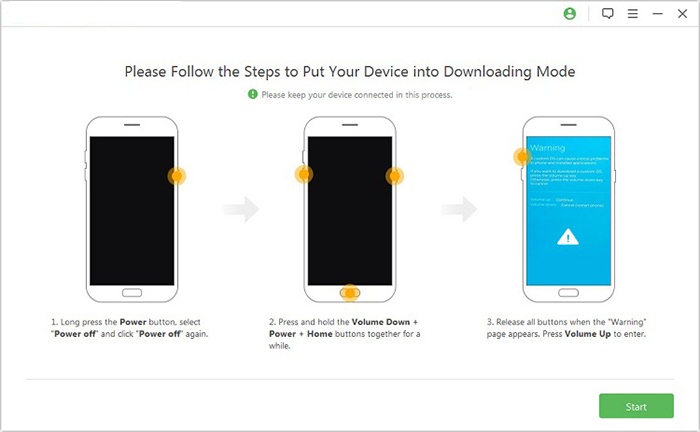
Step 4. Subsequently, click 'Start to Extract' and follow the on-screen instructions to put your device into Download Mode, enable USB debugging, activate OEM unlock, and extract the firmware, among other essential tasks. Ultimately, the software will initiate the FRP unlocking process.
Calling It a Wrap
While SamFw FRP Tool can handle Samsung FRP removal, its limitations, device restrictions, and occasional glitches make it less versatile. Want a smoother, more reliable experience across multiple Android brands with additional unlock options? Android Lock Wiper proves to be the smarter and safer choice - unlocking your device without the guesswork.
Related Articles:
5 Verified Ways: How to Recover Data after Factory Reset on Samsung
How to Transfer Data from Old to New Samsung? 7 Widely-used Means
Samsung Pattern Unlock Master Code: Overview, Use, Pros, Cons, & Plan B/C
Top 8 Samsung Device Managers You Wish You Knew Sooner [Latest]
