
Top 4 Best TCL FRP Bypass Solutions You Should Never Miss
TL;DR:
The TCL FRP lock commonly appears after a factory reset, especially on second-hand devices or due to system glitches, but multiple bypass methods exist - ranging from custom recovery and MediaTek tools to Google Lens workarounds. Among these, Android Lock Wiper offers a time-tested, user-friendly solution that automatically removes the Google account lock on many TCL models without requiring prior credentials.
FRP lock on TCL devices often appears right after a reset, especially when the original Google account is no longer available or remembered. Many users run into this situation with second-hand TCL phones that still have the previous owner's FRP (Factory Reset Protection) enabled, or when system glitches or account sync issues can trigger FRP unexpectedly during setup.
This guide looks into TCL FRP bypass in a practical way and introduces 5 stress-free ways for TCL FRP bypass to help users regain access without unnecessary complications.
Part 1: How to Perform TCL FRP Bypass via Android Lock Wiper [Time-tested]
So here's the deal with Android Lock Wiper: This tool gets you back into your phone when you're locked out, whether it's a PIN, pattern, or that annoying Google FRP wall. And yeah, for TCL phones, it says you can skip the FRP thing without needing any old password or prep work - it just kicks the Google account off automatically.
But here's the catch: TCL isn't on their official "yes, this works" list, so don't be too shocked if it flops depending on your model or Android version.
|
Android Lock Wiper - Feature
|
Details
|
|
Screen Unlock |
Remove PIN, pattern, password, fingerprint (data may be erased) |
|
Data Security |
Keep data when removing screen lock (Samsung devices) |
|
FRP Bypass |
Remove Google account lock from various mobile phones |
|
TCL FRP Support |
Work for TCL K70 NXTPAPER, K70 XE, NXTPAPER 70 Pro, Note A1 NXTPAPER, TCL 8298, NXTPAPER 60 Ultra, NextPaper 5G Junior, TCL 60 5G, TCL 605, TCL 60 SE, etc. |
|
Compatibility |
8,000+ devices, Android 6 and up |
|
OS Requirement |
Windows only (7-11) |
|
Prerequistes |
None |
Best FRP bypass tool free download:

How to bypass TCL FRP lock with Android Lock Wiper?
Step 1: Setup and Preparation - Download and install the software, then select "Remove Google Lock (FRP)" > "Advanced Mode." Connect your TCL phone via USB, click "Start," and back up your device to avoid data loss.
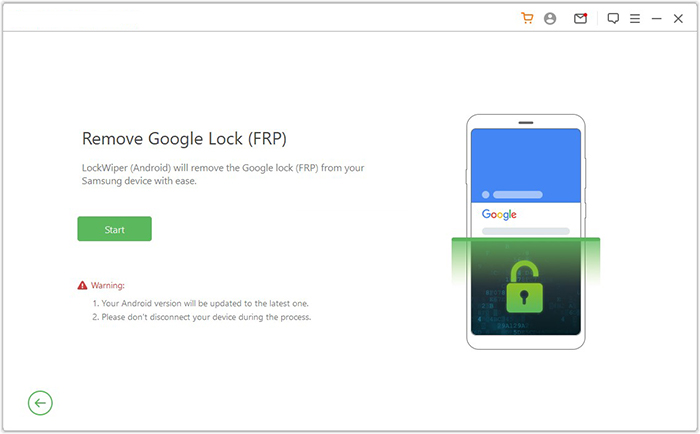
Step 2: Enter Device Info and Obtain Data Package - Follow prompts to enter phone details, access recovery mode, and select the correct PDA, country, and carrier. Click "Download" to get the data package, then extract it and put your device into Download Mode as instructed.
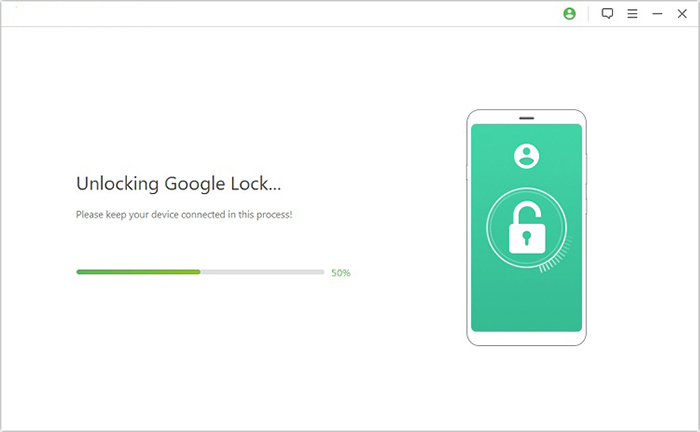
Step 3: Execute FRP Unlock - Enable USB debugging and OEM unlock, extract the firmware, and complete remaining critical tasks. The software will then instantly unlock FRP on TCL.
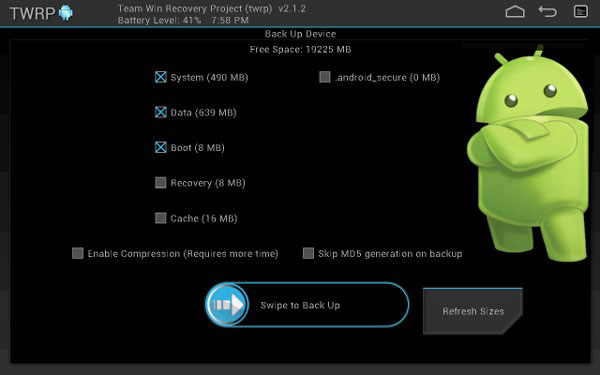
Part 2: How to Bypass TCL FRP Lock Using Custom Recovery
Requirements:
- Unlocked bootloader (in most cases).
- A compatible custom recovery installed (such as TWRP).
- A PC with ADB/Fastboot tools and USB drivers installed.
- Firmware or FRP bypass ZIP file compatible with the TCL model.
How-to Guide:
- Turn on the TCL phone and go to Settings > About Phone.
- Tap Build Number 7 times to enable Developer Options.
- Go back to Settings > Developer Options.
- Enable USB Debugging.
- On a PC, download and install ADB & Fastboot tools.
- Download a compatible TWRP (Custom Recovery) image for your TCL model.
- Move the TWRP .img file into the ADB/Fastboot folder.
- Connect the TCL phone to the PC via a USB cable.
- Open Command Prompt inside the ADB folder.
- Run adb devices.
- Run adb reboot bootloader.
- Flash custom recovery by typing fastboot flash recovery twrp.img.
- Replace twrp.img with the actual file name.
- Reboot the device using fastboot reboot.
- The phone boots into TWRP recovery mode.
- From recovery, FRP verification may be bypassed or removed depending on the device.
Part 3: How to Bypass TCL Google FRP via Mediatek FRP Bypass
Requirements:
- TCL device powered by a MediaTek (MTK) chipset.
- A Windows PC with MTK USB drivers installed.
- Tools such as SP Flash Tool or MTK FRP bypass utility.
- USB cable and ability to enter Brom/Download mode.
How-to Guide:
- Prepare a Windows PC, USB cable, and install MTK USB drivers.
- Disable antivirus temporarily if it blocks the FRP tool (common behavior).
- Download and extract the Mediatek FRP Bypass Tool.
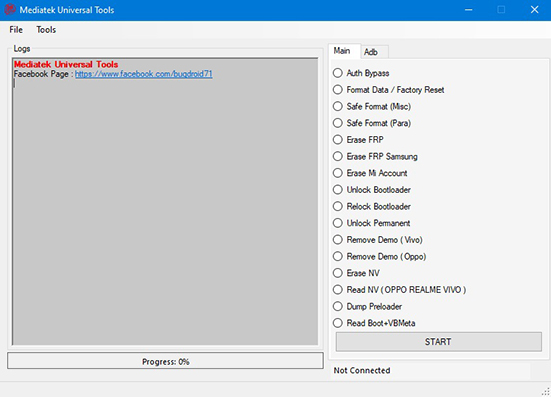
- Open the tool by running Mediatek Universal Tools.exe.
- Install required drivers inside the tool (e.g., USBDk drivers), then reboot the PC.
- Launch the tool again after reboot.
- Select "Erase FRP" or a similar option and click Start.
- Power off the TCL phone completely.
- Press and hold Volume Up + Volume Down (or just Volume Up).
- While holding the button(s), connect the phone to the PC via USB.
- Wait for the tool to detect the device and begin the FRP removal process.
- Once you see a success message, disconnect the phone.
- Turn on the phone and complete setup without Google verification.
Part 4: How to Bypass FRP Lock on TCL Using Google Lens
Requirements:
- Access to a Wi-Fi connection during the setup screen.
- A second device (phone/tablet) with Google Lens installed.
- Ability to open a workaround link or assistant shortcut from the setup screen.
- This method usually works only on older Android versions due to security patches.
How-to Guide:
- Connect the TCL phone to Wi-Fi.
- Open a shareable app (e.g., Google Maps > Share > Messages).
- Type a URL (like www.youtube.com) in the message field.
- Take a screenshot (Power + Volume Down).
- Open the screenshot preview.
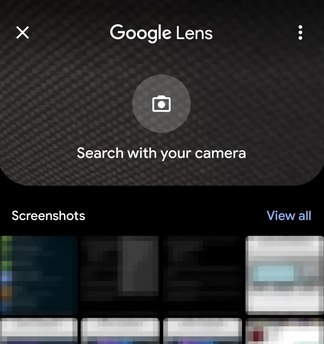
- Tap Share > Google Lens.
- In Google Lens, tap the 3-dot menu.
- Select "Search image in Chrome" to open the browser.
- In Chrome, download and install an FRP bypass APK.
- Open Settings via the APK and add a new Google account to bypass FRP.
Q&A about TCL FRP Bypass
Q1. Why does TCL FRP appear?
It appears after a factory reset if the previous Google account was not removed before resetting the device.
Q2. Why do Google account sync issues trigger FRP?
Sync failures or account errors during setup can sometimes incorrectly trigger FRP verification.
Q3. Does a factory reset remove FRP lock on TCL?
No, FRP remains active even after a factory reset if the Google account is still linked.
Q4. Does TCL FRP bypass delete data?
Yes, most bypass methods or tools involve resetting or modifying system data, which can erase user data.
Q5. Is FRP bypass legal?
It is only legal if you are unlocking your own device or have permission from the owner.
Q6. Why do most FRP bypass videos stop working?
Because Google frequently updates Android security patches that block TalkBack, Lens, and APK-based bypass methods.
Q7. What should I do if all FRP methods fail?
Use official Google account recovery or visit a TCL service center with proof of ownership.
Q8. What is the most reliable TCL FRP bypass method?
Among user-friendly tools, Android Lock Wiper is widely regarded as one of the most efficient and reliable solutions for TCL FRP bypass, offering a guided process that avoids most manual exploits and works across many TCL models.
Related Articles:
5 Tactics to Recover Formatted Data from Android Phone with/without Backup
How to Unlock Alcatel Phone Successfully? 5 Easy Approaches
How to Enable USB Debugging & Developer Options on TCL Phones
Top 6 Ways to Transfer WhatsApp Messages to New Phone (iOS/Android)
