
Compare Apeaksoft Phone Mirror vs. SecondScreen: Which Is Better?
When searching for "Apeaksoft Phone Mirror vs SecondScreen", individuals usually want to find out which tool suits their needs better. Although both are related to screen display and mirroring, they serve different purposes. Without a clear understanding, users may become confused.
In fact, if you misinterpret what each tool does, you might download the wrong one and waste time or money. This is why we compare Apeaksoft Phone Mirror vs SecondScreen in this article.
- 1: Apeaksoft Phone Mirror vs SecondScreen - Intro & Features
- 2: Apeaksoft Phone Mirror vs. SecondScreen - Platforms & Security
- 3: Apeaksoft Phone Mirror vs. SecondScreen - Pricing & Support
- 4: Apeaksoft Phone Mirror vs. SecondScreen - Ratings & Best for
- 5: Apeaksoft Phone Mirror vs. SecondScreen - Pros & Cons
- 6: Apeaksoft Phone Mirror vs. SecondScreen - A Better Alternative
1: Apeaksoft Phone Mirror vs SecondScreen - Intro & Features
Apeaksoft Phone Mirror is a desktop application that lets you mirror your iPhone or Android screen to a Windows or Mac computer in real time, so you can view, control, and interact with your mobile device on a larger display without noticeable lag. It also supports screen recording, taking screenshots, and controlling your phone from your computer using keyboard and mouse.
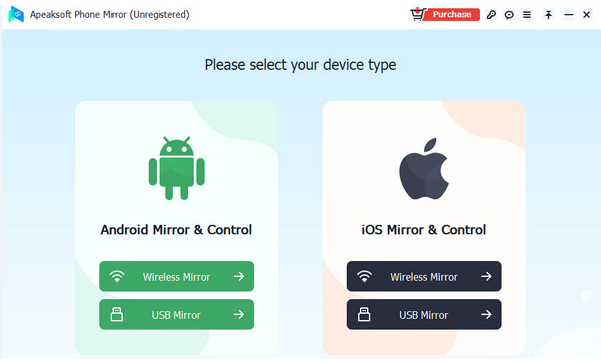
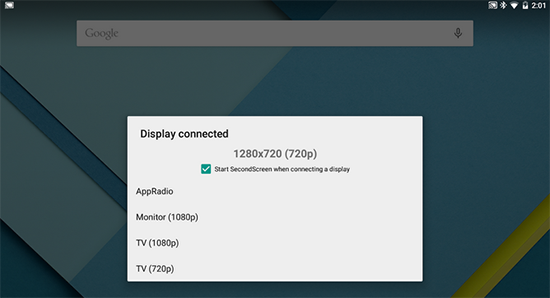
SecondScreen is an Android app for advanced users that works with external displays to optimize how your phone's screen looks and behaves when connected to a TV or monitor, letting you adjust resolution, pixel density, orientation, and other display settings to better suit the external screen.
It doesn't provide mirroring on its own but enhances your existing screen-mirroring setup and often requires root or adb permissions for deeper customization.
Main Features:
|
Feature Category
|
Apeaksoft Phone Mirror
|
SecondScreen
|
|
Screen Display Control
|
Mirrors the complete phone screen, showing actions, apps, video, etc., on the computer. |
Adjusts resolution and DPI (density) to better fit TVs, monitors, and external screens. |
|
Control/Input
|
Allows controlling your phone using the computer's mouse and keyboard. |
Doesn't provide native control of phone UI; focuses on adjusting how content scales/appears. |
|
Media Capture
|
Built-in screen recording and screenshot capture while mirroring. |
No direct screen recording/screenshot features; focused on display configuration. |
|
Connection Methods
|
Supports multiple connection options (USB, Wi-Fi with PIN/QR for Android). |
Works alongside your existing screen mirroring/casting solution; does not itself connect or mirror screens. |
|
External Display Enhancements
|
Can automatically switch orientation and play audio from the phone through the PC. |
Offers configurable display profiles, orientation lock, immersive mode, overscan adjustments, etc. |
|
Automation & Profiles
|
Basic mirroring setup without profile management. |
Profile-based interface with quick actions and automation for external display settings. |
2: Apeaksoft Phone Mirror vs. SecondScreen - Platforms & Security
When comparing tools for managing or mirroring mobile screens, it's important to understand both the platforms they support and how they handle security. The table below highlights the key differences between Apeaksoft Phone Mirror and SecondScreen in these areas.
|
Category
|
Apeaksoft Phone Mirror
|
SecondScreen
|
|
Supported Platforms
|
Mirrors from iPhone & Android devices to Windows and macOS computers. |
Works on Android devices only. |
|
Installation Scope
|
Desktop software (install on PC/Mac) + mobile connection via USB/Wi-Fi. |
Android app installed directly on the phone. |
|
Required Permissions
|
Requires granting screen capture and (for Android) accessibility/control permissions. |
Requires display, overlay, and sometimes ADB/root permissions to change external display settings. |
|
Data Transmission Security
|
Connects via USB or local Wi-Fi; screen data stays within the local network/computer connection. |
Does not transmit screen data externally — only adjusts local display settings on the Android device. |
|
Control Security
|
Controls device input through authorized computer connection; no remote internet control unless explicitly enabled by users. |
Modifies system display parameters; actions are local to the device and external display. |
3: Apeaksoft Phone Mirror vs. SecondScreen - Pricing & Support
Apeaksoft Phone Mirror - Pricing & Support
- Pricing Options: Offers paid licenses such as a quarterly plan (~$24.96) and an annual plan (~$39.96), each including access to full features for the duration of the license.
- Refund Guarantee: Includes a 7-day (quarterly) or 30-day (annual) money-back guarantee if quality issues arise.
- Support Provided: Free professional support via email (typically response within 24 hours), plus documentation/FAQ resources.
SecondScreen - Pricing & Support
- Pricing Options: Generally available as a free app with no paid licensing tier required for basic use.
- Refunds/Guarantee: As a free tool, refund/guarantee mechanisms typically do not apply.
- Support Provided: Support is limited; community-driven help (online forums, open-source discussions) is often the main resource rather than professional vendor support.
4: Apeaksoft Phone Mirror vs. SecondScreen - Ratings & Best for
User feedback and typical use cases can help determine which tool best fits your needs. The table below compares Apeaksoft Phone Mirror and SecondScreen in terms of user ratings and the scenarios they are best suited for:
|
Category
|
Apeaksoft Phone Mirror
|
SecondScreen
|
|
User Ratings
|
Not widely published in major app stores (ratings are mostly from vendor/marketing sites and individual testimonials rather than a verified public score). Users generally describe it as intuitive and effective for mirroring and control. |
~4.1–4.3 stars average user rating based on ~1,6000+ reviews on Google Play, indicating generally positive feedback from Android users. |
|
Best For
|
People who want to mirror, view, record, and control an iPhone or Android screen on a PC/Mac for presentations, media, teaching, gaming, etc. |
Android power users who want to optimize external display output (resolution/DPI) when connecting their device to TVs or monitors alongside an existing mirroring method. |
5: Apeaksoft Phone Mirror vs. SecondScreen - Pros & Cons
Apeaksoft Phone Mirror - Pros:
- Lets you mirror and control your phone screen on a computer in real time.
- Includes screen recording and screenshot capture features during mirroring.
- Works with both iPhone and Android devices.
Apeaksoft Phone Mirror - Cons:
- Requires a desktop app installation and a connection setup (USB/Wi-Fi).
- Feature set is focused on mirroring, not on customizing display output.
- Ratings aren't as visible in major public app stores, so widespread feedback may be limited.
SecondScreen - Pros:
- Provides fine control over external display settings like resolution and DPI.
- Simple and lightweight Android app designed for external display optimization.
- No paid license required for basic use.
SecondScreen - Cons:
- Doesn't mirror or control your device screen by itself.
- Advanced features may require ADB commands or root access on Android.
- Support is largely community-based, not professional vendor support.
6: Apeaksoft Phone Mirror vs. SecondScreen - A Better Alternative
You can cast and control your iPhone or Android device on a Windows PC or Mac with high-quality, lag-free display and full mouse/keyboard input using Screen Mirror. Its features like full-screen mirroring, keyboard mapping, and screen recording make it a strong alternative to Apeaksoft Phone Mirror and SecondScree for presentations, gaming, or remote device control.
Moreover, simple setup along with support for both USB and Wi-Fi connections provides an accessible option for everyday mirroring and device management tasks.
Screen Mirror - Core Features:
- Cross-platform mirroring: Mirror iOS and Android screens to Windows and Mac in HD with smooth performance.
- PC control: Operate your phone using a keyboard and mouse for easier typing, gaming, and navigation.
- Multiple connections: Support for USB, Wi-Fi, and QR code for flexible setup.
- Screen capture: Record videos and take screenshots directly on your computer.
- File transfer & annotation: Share files and mark up the screen for demos or tutorials.
- Live streaming support: Stream phone screens to meeting and social platforms in real time.


Why It's a Strong Alternative?
- Enhanced control: Offers full interaction instead of basic screen display.
- All-in-one tools: Combines mirroring, recording, and annotation in one program.
- Flexible use: Works well in both wired and wireless environments.
How to cast your phone to a PC or Mac with Screen Mirror?
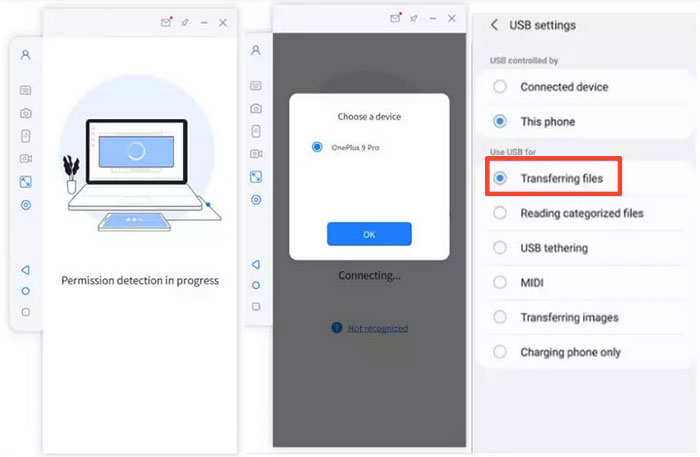
- Install Screen Mirror on your computer, connect your Android phone via USB, select your device, and choose "Transfer files." (How can I screen mirror my iPhone to my PC?)
- Go to Settings > About phone > Software information, tap Build number to enable Developer Options, then turn on USB debugging and tap OK when prompted.
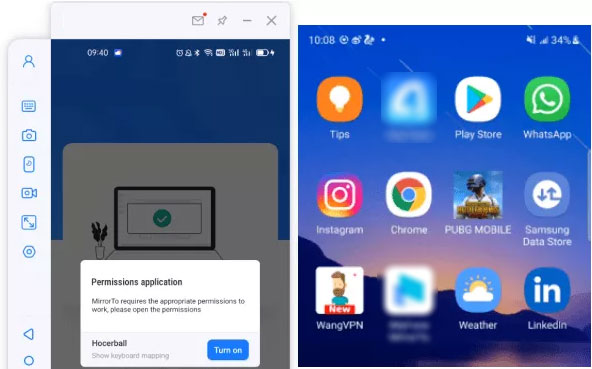
- Grant the required permissions and tap "Turn on" to let the app download the Screen Mirror APK automatically.
- After setup, your phone screen will be mirrored on your PC, and you can control it using your keyboard and mouse.
Wrap It Up
After comparing these two tools, it is clear that both have limitations in flexibility and ease of use. For users who want a more stable and convenient solution, Screen Mirror is often a better alternative. It supports both Android and iOS, offers smooth mirroring through USB or Wi-Fi, and provides simple control from a computer.
Instead of dealing with restricted features, picking this program can help you enjoy a more reliable and efficient screen-sharing experience.
Related Articles:
5 Tested Ways to Recover Deleted Screen Recording Video on Android
Apeaksoft iPhone Data Recovery Review: Is Apeaksoft Worth Buying?
Apeaksoft Android Data Recovery Review: Is It Advisable? [Fixed]
Fix "Android Touch Screen Not Working - Can't Unlock" Issues in 12 Methods
