
10 Best OneDrive Alternatives You Should Never Miss [Rewarding]
TL;DR:
OneDrive's limited free storage, privacy concerns, compatibility issues, and sync problems drive users to seek alternatives. The top options range from local backup tools like MobiKin Assistant for Android to cloud services like Google Drive, Dropbox, and privacy-focused platforms like Sync.com and Internxt.
The best choice depends on your priorities - whether you need local control, collaboration features, strong encryption, or long-term value through lifetime plans.
Why Consider OneDrive Alternatives?
- Limited free storage and costly upgrades for larger space.
- Privacy and security concerns with default encryption settings.
- Compatibility issues with certain devices or non-Windows platforms
- Fewer advanced features for Android users or local device management.
- Limited flexibility in file organization and sharing options.
- Occasional sync errors or slow performance with large files.
- Need for more control over data without relying on Microsoft's ecosystem.
With these points in mind, below we will explore 10 of the best OneDrive alternatives, highlighting their features, pricing, and advantages.
Click the video below to learn this topic visually.
Top 1: Best OneDrive Alternative - MobiKin Assistant for Android
For users who need complete control over their Android data without relying on cloud storage, MobiKin Assistant for Android (Windows and Mac) provides a comprehensive solution. It allows you to export contacts, messages, media, and apps to a computer quickly and safely.
The interface is straightforward, making data management less stressful for less technical users. Compared to OneDrive, it excels in local backup reliability, especially when online syncing is inconvenient.
Main Features of MobiKin Assistant for Android:
- Back up and restore Android data locally without relying on cloud storage.
- Export contacts, messages, photos, videos, and apps in readable formats.
- One-click data transfer between Android devices and computers.
- Ability to manage contacts, SMS, phone calls, apps, media, etc., directly from a computer interface.
- Supports selective file sync, giving users control over what to back up.
- Reliable even when online syncing fails, making it a strong OneDrive alternative.
- Works with a wide range of Android devices and versions.
- Fast and secure data transfer without uploading to third-party servers.


How to Use MobiKin Assistant for Android?
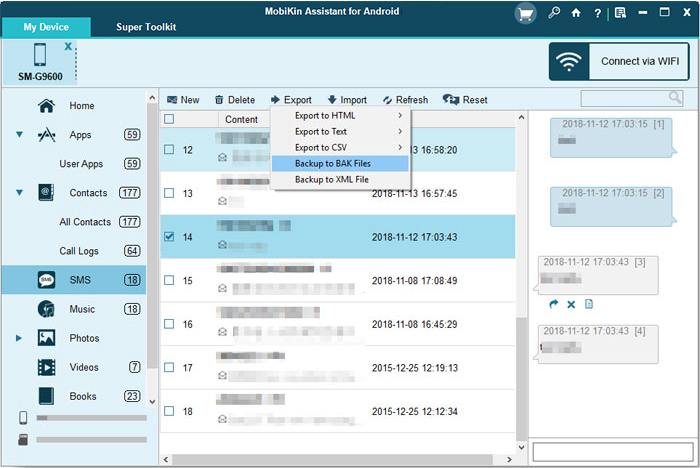
Run the software after the free download and easy installation. Then, connect your Android phone to the computer via USB, enable USB debugging, and follow the on-screen instructions to install the necessary driver. Once the program detects your phone, you can browse your data. Review the displayed phone information and select the files you want to back up, sync, transfer, manage, or even restore.
Video Guide:
Why Like It?
- Excellent for local Android backup and restore.
- Full Android data management for contacts, SMS, apps, and media.
- Exports data in readable formats such as CSV and HTML.
- Supports one-click backup and selective data export.
- Works reliably when cloud sync fails or is unavailable.
Why Don't Like It?
- No cloud storage or online syncing.
- Requires a computer connection.
- Paid software with a limited free trial.
- No automatic background backups.
Best for:
- Users who want full control over Android data through local backups without relying on the cloud. It's ideal when you need to manage contacts, messages, apps, or media directly on a computer. A strong choice if cloud syncing is unreliable or privacy is a priority.
Top 2: Google Drive
People invested in the Google ecosystem often benefit from Google Drive, which offers seamless file synchronization across Android and desktop devices. Its integration with Docs, Sheets, and Gmail simplifies collaboration and everyday productivity.
The platform also provides flexible storage options that can scale with personal or professional needs. OneDrive alternatives like this stand out for users who want real-time collaboration and strong cross-device access.
Why Like It?
- Deep integration with Android and Google services.
- Strong collaboration and real-time editing features.
- Built-in file preview and powerful search.
- Flexible paid storage upgrade options.
Why Don't Like It?
- No default end-to-end encryption.
- Privacy concerns related to data scanning.
- Shared storage across Google services fills up quickly.
- Less control outside the Google ecosystem.
Best for:
- Users deeply invested in the Google ecosystem who need seamless syncing across Android devices. It works well for real-time collaboration, document editing, and everyday file sharing. Suitable for both personal and team productivity.
Top 3: Dropbox
Professionals seeking fast file updates and reliable version control may find Dropbox to be a practical choice. It supports block-level syncing, which ensures that only changes to files are uploaded, saving both time and bandwidth.
File sharing is straightforward, and previous versions can be recovered with minimal effort. As an alternative to OneDrive, Dropbox is ideal for users who prioritize speed and consistency over additional productivity tools.
Why Like It?
- Very fast and stable file syncing.
- Reliable version history and file recovery.
- Smart Sync helps save local storage space.
- Consistent performance across platforms.
Why Don't Like It?
- Very limited free storage.
- Paid plans are relatively expensive.
- No zero-knowledge encryption by default.
- Many advanced features require higher-tier plans.
Best for:
- Users who prioritize fast, reliable file syncing across multiple platforms. It excels in version control and sharing large files with ease. A solid option for professionals who value stability over cost.
Top 4: Amazon Drive
For those primarily archiving media and documents while staying within the Amazon ecosystem, Amazon Drive offers a simple yet effective cloud service. It is particularly convenient for backing up photos and documents on mobile devices.
Although collaboration features are limited, the platform delivers dependable storage for personal files. Compared with OneDrive, it is a no-frills alternative for users who prefer simplicity and Amazon integration.
Why Like It?
- Simple and easy-to-use interface.
- Convenient for Amazon users and photo backups.
- Works across major platforms.
- Suitable for basic file archiving.
Why Don't Like It?
- Weak collaboration and sharing tools.
- Limited third-party integrations.
- Not ideal for productivity or team workflows.
- Heavily tied to the Amazon ecosystem.
Best for:
- Amazon users looking for simple cloud storage and photo backups. It suits basic archiving needs rather than advanced collaboration. Ideal for users who want a straightforward, no-frills solution.
Top 5: SecureCloud
Security-conscious users often turn to SecureCloud, which emphasizes encryption and data protection. Files stored here are safeguarded against unauthorized access, making it suitable for sensitive or confidential material.
While productivity and collaboration options are limited, the service prioritizes safety and compliance. As a OneDrive alternative, it excels where privacy and strong security matter most.
Why Like It?
- Strong emphasis on security and encryption.
- Suitable for storing sensitive or confidential files.
- Often complies with strict security standards.
- Lower risk of unauthorized data access.
Why Don't Like It?
- Fewer productivity and collaboration features.
- User experience varies by provider.
- Smaller free storage offerings.
- Mobile apps may feel less polished.
Best for:
- Individuals or organizations handling sensitive or confidential data. Its focus on encryption and compliance makes it suitable for secure file storage. However, it's less ideal for productivity-heavy workflows.
Top 6: Nextcloud
Users seeking full control of their cloud storage can rely on Nextcloud, a self-hosted platform that puts ownership and customization first. Extensive plugins and extensions allow the service to adapt to individual workflows.
Although technical knowledge is required for setup and maintenance, the flexibility it provides is unmatched. Compared with OneDrive, Nextcloud is ideal for those who want autonomy and enhanced privacy.
Why Like It?
- Full control over data through self-hosting.
- Strong privacy with no vendor lock-in.
- Highly customizable with plugins and extensions.
- Open-source with active community support.
Why Don't Like It?
- Requires technical knowledge to set up.
- Ongoing maintenance and updates are the user's responsibility.
- Performance depends on server quality.
- Setup can be time-consuming.
Best for:
- Users who want complete ownership and control of their data through self-hosting. It's well suited for privacy-conscious users or teams with technical expertise. Ideal when customization and data sovereignty matter most.
Top 7: pCloud
Individuals who prefer long-term value in cloud storage often benefit from pCloud, which offers lifetime plans in addition to regular subscriptions. Media streaming and cross-device access are handled efficiently, making file retrieval simple.
The interface is clean and easy to navigate, even for beginners. This makes pCloud a compelling OneDrive alternative for users looking for durable and flexible storage.
Why Like It?
- Lifetime storage plans are available.
- Fast syncing and media streaming.
- Allows file access without full local sync.
- Multiple server regions improve performance.
Why Don't Like It?
- Advanced encryption requires extra payment.
- Privacy features are not enabled by default.
- Interface may feel less intuitive for beginners.
Best for:
- Users seeking long-term cloud storage value, especially with lifetime plans. It's a good fit for media storage, backups, and cross-device access. Works well for users who want flexibility without self-hosting.
Top 8: Internxt
Those prioritizing privacy-first design will find Internxt to be a strong contender. With built-in zero-knowledge encryption, files are accessible only to the user. While collaboration features are minimal, the platform ensures that sensitive data remains secure. As an alternative to OneDrive, Internxt is particularly suitable for personal storage and confidential backups.
Why Like It?
- Built-in zero-knowledge encryption.
- Strong privacy-first design.
- Open-source approach improves transparency.
- A solid OneDrive alternative for privacy-focused users.
Why Don't Like It?
- Limited collaboration and sharing tools.
- Interface still feels less mature.
- Slower feature rollout than major competitors.
- Fewer integrations with productivity apps.
Best for:
- Users who put privacy and zero-knowledge encryption first. It's a strong OneDrive alternative if data protection is more important than collaboration features. Suitable for personal use and secure backups.
Top 9: ShareFile
Enterprises or professionals needing secure file management benefit from ShareFile, which offers detailed permission settings and compliance tools. Large files can be transferred reliably, and client portals improve workflow efficiency.
Despite being more expensive than typical personal cloud solutions, the security and control justify the cost. Compared with OneDrive, ShareFile shines in business environments where file integrity and permissions are critical.
Why Like It?
- Enterprise-grade security and compliance.
- Advanced permission and access controls.
- Reliable large-file transfers.
- Well suited for business environments.
Why Don't Like It?
- Expensive for personal users.
- Interface can feel complex.
- Overkill for basic cloud storage needs.
- Not beginner-friendly.
Best for:
- Businesses and enterprises that need secure file sharing and compliance controls. It supports client portals, permissions, and large file transfers. Not designed for casual or personal storage use.
Top 10: Sync.com
Users who want privacy-focused cloud storage without sacrificing basic convenience often prefer Sync.com. Zero-knowledge encryption ensures that files are private, while version history provides simple recovery options.
Its interface is user-friendly, though real-time collaboration is limited. This makes Sync.com a viable OneDrive alternative for those seeking secure, dependable, and private cloud storage.
Why Like It?
- Zero-knowledge encryption on all plans.
- Strong privacy and data protection.
- File recovery and version history included.
- A strong privacy-focused OneDrive alternative.
Why Don't Like It?
- Slower sync speeds than some competitors.
- Limited third-party integrations.
- No real-time document collaboration.
- Fewer built-in productivity tools.
Best for:
- Users who want maximum privacy with built-in encryption and simple cloud storage. It's a solid OneDrive alternative for storing confidential files. Best suited for users who don't rely heavily on real-time collaboration.
How to Pick a Suitable OneDrive Alternative?
- Primary use case (backup, sync, or sensitive file storage).
- Cloud vs local backup (online sync vs offline device backup).
- Privacy and security (encryption level, zero-knowledge options).
- Collaboration features (real-time editing, file sharing).
- Storage size (free tier limits and paid upgrade options).
- Platform compatibility (Windows, Android, macOS, iOS).
- Ease of use (simple interface vs technical setup).
- Advanced features (version history, data management, media streaming).
When choosing an alternative to OneDrive, understanding the pricing plans can also help you balance features, storage, and budget. Below is a quick reference table showing the entry-level and personal plans of the 10 tools we discussed.
|
Tools
|
Pricing Plans
|
|
MobiKin Assistant for Android |
Free trial; one-time purchase license (Windows/Mac software) - 1 Year: $29.95, Lifetime: $39.95. |
|
Google Drive (Google One) |
Free: 15 GB; Paid: $1.99/mo (100 GB), $2.99–$9.99/mo (200 GB–2 TB). |
|
Dropbox |
Free: 2 GB; Paid: $9.99/mo (2 TB). |
|
Amazon Drive |
Free tier included with some Amazon accounts; paid plans vary and are often bundled with Amazon subscriptions. |
|
SecureCloud |
Varies by provider; monthly or annual plans for encrypted file hosting. |
|
Nextcloud |
Free for self-hosting; Enterprise hosted plans start around €67.89/user/year. |
|
pCloud |
Free: 10 GB; Paid annual: $49.99/yr (500 GB), $99.99/yr (2 TB); Lifetime plans available. |
|
Internxt |
Free tier available; Lifetime plans: $135 (1 TB), $285 (3 TB), $435 (5 TB); also annual subscriptions. |
|
ShareFile |
No free personal plan; business plans start at $17.60–$27.50/user/month. |
|
Sync.com |
Free: 5 GB; Paid: $8/mo (2 TB), $20/mo (6 TB). |
Related Articles:
Dropbox vs. Google Drive vs. OneDrive - Which Is the Best?
Full Guide: How to Back Up Files to OneDrive for Android/iPhone?
