
How to Transfer Text Messages from Redmi to Computer? 5 Easy Solutions
TL;DR:
To ensure your Redmi text messages are safely preserved for legal, financial, or personal records, you can choose from five reliable methods, with dedicated software like MobiKin Assistant for Android offering the most flexible export options, while cloud services and web-based tools provide convenient but more limited viewing or manual copying capabilities.
For the best balance of security and accessibility, regularly back up your SMS using a trusted method that suits your needs, and organize your saved conversations to make retrieving important information quick and effortless.
"I have a Redmi smartphone running Android 16 OS. Currently, I'm trying to transfer dozens of text messages from my phone to my computer so I can print them on my Windows 11 PC. How can I do this?" -- from Google Help
Keeping a record of conversations has become more important than ever, especially when you need SMS as proof for legal, financial, or official matters. Many Redmi users also prefer archiving messages on a larger screen for easier access and organization.
This article will show you how to transfer text messages from Redmi to computer using five reliable methods, helping you safeguard your messages and preserve them for future reference.
- Way 1: Transfer Text Messages from Redmi to Computer via MobiKin Program [Flexible]
- Way 2: Copy Text Messages from Redmi to PC via Mi Cloud/Local Backup
- Way 3: Export SMS from Redmi to Computer Using Microsoft Phone Link
- Way 4: Transfer Text Messages from Redmi to PC via Google Messages for Web
- Way 5: Copy Text Messages from Redmi Phone to Computer via Google Backup
- FAQs about Transferring Text Messages from Redmi to PC
Let the video below guide you as you learn the topic through visuals.
Way 1: Transfer Text Messages from Redmi to Computer via MobiKin Program [Flexible]
Transferring important SMS from a Redmi phone to a computer becomes effortless with MobiKin Assistant for Android (Windows and Mac). The software provides a clear interface that lets you preview all messages before export, ensuring nothing is missed.
Users can save conversations in multiple formats, such as HTML or TXT, making them easy to read or archive. Its fast and stable connection guarantees that even large message histories are transferred without errors or data loss.
Some Salient Features of MobiKin Assistant for Android:
- SMS Transfer - Export text messages from Redmi to PC/Mac in convenient formats.
- Backup & Restore - One-click backup and restore for messages, contacts, and media.
- Contacts & Messages Management - Edit, delete, or add directly from PC.
- Media Transfer - Move or control photos, videos, music, and documents easily.
- App Management - Install, uninstall, or export apps to PC.
- Preview Before Transfer - Check data before exporting.
- Device Compatibility - Supports 8,000+ Android phones, including Redmi Note, Redmi, K, A, and Turbo Series (includes Note 15/14/13/12, 15C/14C/13/12, 11 Prime 5G, etc.)


How to import SMS from Android to PC with MobiKin Assistant for Android?
Step 1. Once you have downloaded and installed the program on your computer, open it, and the initial interface will be displayed.
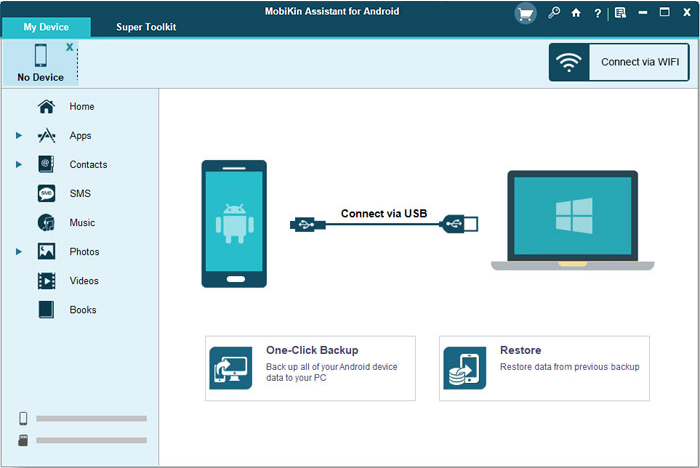
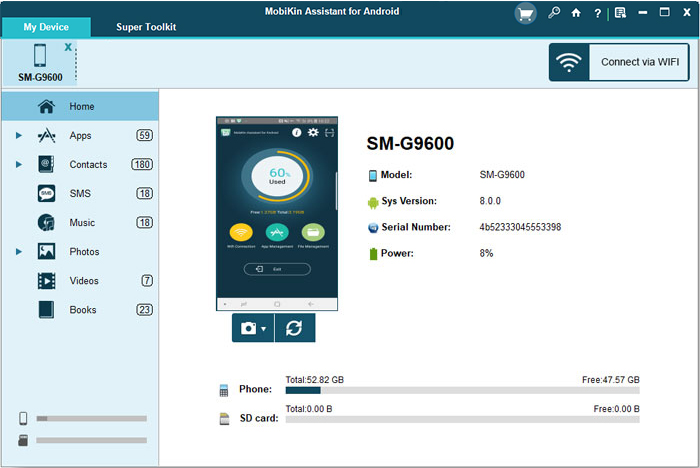
Step 2. Subsequently, connect your Redmi device to the computer using a USB cable. Adhere to the on-screen instructions to ensure that the software successfully recognizes your connected Redmi. Once it is detected, a brief overview of your phone will appear on the screen.
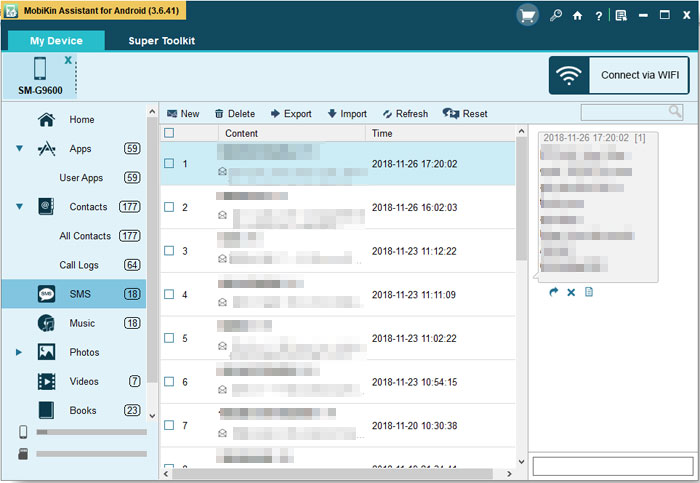
Step 3. In the left panel, select the "SMS" option. The software will commence a scan of the messages on your mobile and will provide a detailed list of all messages in the right panel. You can then easily read all your Redmi messages directly within the program.
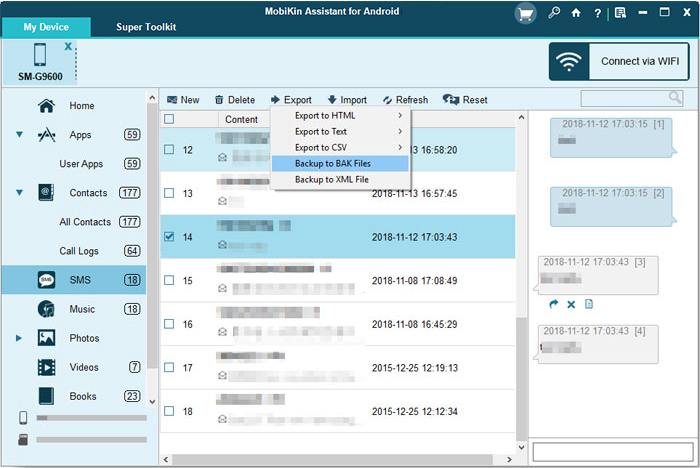
Step 4. To extract particular messages from your phone, simply choose the SMS you wish to export and click "Export" in the top menu. This action will allow you to transfer the selected SMS from your Redmi device to your computer.
Bonus: This product features a "1-click Backup & Restore" option, letting you easily back up and restore all messages on your computer in bulk. Simply connect your Android, open "Super Toolkit," select "Backup > Messages," and click "Back Up."
User Guide:
You Might Also Like: 4 Effective Practices: Transfer Text Messages from Redmi to Redmi
Way 2: Copy Text Messages from Redmi to PC via Mi Cloud/Local Backup
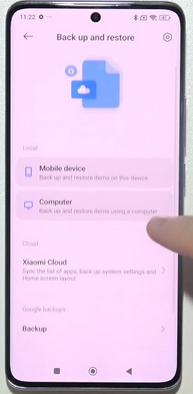
With this method, the backup contains your SMS data, but you cannot directly read the messages on a PC. You would need to restore this backup on another Xiaomi device to access the messages. What's more, when using Local Backup, you can transfer the backup folder to PC, but must restore it on another Xiaomi phone to read SMS. While using Mi Cloud, messages are viewable online, but cannot be exported directly to PC.
Option 1: Using Mi Cloud
- On your Redmi, go to Settings > Mi Account > Xiaomi Cloud.
- Turn on Messages sync and ensure your SMS is backed up to Mi Cloud.
- On your computer, open a browser and go to i.mi.com.
- Log in with the same Mi Account used on your phone.
- You can view synced messages in Mi Cloud, but like the local backup, Mi Cloud does not allow full SMS export to PC; you can only view them online.
You May Also Like: What if Mi Cloud doesn't work? Here are 9 quick fixes.
Option 2: Using Local Backup
- On your Redmi, open Settings > About phone > Backup & restore.
- Choose Local backup and create a backup of your device. This will generate a folder named MIUI-backup-AllBackup on your phone storage.
- Connect your Redmi to your computer using a USB cable.
- Copy the MIUI-backup-AllBackup folder from your phone to your computer.
More to Explore: How to Fix Black Screen on Redmi Phone? 8 Basic Ways & 1 Expert Fix
Way 3: Export SMS from Redmi to Computer Using Microsoft Phone Link
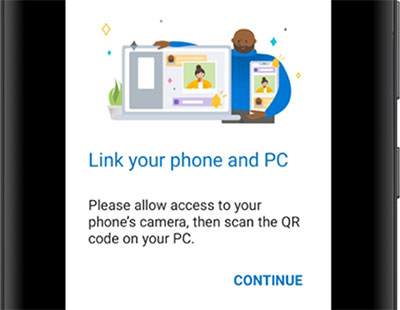
Transferring SMS from your Redmi to a computer has never been easier, thanks to Microsoft Phone Link. By connecting your phone and PC, you can view, copy, and export your text messages directly without relying on backups. Here's how it works:
- On your Redmi, go to Settings > Apps > Installed apps > Phone Link (or Link to Windows) and ensure it is enabled.
- Open the Phone Link app on your Windows PC.
- On your Redmi, open Link to Windows and scan the QR code displayed on your PC to connect the devices.
- Once connected, allow permissions on your Redmi for messages, calls, and notifications.
- On your PC in Phone Link, click Messages to see all your SMS.
- Browse the conversations, select the messages you want, then copy and paste them into a document (Word, Notepad, or Excel) for export.
- Optionally, take screenshots or use a third-party app to save the conversations as a file if you need them in a more organized format.
Way 4: Transfer Text Messages from Redmi to PC via Google Messages for Web
Google Messages for Web offers a convenient way to access your Redmi's text messages directly from a computer browser. By syncing your phone with the web interface, you can view, copy, and manage your SMS without needing a physical backup. Below is how:
- On your Redmi, open the Messages app (Google Messages).
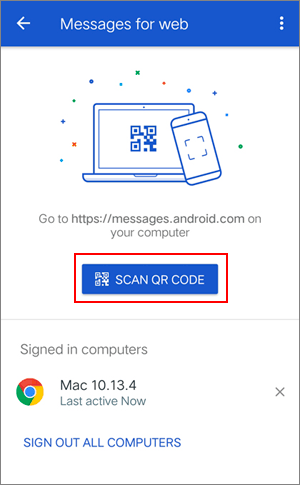
- Tap the three-dot menu in the top-right corner and select Messages for web.
- On your PC, open a browser and go to https://messages.google.com/web.
- Use your Redmi to scan the QR code displayed on the PC screen.
- Once connected, your SMS conversations will appear on the computer browser.
- Browse the conversations and copy messages to a document (Word, Notepad, or Excel) if you want to save them.
- To disconnect, tap Sign out from all computers in the Messages for web settings on your phone.
Is it possible to transfer all conversations at once? With Messages for Web, only manual conversation-by-conversation export is possible. With backup apps or PC software, you can export all messages in one file.
Way 5: Copy Text Messages from Redmi Phone to Computer via Google Backup
Google Backup provides a reliable way to save all your Redmi text messages to your Google account. By exporting this backup to your computer, you can securely access and preserve your SMS for future use. Learn how to use it:
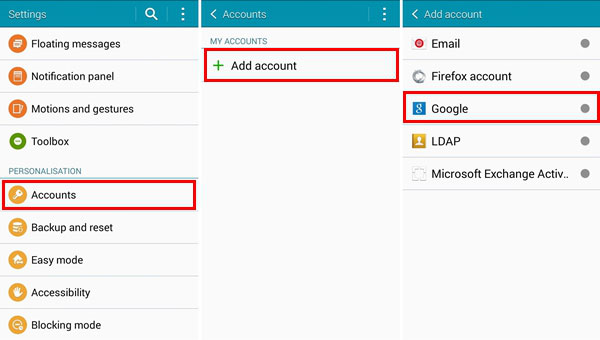
- On your Redmi, go to Settings > Accounts (Add Accounts) > Google > [Your Google Account] > Account sync.
- Make sure Messages sync is enabled so that your SMS is backed up to your Google account.
- On your computer, open a browser and go to https://takeout.google.com.
- Sign in with the same Google account used on your Redmi.
- Select Messages (or "SMS") from the list of Google data to export.
- Click Next step, choose your preferred file type and delivery method, then click Create export.
- Once the export is ready, download the file to your PC. Your backed-up SMS will be included in a .zip or .mbox format, which can be opened with compatible viewers or converted for easier reading.
NOTE: Google Backup lets you securely copy SMS to your computer, but you may need a third-party tool to read the messages in a readable format from the downloaded file.
FAQs about Transferring Text Messages from Redmi to PC
Q1. Will transferring SMS affect my messages on Redmi?
No, all methods are safe. Backup or export does not delete messages from your phone unless you manually choose to.
Q2. Is there an app to back up Redmi SMS for PC export?
Yes. Apps like SMS Backup & Restore allow you to back up messages to Google Drive or locally. You can then download the backup file to your PC.
Q3. What file formats can I get when exporting SMS from Redmi?
Using apps like SMS Backup & Restore or PC software, messages can be exported as XML, TXT, CSV, or PDF.
Q4. Can I restore Google One or Google Account SMS backup to PC?
No. Google backups are intended only for restoring to Android devices, not for viewing or exporting to PC.
Q5. Can I transfer MMS (messages with media) from Redmi to PC?
Yes, using SMS Backup & Restore or PC software. Messages with images or audio can be included in the backup file and exported.
Q6. Can I schedule SMS backups for Redmi?
Yes. Apps like SMS Backup & Restore allow automatic daily or weekly backups to Google Drive or local storage.
Q7. Why won't my PC detect my Redmi phone?
This usually happens due to missing drivers, locked screens, incorrect USB mode, or disabled USB debugging.
Q8. Can I print my Redmi text messages after transferring them?
Yes. Once exported to formats like HTML or TXT, you can open them on your PC and print them easily.
Q9. Do I need USB debugging enabled?
Most desktop tools require USB debugging so the PC can access your phone's data securely.
Q10. Is it safe to transfer SMS from Redmi to PC?
Yes, as long as you use trusted apps or PC software like MobiKin Assistant for Android. Avoid unknown third-party tools that may compromise your data.
At Last
By following these methods, you can ensure your SMS are stored safely and remain accessible whenever needed. Whether for work, personal records, or legal purposes, having a backup on your computer provides peace of mind and convenience. Finally, a side note here - Regularly back up your messages and organize them by date or contact, so finding important conversations becomes quick and effortless.
Related Articles:
5 Smart Tactics to Unlock Redmi Phone without Difficulty
How to Back Up WhatsApp Messages from Android to PC? Latest Info 2026
How to Factory Reset Redmi Phone with Minimum Effort? [4 Tactics]
How to Recover Deleted Contacts on Redmi? 4 Trustworthy Options
4 Practical Techniques to Export Redmi Contacts to Excel [2026]
