
How to Transfer Text Messages from POCO to POCO? 4 Viable Methods
A new POCO phone brings excitement, but it also raises the question of preserving old conversations. When moving to a new POCO phone, transferring messages ensures continuity without losing communication history. Users often look for reliable ways to move messages quickly and safely, and there are 4 credible methods to transfer text messages from POCO to POCO that make the process manageable in this article.
Part 1: Transfer Text Messages from POCO to POCO via Dedicated Tool
Transferring SMS between POCO phones becomes smooth when using MobiKin Transfer for Mobile (Windows/Mac), which allows direct phone-to-phone copying via USB. It completes the process quickly while keeping messages intact without relying on cloud storage.
Requirements & Considerations:
- Requires PC + USB cables + USB debugging enabled.
- Works offline and transfers SMS directly.
- Needs enough storage and battery.
- Not suitable if you don't have a computer.
MobiKin Transfer for Mobile - Key Features:
- Direct SMS transfer: Moves text messages between POCO phones without cloud backup.
- Phone-to-phone: Transfers data via USB cables directly.
- Data support: Handles SMS, contacts, call logs, photos, videos, music, and more.
- Fast & stable: USB connection reduces interruptions.
- User-friendly: Simple step-by-step interface.
- Compatibility: Supports most Android devices, including POCO C, M, X, and F Series (e.g., C75/C71, M7 Pro/M6+, X7 Pro/X6 Neo, F7 Ultra/F6 Pro, etc.).


How-to Guide:
- Install and launch the application on your computer.
- Connect your POCO smartphones to the computer using USB cables.
- Activate USB debugging on the POCO devices to guarantee accurate recognition by the software.
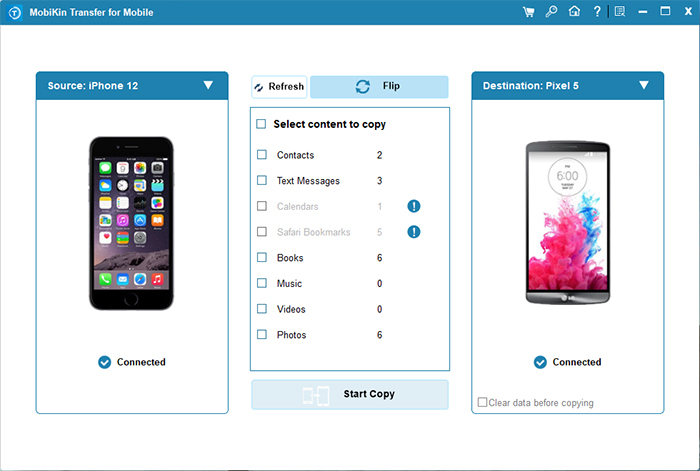
- Once the connection is established, verify that your source phone is displayed on the appropriate side of the screen, with the destination phone positioned on the opposite side.
- If necessary, click "Flip" to interchange their locations.
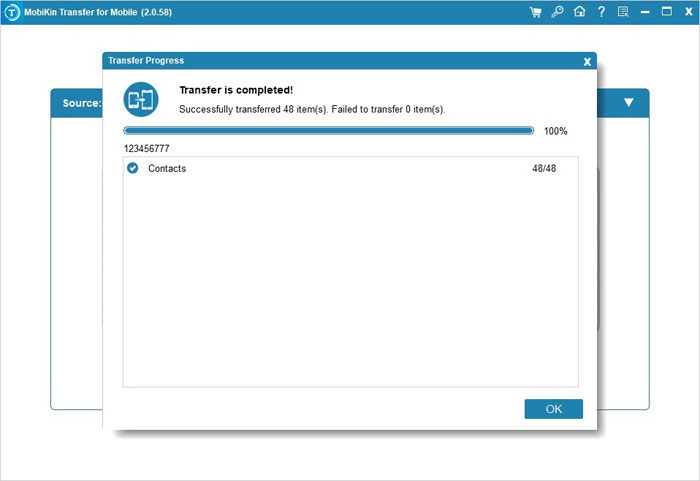
- After correctly positioning them, select Text Messages and click "Start Copy" to commence the transfer.
Cons:
- Requires a PC and USB cables, which may not be convenient for users without a computer.
- Both phones must have USB debugging enabled, which can be confusing for beginners.
- Only works with connected devices, so no cloud or remote transfer is possible.
Part 2: Transfer SMS from POCO to POCO Using Mi Mover
A fast and convenient way to move text messages locally is through Mi Mover, which establishes a connection over Wi-Fi or a hotspot. This method ensures that SMS, contacts, and media are transferred securely between POCO devices.
Requirements & Considerations:
- Both phones must support Mi Mover.
- Uses Wi-Fi direct/hotspot; no internet needed.
- Grant SMS, storage, and device permissions.
- Phones must have enough battery and storage.
- Transfers SMS, contacts, media, and apps, but not RCS/encrypted messages.
- Keep phones close, unlocked, and stable during transfer.
How-to Guide:
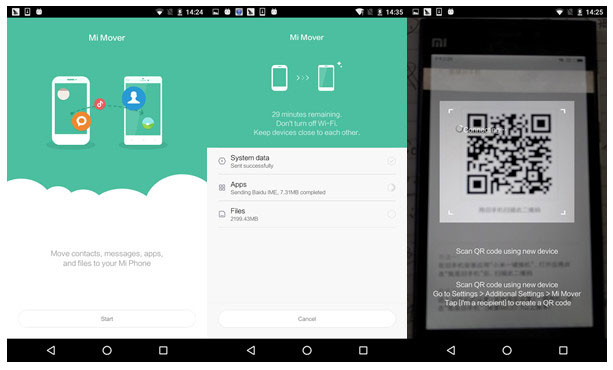
- Open Mi Mover on both phones > on the new POCO, tap "I'm a receiver" > on the old POCO, tap "I'm a sender" > scan the QR code or connect via the created hotspot to pair the devices.
- Once connected, choose the data to transfer > make sure Messages (SMS) is selected (you can also include contacts, photos, apps, etc.) > tap Start transfer to begin. (Mi Mover refuses to work?)
- Keep both phones close together, unlocked, and with enough battery > wait for the transfer to complete without interruption > your SMS will appear automatically on the new POCO.
Cons:
- Limited mostly to Xiaomi/POCO devices; may not work on non-Xiaomi Android phones.
- Transfers RCS or encrypted messages only partially or not at all.
- Requires phones to stay close together and unlocked, which can be inconvenient for large transfers.
Part 3: Transfer Text Messages between POCO Phones via Android Switch
During the initial setup of a new POCO, Android Switch (Switch to Android) can copy SMS efficiently from the old phone. The app guides the user through pairing and selection of data, including messages, over a direct wireless connection.
Requirements & Considerations:
- Best used during initial phone setup.
- Uses Wi-Fi, hotspot, or cable.
- May require Google account & permissions.
- Some SMS/app data may not fully transfer.
How-to Guide:
- Prepare both phones. Turn on the old and new POCO and keep them close. Follow the on-screen instructions on the new phone.
- Connect the phones. Choose wireless connection when prompted. Pair via Wi-Fi direct, QR code, hotspot, or cable.
- Sign in. Use the same Google account on the new POCO.
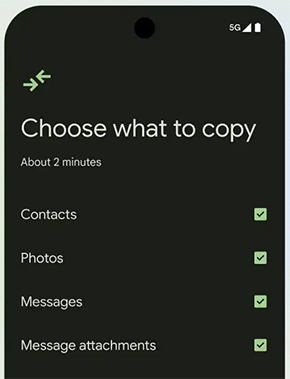
- Select data. Choose Messages (SMS/MMS/RCS) and any other data to transfer.
- Start transfer. Tap Copy/Transfer and wait until finished without disconnecting.
- Finish and check. Confirm completion and open the messaging app to verify SMS.
Cons:
- Works best during initial setup; transferring after setup may be less smooth.
- Some SMS or app-related data may not fully transfer, especially encrypted messages.
- Requires a stable Wi-Fi connection or cable, making it dependent on network conditions.
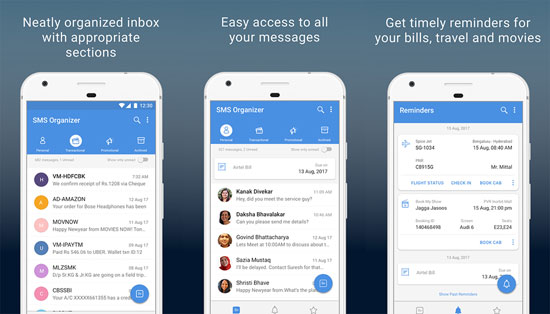
Part 4: Transfer SMS Messages from POCO to POCO with SMS Organizer
Backing up and restoring messages through SMS Organizer relies on Google Drive to transfer SMS between POCO phones. It requires the same account on both devices, and once restored, texts appear in the messaging app automatically.
Requirements & Considerations:
- Requires the same Google account + internet.
- Backs up/restores via Google Drive.
- Needs permissions and a temporary default SMS app.
- Supports SMS only (no RCS); slower for large data.
How-to Guide:
- Install SMS Organizer on the old POCO > open it and grant SMS, storage permissions > set it as default SMS app > go to Settings > Backup & restore > add your Google account > tap Back up to save your messages to Google Drive.
- On the new POCO, install SMS Organizer > open it and grant permissions > sign in with the same Google account > go to Settings > Backup & restore > tap Restore and choose the latest backup > wait for restore to finish.
- Once restored, you can switch back to your preferred SMS app if you want.
Cons:
- Requires internet and Google Drive for backup and restore.
- Only supports SMS/MMS, typically cannot transfer RCS or encrypted chats.
- Backup and restore can be slow for large message histories and needs correct Google account login.
In a Nutshell
Having your SMS safely on a new device protects valuable information and avoids the hassle of starting from scratch. Among the options available, MobiKin Transfer for Mobile proves the most desirable method for transferring text messages from POCO to POCO. Its ability to move messages directly, operate offline, and handle multiple types of data in a single process offers a smooth, secure, and efficient experience.
Related Articles:
How to Transfer Text Messages from POCO to iPhone Instantly - 3 Ways
How to Recover Deleted Contacts on POCO? 4 Tried-and-true Approaches
POCO Phone Frozen? Let's Fix It with 12 Clever Methods [2026]
5 Most Reliable Methods to Hard/Factory Reset POCO Phone [2026]
