
How to Sync POCO to PC? Top 4 Best Ways You'd Better Know
TL;DR:
The four methods we talked through here cover plain USB connection, official Mi PC Suite, Microsoft Phone Link, etc., so you can always find one that fits what you need right now. For a steady, no-fuss sync that lets you pick exactly which files to move, MobiKin Backup Manager for Android is a solid pick.
It works with nearly every POCO model, keeps your data private the whole time, and you can restore your backed-up files to your device whenever you need them later.
"Trying to put photos onto my PC and back them up. Don't have the original cable anymore. Is there a setting in POCO Hyper OS 1.0.6.0?" -- from Reddit
When managing a POCO phone, having a way to access and organize your files on a larger display can make daily tasks much easier. A bigger screen and keyboard make organizing, editing, or deleting data faster, allowing you to handle photos, messages, and documents with greater efficiency.
This passage is all about how to sync POCO to PC with 4 reliable ways, providing options for direct USB transfer, official software, and professional backup tools.
For a visual breakdown of this topic, please refer to the video below.
Option 1: Sync POCO to PC with MobiKin Android Backup & Restore
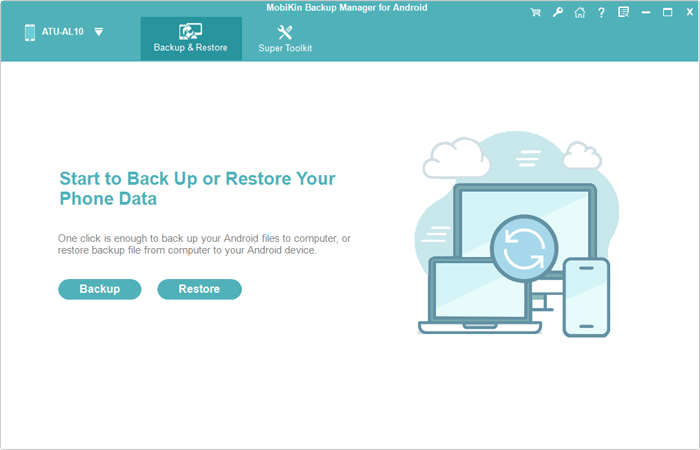
Working with a clean interface, MobiKin Backup Manager for Android (Termed MobiKin Android Backup & Restore) makes syncing a POCO phone to a PC straightforward and organized. It supports one-click backup and restore for contacts, messages, photos, and more without complicated setup.


The connection can be established via USB, ensuring stable data transfer throughout the process. Users can preview files and choose specific data types before syncing, which helps avoid unnecessary clutter.
This tool also allows easy restoration to any POCO or Android device. It supports transferring many data types without size limits. It is simple, secure, offers a free trial, and works with most POCO series like C, M, X, and F without exposing your privacy.
How-to Guide:
- Launch the software once you have downloaded and installed it on your computer.
- Next, connect your POCO phone to the computer using a USB cable.
- You may need to activate USB debugging mode on your POCO device to ensure it is recognized.
- Subsequently, the screen will show options for "Backup" and "Restore". Simply choose the former.
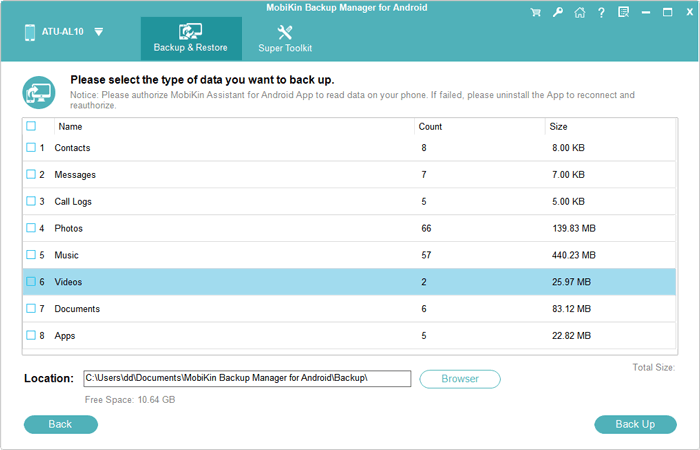
- Select the types of data you wish to back up. Then, indicate a location on your computer where they will be stored.
- Finally, click on "Back Up" to synchronize the data from your POCO to this computer.
Video Tutorial:
Once your POCO phone is detected, you can also sync data from the PC to the POCO using this tool. Simply select "Restore" on the main interface and view the backup you created earlier. Then choose the file types you need and click "Restore" again to transfer them to the connected POCO device.
You Might Also Enjoy: 4 Effective Strategies to Unlock POCO Phone without Effort
Option 2: Sync POCO Phone to Computer Using USB Only
Relying on a direct connection, USB cable transfer allows POCO devices to sync files to a computer without installing extra software. Once the phone is set to File Transfer mode, folders become accessible through the system's file explorer. This method works well for moving media files like photos, videos, and documents quickly. However, it mainly supports manual drag-and-drop actions rather than automated syncing.
How-to Guide:
- Enable Developer Options (Settings > About phone > tap version 7 times).
- Set Default USB configuration > File Transfer (MTP) in Developer Options.
- Connect your POCO phone to the computer using a data USB cable.
- Unlock your phone after connecting.
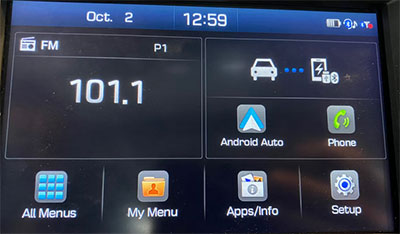
- Tap the USB notification and choose "File Transfer/Android Auto."
- Allow data access when prompted on your phone.
- Open File Explorer (This PC) on your computer and select your POCO device.
- Drag and drop files to sync between the phone and computer.
Further Exploration: 4 Verified Solutions to Retrieve Deleted Text Messages on POCO
Option 3: Sync My POCO Phone to My PC via Mi PC Suite
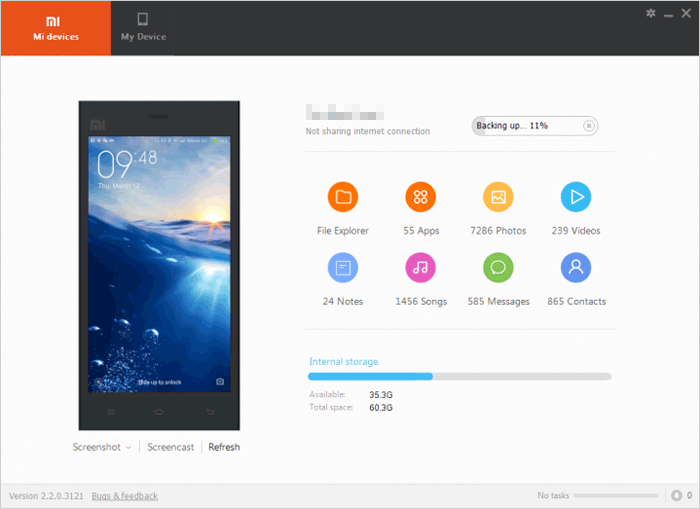
Designed as an official solution, Mi PC Suite provides a traditional way to link POCO phones with a PC for data syncing and management. After enabling USB debugging, the software can detect the device and display its contents in categories. It allows backups, file transfers, and basic device management within a single interface. Compatibility may vary with newer systems, which can affect its usability for some users.
How-to Guide:
- Download and install Mi PC Suite (Mi Phone Assistant) on your PC from the official site.
- Enable Developer Options on your POCO phone (Settings > About phone > tap version 7 times).
- Turn on USB Debugging in Developer Options.
- Connect your POCO phone to the PC using a USB data cable.
- Select File Transfer (MTP) mode from the USB notification on your phone.
- Open Mi PC Suite on your computer and wait for it to detect the device.
- Tap "Allow USB debugging" on your phone when prompted.
- Once connected, choose features like Backup, File Manager, Photos, or Contacts to sync data between phone and PC.
Note: What should I do if Mi PC Suite does not detect my POCO phone? Check that USB Debugging is enabled, the cable supports data transfer, and the phone is in File Transfer (MTP) mode. Rebooting both the phone and PC often resolves recognition issues.
Option 4: Sync POCO to PC Using Microsoft's Phone Link
Built into modern Windows systems, Microsoft Phone Link offers a wireless approach to syncing a POCO phone with a PC. By pairing the phone through the companion app, users can access photos, messages, and notifications in real time. It focuses more on continuity between devices rather than full file system access. The experience depends on a stable network connection, since syncing happens over Wi-Fi instead of USB.
How-to Guide:
- Open Microsoft Phone Link on your Windows PC (preinstalled on Windows 10/11).
- Select Android and sign in with your Microsoft account.
- On your POCO phone, install or open Link to Windows from Google Play.
- Sign in on your phone using the same Microsoft account as your PC.
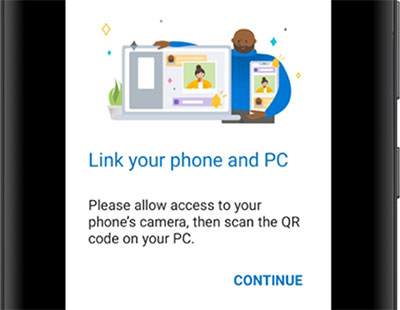
- On your PC, click "Pair with QR code."
- Use your phone to scan the QR code displayed on your PC.
- Grant all required permissions (notifications, contacts, photos, etc.) on your phone.
- Once connected, you can sync photos, messages, calls, and notifications directly on your PC.
FAQs about Syncing POCO to PC/Computer
Q1. Why won't my POCO phone connect to my PC?
This usually happens due to a faulty USB cable, incorrect USB mode (Charge only instead of File Transfer), outdated drivers, or disabled USB debugging.
Q2. What is the correct USB mode for file transfer on POCO?
"File Transfer (MTP)" mode is required to sync data between POCO and a PC. Without it, the device may only charge without showing storage access.
Q3. Do I need USB debugging to sync POCO with PC?
USB debugging is not required for basic file transfer, but it helps when using advanced tools or when the PC fails to detect the phone.
Q4. Why does my PC not recognize my POCO device?
Missing or outdated USB drivers, Windows compatibility issues, or a damaged USB port can prevent proper detection.
Q5. How do I transfer photos from POCO to PC?
Connect the phone via USB, select File Transfer mode, then open the DCIM folder on your PC and copy the photos.
Q6. Why does POCO only show charging when connected to PC?
This happens when the USB mode is set to "Charge only" or when the cable does not support data transfer.
Q7. How can I fix POCO driver issues on Windows?
Reinstall or update the POCO USB drivers through Device Manager, or reinstall Xiaomi USB drivers for proper recognition.
Q8. Is it safe to sync POCO data to PC?
Yes, syncing is safe when using trusted cables, official software, or reliable tools. Avoid unknown third-party programs.
In a Nutshell
Syncing your POCO phone to a PC provides a practical way to safeguard data, manage files efficiently, and free up space on your device. By using MobiKin Backup Manager for Android, you can perform backups, restores, and transfers with ease and confidence. Regularly syncing your phone ensures that important contacts, messages, and media remain protected, even if the device is lost or reset.
Related Articles:
How to Connect POCO to MacBook in 4 Simple & Secure Ways
How to Transfer WhatsApp from POCO to POCO? 4 Trustworthy Ways
5 Most Reliable Methods to Hard/Factory Reset POCO Phone [2026]
POCO Data Recovery without Root: Discover 5 Optimal Tools Here
POCO Phone Frozen? Let's Fix It with 12 Clever Methods [2026]
