
5 Means to Transfer Text Messages from Motorola to Computer [Tested]
Unlike pics, you cannot drag SMS from Motorola to a computer after the phone is connected, for texts on Moto are in the form of unreadable database files. And you may want to take screenshots of SMS and export them to your computer for records (learn different ways to take screenshots on Android). Exactly, it's a simple trick. But if the texts are too long or from different contacts, it will be time-consuming and may produce confusing results.
Well, do you know how to transfer text messages from Motorola phone to computer in a more direct and effective manner? Now, we will walk you through five proven methods to settle this matter.
- #1: How to Transfer Text Messages from Motorola Phone to Computer via Assistant for Android
- #2: How to Transfer Text Messages from Motorola to Computer with Android Backup & Restore
- #3: How to Back Up Text Messages on Motorola to Computer with Rescue and Smart Assistant
- #4: How to Download SMS from Moto to PC with Transfer Companion: SMS Backup
- #5: How to Export Text Messages from Motorola to Computer via Google
#1: How to Transfer Text Messages from Motorola Phone to Computer via Assistant for Android
So, what's the best way to transfer messages to a computer from Motorola? MobiKin Assistant for Android (Win and Mac) can be your first choice. This tool allows you to transfer texts and other data between Android and computers flexibly. Meanwhile, as a great Android/Motorola message manager, it is embedded in many notable highlights.
MobiKin Assistant for Android can help you:
- Transfer text messages from Motorola/Android phone to computer.
- Text/mass text, resend, forward, copy, and delete messages from a computer directly.
- Back up & restore Android data flexibly.
- Work for other data like contacts, call logs, music, photos, videos, apps, documents, etc.
- Manage all your Android content on your computer.
- Compatible with 8,000+ Android devices, containing Motorola Edge (Edge 50/40/30 series), Moto G (G Power, G Stylus, G 5G, G Pure, G100, etc.), and Moto E (E32, E22, E20, etc.) series, etc.
- It won't give away your privacy.


How do I back up my text messages on my Motorola with Assistant for Android?
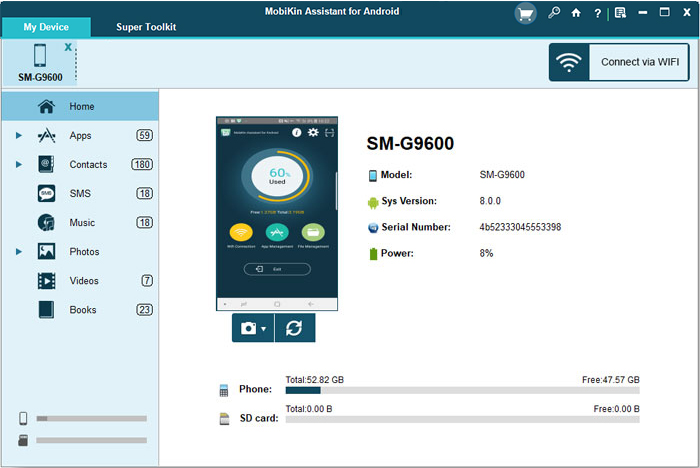
Step 1. Connect Motorola to a computer
Run the program on your computer and connect Motorola to the PC. Here, select to connect your phone via USB or connect via WiFi. Then follow the prompts on the screen to have Moto detected by the tool. Once done, you can get the following interface.
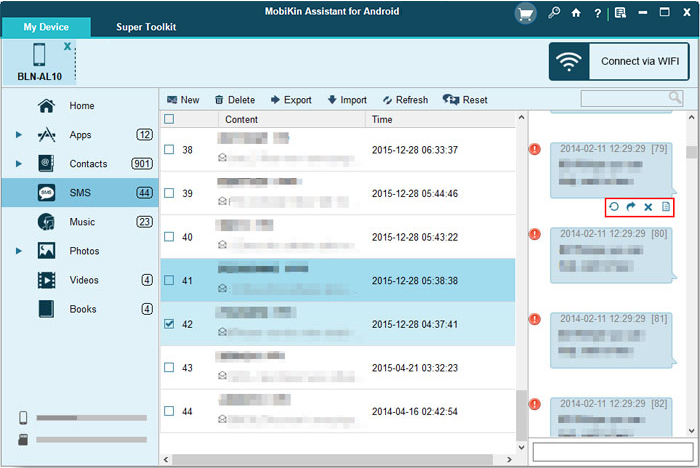
Step 2. View and choose the text messages
On the main interface, click "SMS" in the left panel. Soon, you can preview and select all the messages you want to transfer.
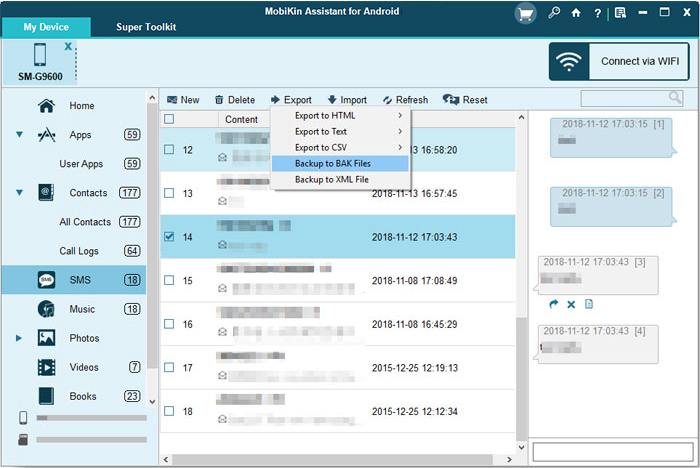
Step 3. Transfer text messages from Moto to computer
At last, you can tap "Export" and select a format to put the selected text messages onto your computer.
Tips: Back up and restore Motorola messages with Assistant for Android in one click:
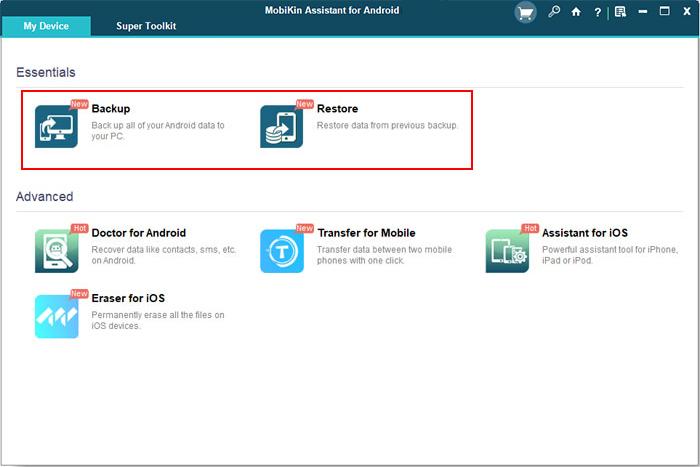
This program gives you the other option to bulk transfer Motorola text conversations to your computer. And you can do this by going to its "Super Toolkit" > "Backup" > "Messages" > "Back Up". Here, you can also retrieve Moto text messages from backup by tapping "Restore" > select backup files > "Restore".
Video Guide:
Related Page:
#2: How to Transfer Text Messages from Motorola to Computer with Android Backup & Restore
Similarly, MobiKin Backup Manager for Android (Win and Mac) can also be a remarkable program for Motorola SMS backup. This tool is smart enough, known as MobiKin Android Backup & Restore, to get all your Motorola text messages onto your computer with one tap. And you can restore what you want directly from the computer to any Android device with the fewest clicks.
Plus, it also offers two ways (USB and WiFi) to connect your phone to your PC/Mac.
How do I download text messages from my Motorola phone to computer via MobiKin Android Backup & Restore?
Step 1. Launch the software after you install it on your PC. Connect your Motorola phone to the computer through a USB cable. The program will then detect your device soon.
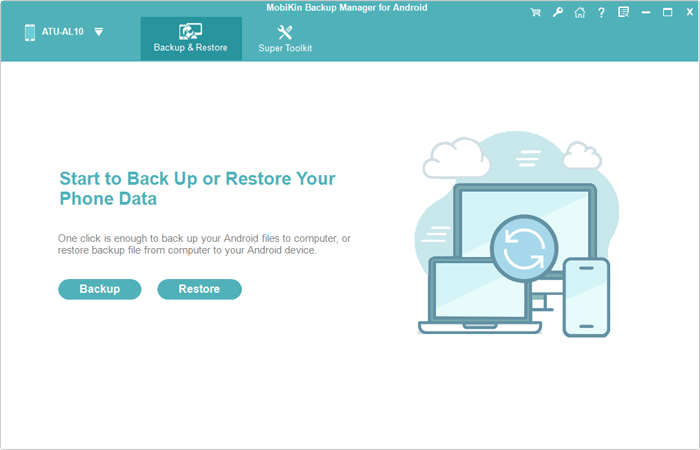
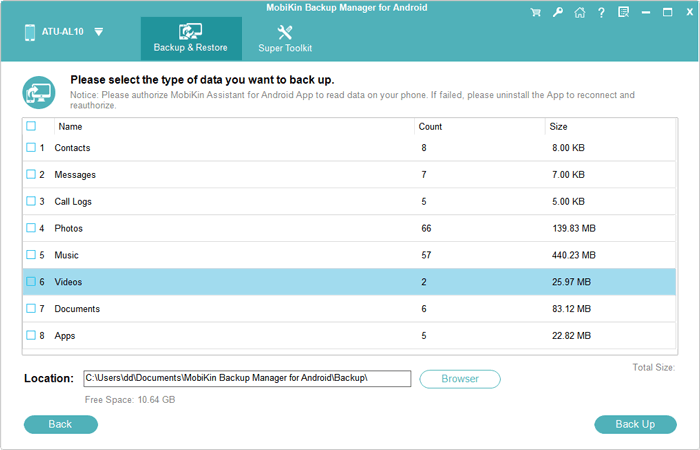
Step 2. Choose "Backup" from the main screen, and all the file types on Moto will appear. Mark "Messages" and select a folder on your computer to save them.
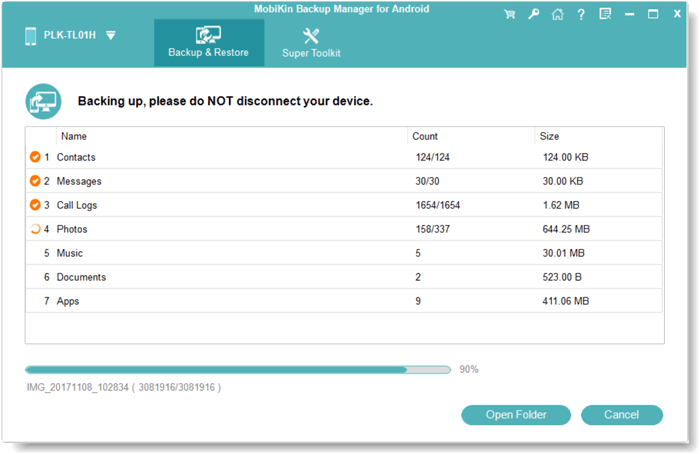
Step 3. Click "Back Up" at the bottom right corner to trigger the message transfer from Motorola to this computer.
#3: How to Back Up Text Messages on Motorola to Computer with Rescue and Smart Assistant
Developed for Lenovo and Motorola phones, Rescue and Smart Assistant (LMSA) can help its users to back up & restore devices, manage devices, as well as flash firmware. If you have an old version of it on your phone, just update it by clicking "Software update" from its Settings at the upper-right corner of its screen.
How to transfer text messages from Motorola phone to computer with Rescue and Smart Assistant?
- Download and install Rescue and Smart Assistant on your PC.
- Open it and enable USB debugging mode on Moto.
- Connect Motorola to this PC via USB cable.
- You can also make the connection by scanning the QR code through mobile-client-end software named Mobile Assistant.
- Select "SMS from the "My Device" tab of the interface.
- Select the messages you want to transfer.
- Click "Export" to copy the chosen messages to the targeted path on your computer.
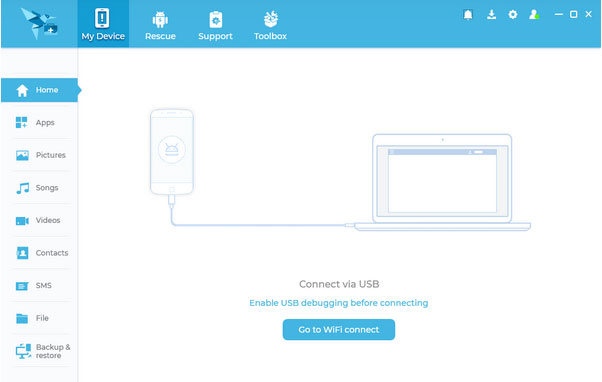
Alternatively, you can click Backup & restore from the left menu and choose Backup > SMS > Backup to bulk transfer your Moto SMS to your computer.
#4: How to Download SMS from Moto to PC with Transfer Companion: SMS Backup
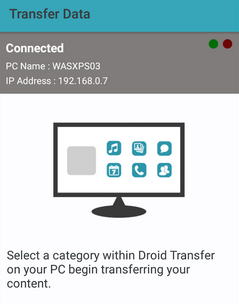
Transfer Companion: SMS Backup is a companion app designed to work with Droid Transfer on your PC, enabling you to easily transfer SMS and MMS messages from your Motorola phone to your computer.
It lets you export text conversations in formats like PDF, HTML, or TXT, preserving message details, timestamps, and media attachments. With a simple QR code connection over Wi-Fi or USB, it offers a quick and secure way to back up or archive your Motorola SMS on your PC. How's how:
- Download and install Droid Transfer on your PC from the Wide Angle Software website.
- Install the Transfer Companion: SMS Backup app on your Motorola phone via the Google Play Store.
- Launch both the PC and phone apps.
- On the PC, click "Scan QR Code" in Droid Transfer.
- On your Motorola phone, open the Transfer Companion app and use it to scan the QR code displayed on your PC screen.
- Ensure both devices are connected to the same Wi-Fi network (or use a USB cable if needed).
- Once connected, select "Messages" in Droid Transfer to view your SMS conversations.
- Choose the conversations you want to back up or download.
- Click "Save as PDF," "Save as Text," or "Save as HTML" to export your SMS to your PC.
- Select a folder on your PC to store the exported messages and confirm the download.
#5: How to Export Text Messages from Motorola to Computer via Google
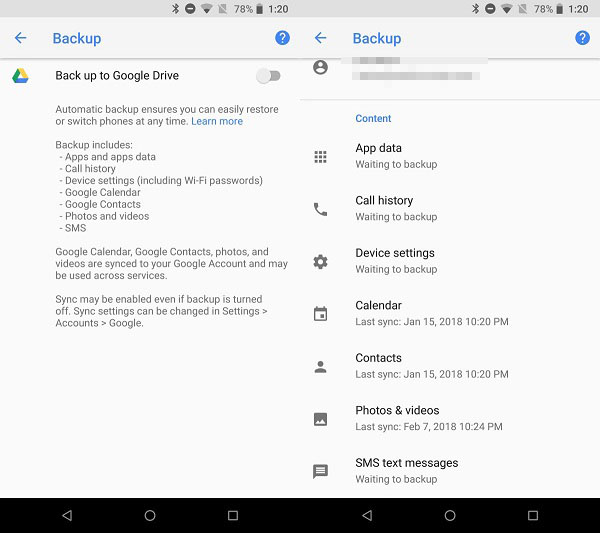
Google Drive empowers you to sync files like messages, contacts, call history, device settings, and app data to Google servers. After that, you can access and download the texts from the homepage of the Drive before saving them onto your computer. (Google Drive doesn't work on Android/Moto?)
How do I export text messages from my Motorola Droid/Razr/Edge/G/E via Google?
- On your Motorola phone, go to its Settings.
- Swipe up to locate other options and select Google.
- Go to "Backup".
- You will find that Google is capable of backing up SMS text messages.
- Tap on "Back up now".
- This will create a backup of texts and some other files on Google Drive.
- Go to a browser from your computer.
- Visit drive.google.com and find the backup file.
- Download the file you just located.
Ending Words
OK, there you have it! Now, you can choose any of the methods described above to transfer text messages from Motorola to your computer.
Here, note that Rescue and Smart Assistant, Transfer Companion: SMS Backup, and Google are not as feature-rich and safe as MobiKin Assistant for Android. Further, they may or may not always work out when it comes to Motorola SMS restore.
Besides, MobiKin Backup Manager for Android is a great option as well if you only want to transfer all your texts to/from your computer in batches.
Related Articles:
How to Transfer Music from Computer to Motorola Android Phone? 5 Means
4 Solutions to Print Text Messages from Motorola Moto/Droid/Edge/Razr/Defy
How to Recover Deleted Text Messages from Motorola? Top 5 Tactics
5 Effective Ways to Unlock Motorola Phone Password without Factory/Data Reset
