
Soft Reset vs. Hard Reset vs. Factory Reset iPhone: Deep Analysis
TL;DR:
- While soft and hard resets can resolve common performance issues without deleting personal information, a factory reset is more suitable for restoring your device or preparing it for resale.
- If you want additional data-overwriting options to protect your privacy, consider using MobiKin Eraser for iOS for a more comprehensive iPhone erasure process.
When your iPhone becomes slow, freezes unexpectedly, or experiences persistent software problems, resetting it may be an effective solution. However, soft reset, hard reset, and factory reset serve different purposes. So, what are the differences between them, when should you use each method, and which is safest for your situation?
This guide compares soft reset vs. hard reset vs. factory reset iPhone, along with step-by-step instructions and an additional data-erasure solution for protecting your privacy before selling or transferring your iPhone.
- Part 1. What Is a Soft Reset on an iPhone?
- Part 2. What Is a Hard Reset on an iPhone?
- Part 3. What Is a Factory Reset on an iPhone?
- Part 4. Soft Reset vs. Hard Reset vs. Factory Reset: Quick Comparison
- Part 5. Soft Reset vs. Hard Reset vs. Factory Reset: Which One Should You Choose?
- Part 6. How to Permanently Erase All iPhone Data Without Recovery
- Frequently Asked Questions about iPhone Reset Methods
Part 1. What Is a Soft Reset on an iPhone?
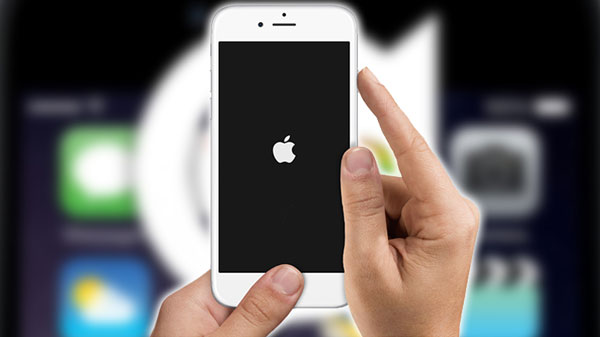
A soft reset means normally turning off and restarting your iPhone in a narrow sense. It refreshes the operating system, closes temporary background processes, and may resolve minor software glitches. Unlike a factory reset, it does not delete personal data, apps, or settings.
1.1. When Should You Soft Reset Your iPhone?
- A soft reset is useful when:
- Your iPhone runs slowly.
- Apps occasionally freeze or crash.
- Minor system glitches occur.
- Wi-Fi or Bluetooth connections become unstable.
- You want to refresh the system without losing data.
1.2. How to Soft Reset an iPhone
The steps depend on your iPhone model:
iPhone X and later:
- Press and hold either Volume button and the Side button.
- Drag the power-off slider.
- Wait about 30 seconds.
- Press and hold the Side button until the Apple logo appears.
iPhone 6, 7, 8, and SE (2nd/3rd generation):
- Press and hold the Side button.
- Drag the power-off slider.
- Wait about 30 seconds.
- Hold the Side button until the Apple logo appears.
iPhone SE (1st generation) and earlier:
- Press and hold the Top button.
- Drag the power-off slider.
- Wait about 30 seconds
- Hold the Top button until the Apple logo appears.
Part 2. What Is a Hard Reset on an iPhone?
A hard reset, also called a force restart, forces an iPhone to restart using physical buttons. It is particularly helpful when the screen freezes, the touchscreen stops responding, or the device cannot shut down normally.
Unlike a factory reset, a hard reset does not intentionally erase photos, messages, contacts, or other personal information.
2.1. When Should You Hard Reset Your iPhone?
Consider a hard reset when:
- Your iPhone screen is frozen.
- The touchscreen does not respond.
- The device displays a black screen.
- An app makes the entire system unresponsive.
- Your iPhone gets stuck during startup.
2.2. How to Hard Reset an iPhone
iPhone 8 and later, including SE (2nd/3rd generation):
- Quickly press and release Volume Up.
- Quickly press and release Volume Down.
- Press and hold the Side button until the Apple logo appears.
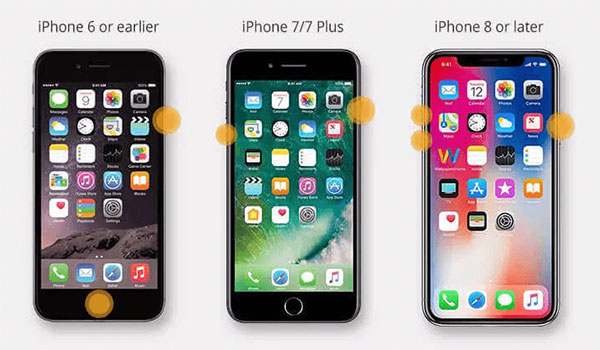
iPhone 7 and 7 Plus:
- Press and hold Volume Down and the Side button together.
- Release both buttons when the Apple logo appears.
iPhone 6s and earlier, including SE (1st generation):
- Press and hold the Home button and Side or Top button together.
- Release both when the Apple logo appears.
- Your iPhone should restart without deleting personal data.
Part 3. What Is a Factory Reset on an iPhone?
A factory reset erases an iPhone's personal content and customized settings, returning it to its initial setup state. Apple's built-in Erase All Content and Settings feature allows users to remove personal information before selling, donating, or troubleshooting their devices.
Unlike soft and hard resets, a factory reset deletes local photos, messages, apps, accounts, and other personal content. Therefore, back up important information before proceeding.
3.1. When Should You Factory Reset Your iPhone?
A factory reset is appropriate when:
- You plan to sell or give away your iPhone.
- You want to remove personal information before transferring ownership.
- Your device has persistent software problems.
- You want to start using your iPhone from scratch.
- You need to restore the device to its default settings.
3.2. How to Factory Reset an iPhone
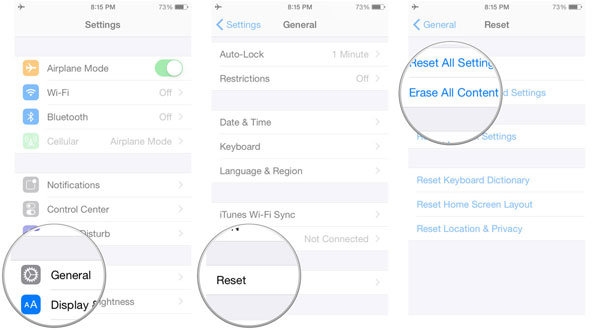
Follow these steps:
- Open Settings.
- Tap General.
- Select Transfer or Reset iPhone.
- Tap Erase All Content and Settings.
- Tap Continue and enter your passcode if requested.
- Follow the instructions to confirm the erasure.
- Wait for your iPhone to restart and display the Hello screen.
- For more details, visit Apple Support.
3.3. What to Do Before Factory Resetting an iPhone
Before erasing your device, take these precautions:
- Back up important data: Save photos, contacts, messages, and other files to iCloud or a computer.
- Check your Apple Account: Make sure you know your account credentials.
- Manage your eSIM: Decide whether to keep or erase it based on your plans.
- Transfer important information: Make sure your new device has everything you need.
- Consider data privacy: If you want additional data-overwriting options, consider dedicated software such as MobiKin Eraser for iOS.
Part 4. Soft Reset vs. Hard Reset vs. Factory Reset: Quick Comparison
Soft reset, hard reset, and factory reset serve different purposes, especially when it comes to troubleshooting and protecting your iPhone data. The following table highlights their key differences to help you understand how each method works and when to use it.
|
Soft Reset
|
Hard Reset
|
Factory Reset
|
|
Normally restarts the iPhone |
Forces an unresponsive iPhone to restart |
Erases all content and settings |
|
Uses the power-off slider |
Uses physical button combinations |
Uses Settings or recovery mode |
|
Does not delete personal data |
Does not delete personal data |
Deletes local personal data |
|
Keeps installed apps |
Keeps installed apps |
Removes installed apps |
|
Helps fix minor glitches |
Helps fix frozen screens |
Helps address persistent software issues |
|
Suitable for routine troubleshooting |
Suitable for unresponsive devices |
Helpful before selling or giving away an iPhone |
|
Easy |
Easy to moderate |
Moderate |
Part 5. Soft Reset vs. Hard Reset vs. Factory Reset: Which One Should You Choose?
Generally, try a soft reset first for minor problems and a hard reset for an unresponsive device. Choose a factory reset when you need to erase personal information or restore the device. If additional data-overwriting options are important to you, consider MobiKin Eraser for iOS. For more details:
|
User Scenario
|
Recommended Method
|
Main Advantage
|
|
iPhone runs slowly |
Soft Reset |
Refreshes system processes |
|
Apps occasionally freeze |
Soft Reset |
Resolves temporary glitches |
|
Touchscreen stops responding |
Hard Reset |
Restarts without touchscreen access |
|
iPhone screen is frozen |
Hard Reset |
Forces a restart |
|
Persistent software problems |
Factory Reset |
Provides a fresh configuration |
|
Preparing iPhone for resale |
Factory Reset |
Erases personal information |
|
Want additional data-overwriting protection |
Provides additional erasure options |
Part 6. How to Permanently Erase All iPhone Data Without Recovery
If you plan to sell, donate, or transfer your iPhone, protecting your personal information should be a priority. Apple's built-in factory reset is designed to securely erase personal data without being recovered. However, users seeking additional data-overwriting operations can consider dedicated erasure software.
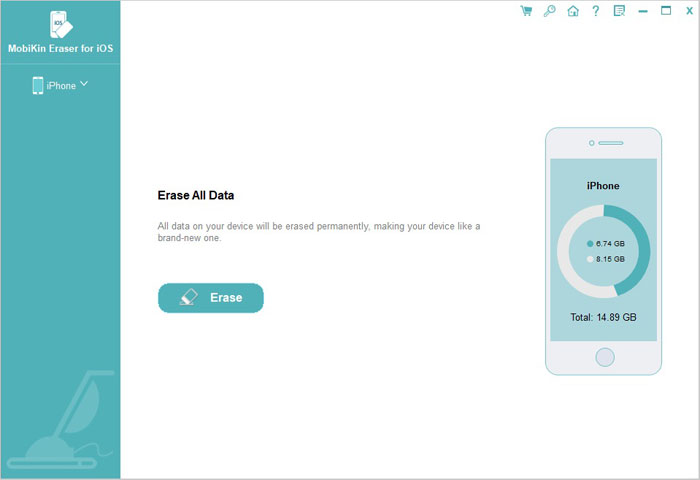
MobiKin Eraser for iOS (Windows/Mac) is one option for users who want additional control over the data-erasure process.
6.1. Why Choose MobiKin Eraser for iOS?
MobiKin Eraser for iOS is designed to erase different types of iPhone information. Its main features include:
- Comprehensive erasure: Supports removing contacts, messages, call history, photos, videos, notes, and other personal information.
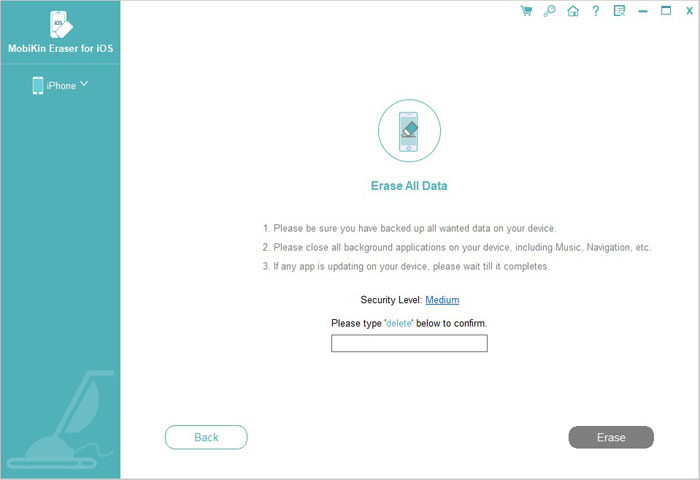
- Three security levels: Offers Low, Medium, and High erasure options.
- Additional overwriting: Medium performs one overwriting pass, while High performs two passes, according to the developer.
- Deleted data removal: Helps erase previously deleted information.
- Privacy protection: Provides additional erasure options before selling or transferring an iPhone.
It is worth considering if you want more control over the erasure level and additional overwriting operations.
6.2. How to Use MobiKin Eraser for iOS to Wipe an iPhone Completely
Safe & Clean Download: no ads, bundles, or background uploads.


Follow these general steps:
- Connect Your iPhone: Launch MobiKin Eraser for iOS, connect your iPhone via USB, unlock it, and tap Trust This Computer.
- Launch Erasure: Once your device is recognized, click Erase to access the erasure settings.
- Choose an Erasure Level: Select Low, Medium, or High based on your privacy needs.
- Confirm the Operation: Disable Find My iPhone if prompted and type "delete" to confirm.
- Reset Your iPhone: Follow the instructions to factory reset your device if required, complete setup, and reconnect it.
- Erase Your Data: Start the erasure process and keep your iPhone connected until it finishes.
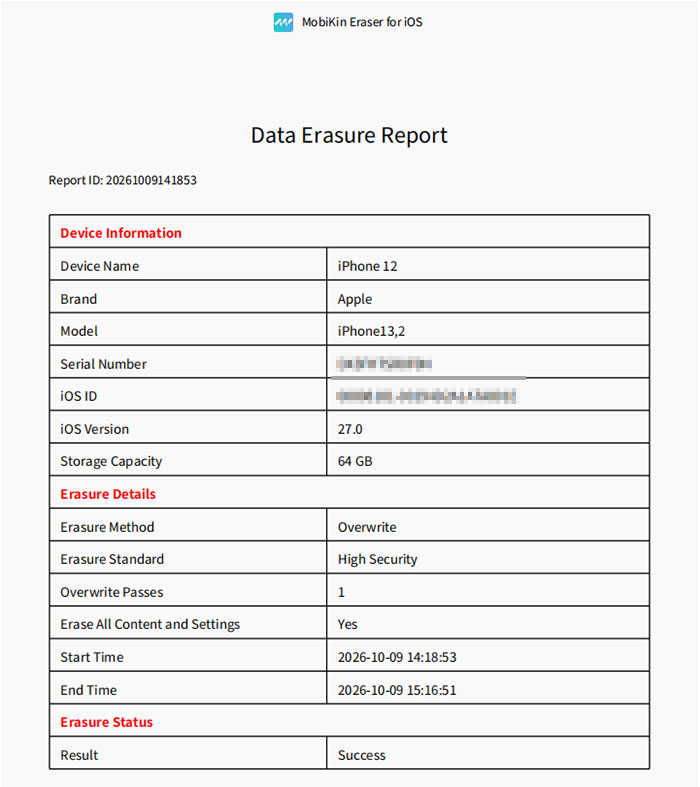
- Save the Report: Click Save Report to export the erasure details for future reference.
Video Directions:
Note: Back up important information before proceeding. Check the software's latest compatibility and instructions, and do not disconnect your iPhone during erasure.
Frequently Asked Questions about iPhone Reset Methods
Q1. How Often Should I Soft/Hard/Factory Reset My iPhone?
There is no fixed schedule. Perform a soft reset when minor problems occur, use a hard reset when your iPhone becomes unresponsive, and reserve factory resets for serious troubleshooting or preparing your device for resale.
Q2. Does a Factory Reset Remove Apple Account Information?
Yes. Apple's Erase All Content and Settings removes account information from the device and addresses Find My and Activation Lock as part of the process. However, it does not delete your Apple Account or automatically erase information stored in iCloud.
Q3. Can I Factory Reset an iPhone Without a Passcode?
Yes. You can use a computer and recovery mode to restore an iPhone without its device passcode. However, Activation Lock may still require the original Apple Account credentials before the device can be activated again.
Q4. Is a Factory Reset Enough Before Selling an iPhone?
For most users, Apple's built-in Erase All Content and Settings is sufficient and designed to securely erase personal information. If you want additional data-overwriting options, MobiKin Eraser for iOS is another solution to consider.
Q5. Can Permanently Deleted iPhone Data Be Recovered?
It depends on how the data was deleted. Files in Recently Deleted folders or cloud backups may still be accessible. Apple's factory erasure is designed to securely remove personal information, while MobiKin Eraser for iOS offers additional overwriting options.
Q6. How Long Does It Take to Factory Reset an iPhone?
A standard factory reset often takes several minutes, depending on the device and its condition. Dedicated erasure software may take longer when additional overwriting operations are performed.
Related Articles:
Is a Second-Hand iPhone as Secure as a New One? Everything You Should Know
How to Set Up New iPhone from Old iPhone? 4 Methods & FAQs
Hard Reset vs. Factory Reset Android: Head-to-head Comparison
How to Enter, Exit & Fix iPhone Recovery Mode Problems: Comprehensive Guide