
5 Easy Methods to Transfer Contacts from Infinix to Samsung
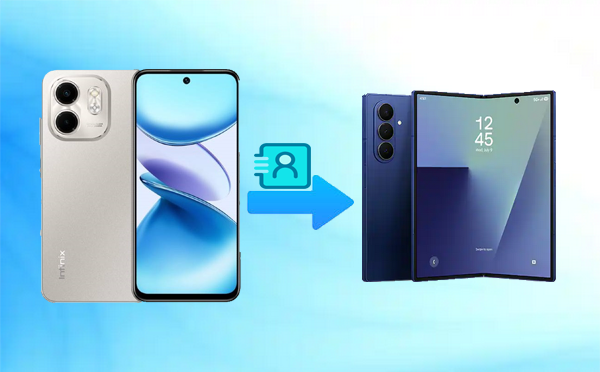
Transferring contacts between devices can be challenging, especially since Infinix and Samsung use different default apps and interfaces, making manual entry time-consuming and prone to errors. Many users prefer to move contacts quickly without manually entering each one.
This article explains how to transfer contacts from Infinix to Samsung efficiently and safely. It will introduce 5 practical methods for completing the transfer, ranging from simple VCF files to specialized apps.
- Option 1: Transfer Contacts from Infinix to Samsung with MobiKin Transfer for Mobile
- Option 2: Transfer Contacts from Infinix to Samsung Galaxy via VCF File
- Option 3: Transfer All Contacts from Infinix to Samsung at Once via Google Contacts
- Option 4: Transfer Contacts from My Infinix to My Galaxy Using Smart Switch
- Option 5: Transfer Contacts from Infinix to Galaxy Using Contact Transfer App
Option 1: Transfer Contacts from Infinix to Samsung with MobiKin Transfer for Mobile
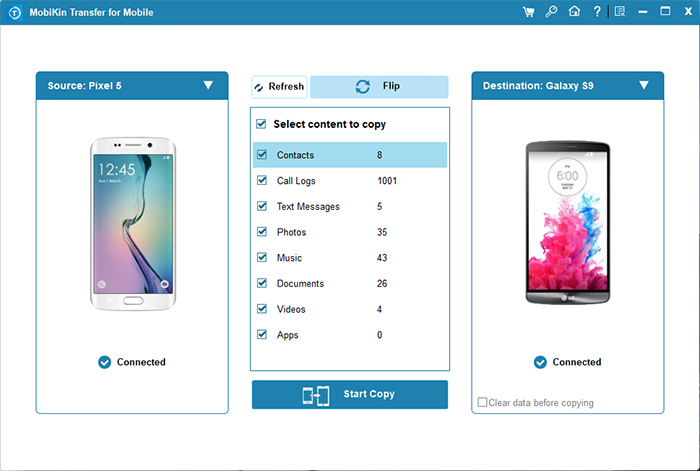
With MobiKin Transfer for Mobile (Windows/Mac), users can move all contacts from Infinix to Samsung in just one click without data loss. The program supports both Android and iOS platforms, ensuring a smooth cross-device transfer. No technical skills are needed, as the interface is intuitive and user-friendly. Contacts, along with other files like messages and photos, can be transferred safely and quickly.
Main Features:
- One-Click Transfer – Best phone transfer tool to move all data between devices with a single click.
- Android-to-Android Support – Transfer contacts and other data from Infinix to Samsung easily.
- Cross-Platform – Works with both Android and iOS devices.
- Selective Transfer – Choose specific data, like contacts only.
- Wide Device Compatibility – Supports thousands of Android and iOS models, covering Infinix: Zero, Note, Hot, Smart, S/GT series and Samsung Galaxy: S, Z Fold/Flip, A, M, F, XCover, Note, J, Tab, Core, Ace, Young, Nexus series, etc.
- Secure & Lossless – Keeps data intact with no loss or corruption.
- User-Friendly Interface – Simple design for easy use by anyone.


Operating Guide:
- Execute the phone transfer application on your computer by adhering to the installation instructions.
- Connect both of your mobile devices to the computer utilizing two USB cables.
- Ensure that USB debugging is enabled on the Android device prior to continuing.
- Once the devices are successfully linked, the software will automatically recognize both phones.
- Designate the older phone as the source and the newer one as the destination.
- If they have been mistakenly arranged in the incorrect order, you can click "Flip" to rectify it.
- In the center of the program interface, you will see a list of all file types that can be transferred.
- Simply select Contacts and press the "Start Copy" button to commence the transfer immediately.
Video Tutorial:
Option 2: Transfer Contacts from Infinix to Samsung Galaxy via VCF File
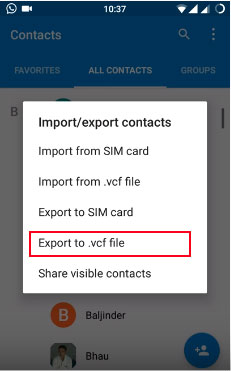
By exporting to a VCF file, you can create a single contact file on your Infinix and move it to your Samsung manually. The VCF format keeps all contact details intact, including numbers, names, and email addresses. This method doesn't require an internet connection, making it a reliable offline option. Once the file is imported into the Samsung Contacts app, all entries appear instantly.
Operating Guide:
- On your Infinix phone, open the Contacts app and select the contacts you want to transfer.
- Tap the menu icon (three dots) and choose Contacts to Export. You may need to go through Settings first to find this option.
- The Contacts app will then save all your contacts as a VCF file on your device.
- Next, copy or move the VCF file to your Samsung phone.
- You can do this by connecting both devices to a PC and transferring the file, or by uploading it to a cloud service like Google Drive and downloading it on the Samsung.
- On your Samsung phone, open the Contacts app, go to the menu, and select Import.
- Finally, choose the VCF file you transferred to import all your contacts into your Samsung Contacts app.
Note: While VCF files are simple and reliable, they may not support transferring other data like messages or media. Also, if the contact list is very large, it might take longer to import, and duplicate entries can occur.
Option 3: Transfer All Contacts from Infinix to Samsung at Once via Google Contacts
Through Google Contacts, syncing between Infinix and Samsung becomes effortless once both devices use the same Google account. The service automatically uploads your contact list from one device and downloads it to the other. No cables or third-party apps are needed, just an active internet connection. All updates made to contacts remain synchronized across both phones in real time.
Operating Guide:
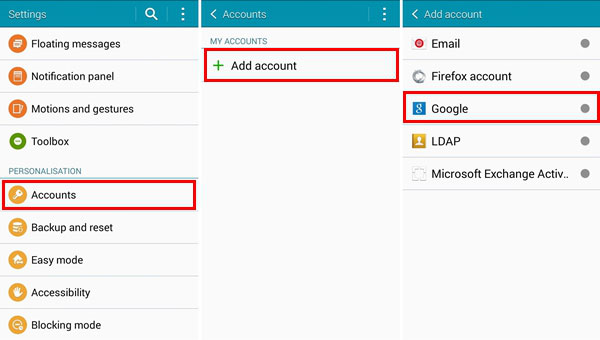
- On your Infinix phone, open the Settings app and go to Accounts > (Add account) > Google.
- Make sure your Google account is added and that Contacts sync is turned on. This will automatically back up all your Infinix contacts to your Google account.
- On your Samsung phone, sign in with the same Google account used on your Infinix.
- Go to Settings > Accounts and backup > Manage accounts > Google, then ensure Contacts sync is enabled.
- Wait a few moments, and your contacts will automatically sync and appear in the Samsung Contacts app.
Option 4: Transfer Contacts from My Infinix to My Galaxy Using Smart Switch
Using Smart Switch, Samsung provides a direct and wireless way to copy contacts from an Infinix device. The app can detect and transfer not only contacts but also messages, media, and settings. A stable Wi-Fi or USB connection ensures the process completes smoothly. Data migration is fast and secure, preserving every contact detail accurately.
Operating Guide:
- Install Smart Switch on both phones (it's pre-installed on Samsung, or download it from Google Play).
- Open Smart Switch on both devices.
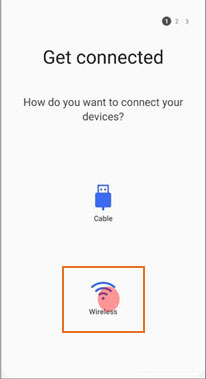
- On your Samsung, tap Receive data > Galaxy/Android > choose Wireless (or Cable).
- On your Infinix, tap Send data > choose Wireless (or Cable).
- When the data list appears, select Contacts (and any other data you want to transfer).
- Tap Send on the Infinix and Receive on the Samsung.
- Wait for the transfer to complete, and your contacts will appear in the Samsung Contacts app.
What should I do if Smart Switch fails to transfer contacts? 1. Make sure both devices are fully charged and connected to the same Wi-Fi network if using wireless transfer. 2. Try restarting both phones and reconnecting through Smart Switch. 3. If using a cable, ensure it is Samsung-certified and properly connected. 4. Clear the Smart Switch cache on both devices and try again.
Option 5: Transfer Contacts from Infinix to Galaxy Using Contact Transfer App
With the Contact Transfer app, contacts can be sent from an Infinix to a Samsung Galaxy S, Z Fold/Flip, A, M, F, XCover, Note, J, Tab, Core, Ace, Young, Nexus series using a Windows PC as the bridge. The connection is established via QR codes, linking both phones wirelessly. Users can choose specific contacts or move all of them at once. The process is straightforward and ideal for managing contact transfers between multiple Android phones.
Operating Guide:
- Download and install Contact Transfer software on your Windows PC.
- On both your Infinix and Samsung Galaxy, install the free Contact Transfer app from the Google Play Store.
- Open Contact Transfer on your PC and choose Android to Android as the transfer option, then click Continue.
- On each Android device, open the Contact Transfer app and tap Scan Contact Transfer QR Code to connect them.
- Use each phone's camera to scan the QR codes shown on your PC screen.
- Once both devices are connected, select the contacts you want to transfer - or tick the All checkbox to move every contact.
- Click Transfer! to start the process.
- Wait for the transfer to complete - your Infinix contacts will now appear on your Samsung Galaxy.
To Wrap It Up:
- Among all options, MobiKin Transfer for Mobile stands out for its one-click, secure, and lossless transfer of contacts from Infinix to Samsung.
- Compared to exporting to VCF File, MobiKin avoids manual steps and file handling errors.
- Unlike Google Contacts, MobiKin doesn't rely on internet connectivity or account syncing delays.
- When compared with Smart Switch and the Contact Transfer app, MobiKin supports a wider range of devices and ensures a faster, smoother process.
- Overall, MobiKin Transfer for Mobile provides the most efficient and reliable way to move contacts between Infinix and Samsung devices.
Related Articles:
How to Transfer Text Messages from TECNO to iPhone: 4 Best Ways
How to Transfer Contacts from Computer to Infinix? 4 Easy Means
How to Recover Contacts from Samsung with Black Screen? 4 Options
Samsung Contacts Disappeared? 10 Troubleshooting Tips You Wish You'd Known
