
How to Transfer Data from iQOO to iPhone [2026 Updated]
You've been using an iQOO phone for longer than you can remember, effortlessly transferring data from one iQOO device to another as you upgraded to newer models. Now, you've received a brand-new iPhone as a gift, but there's one problem: you're unsure how to transfer all your data from the iQOO to your new iPhone. Manually moving everything one item at a time would be incredibly tedious.
Thankfully, there are several quick and reliable methods for transferring data from iQOO to iPhone with just a few simple steps. In this article, we'll explore five of the most common and effective ways to transfer your data seamlessly between the two devices.
- Method 1: Transfer Data from iQOO to iPhone with Transfer for Mobile [HOT!]
- Method 2: Migrate from iQOO to iPhone Using Move to iOS
- Method 3: Copy Data from iQOO to iPhone with iTunes/Finder
- Method 4: Move Data from iQOO to iPhone via Google Drive
- Method 5: Email Data from iQOO to iPhone
- FAQs about iQOO to iPhone Transfer
Method 1: Transfer Data from iQOO to iPhone with Transfer for Mobile
MobiKin Transfer for Mobile is a powerful tool designed to help users easily transfer data between different devices, including from an iQOO phone to an iPhone. It supports various types of data like contacts, messages, photos, and more, ensuring a smooth and efficient transfer process. Whether you are upgrading to a new iPhone or switching between phones, this software makes the transition effortless without the need for complex procedures.
Key Highlights of Transfer for Mobile:
- Seamlessly transfers data between iQOO and iPhone.
- Supports multiple data types such as contacts, photos, and messages.
- No data loss during the transfer process.
- User-friendly interface, making it suitable for all experience levels.
- Compatible with both iOS and Android devices, including iPhone 17/16/15/14/13/12/11/X/8/7/6, as well as popular iQOO devices like iQOO 13/12/11/Z9/Z7, etc..


Here are the detail steps to switch from iQOO to iPhone by using Transfer for Mobile.
Step 1: Install and launch Transfer for Mobile
Download and install MobiKin Transfer for Mobile on your computer. Launch the program and connect both your iQOO and iPhone via USB cables. Once the devices are connected, the software will display the available data types.
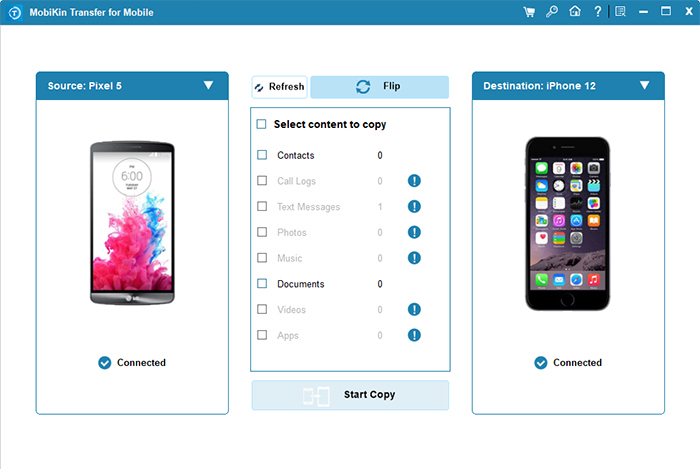
Step 2: Select the data for transfer
If you need, you can click the "Flip" button to adjust the positions of the two devices, to make sure the iQOO phone is the source device. Choose the data you wish to transfer, such as contacts, photos, and messages.
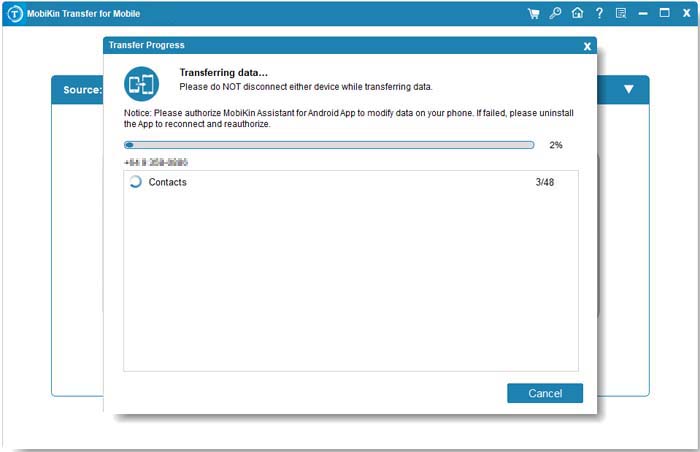
Step 3: Start the iQOO to iPhone transfer
Click the "Start Copy" button to begin the data transfer process. The software will automatically transfer the selected data from iQOO to your iPhone.
Video Guide:
Method 2: Migrate from iQOO to iPhone Using Move to iOS
Move to iOS is an app designed to simplify the process of transferring data from an iQOO phone to an iPhone. It allows users to securely move their contacts, messages, photos, and other important data during the setup of the new iPhone. The app provides an easy-to-follow process that ensures your information is transferred without any hassle, whether you're moving everything or selecting specific data.
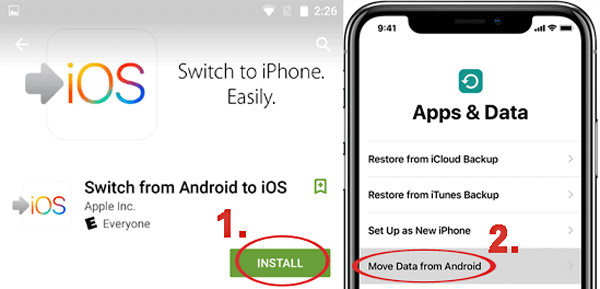
- Install the Move to iOS app from the Google Play Store on your iQOO device.
- During the iPhone setup, choose the "Move Data from Android" option.
- Open Move to iOS on your iQOO, accept the terms, and tap Continue.
- Enter the code shown on your iPhone into the Move to iOS app on your iQOO.
- Select the data you wish to transfer, and tap Next. Wait for the transfer to finish.
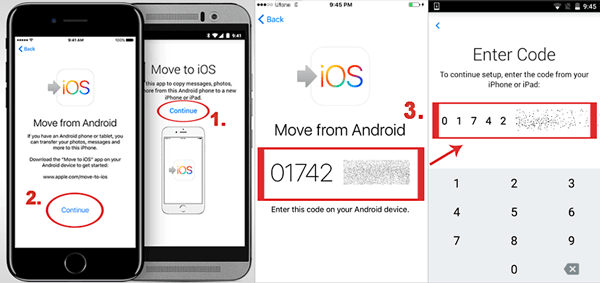
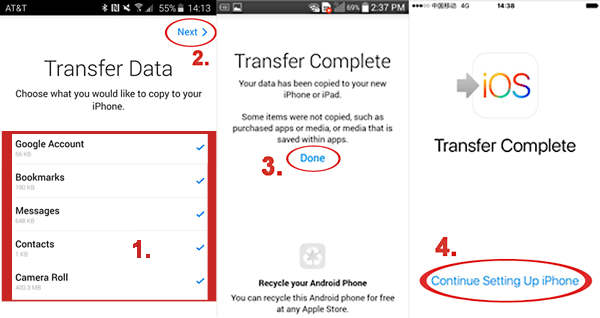
If any issues arise, consult our troubleshooting guide for Move to iOS not working or explore other transfer methods as alternatives to Move to iOS.
Method 3: Copy Data from iQOO to iPhone with iTunes/Finder
If you're willing to go through a more complicated and time-consuming process, you can transfer songs, photos, and videos from your iQOO to your iPhone using iTunes or Finder. First, download and install the latest version of iTunes on your Mac or PC.
Note: It's important to remember that syncing data through iTunes will erase existing content on your iPhone or iPad. Be sure to back up your data before starting the transfer from iQOO to iPhone.
Step 1: Install and Launch iTunes
Visit the official Apple website to download the latest version of iTunes on your computer. Create an account, but don't log in yet.
Step 2: Transfer Data from iQOO to Computer
Connect your iQOO device to your computer. Your iQOO will appear in the file explorer. Drag and drop the music, photos, and videos you want to transfer to a newly created folder on your computer. This process is simple and should take just a few minutes.
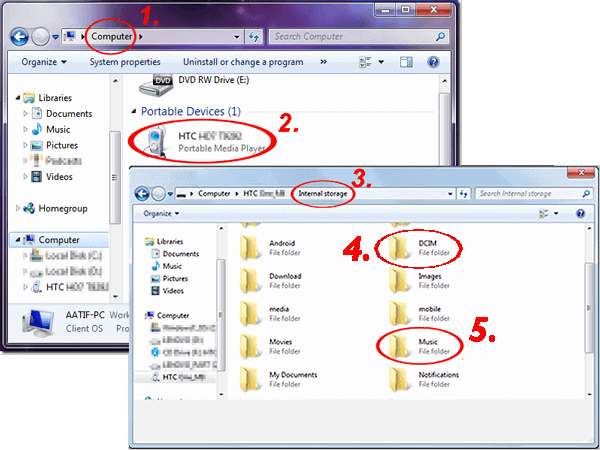
Step 3: Connect to iTunes
Using the account you created earlier, log into your iTunes account.
Step 4: Sync Music to iPhone
In iTunes, click on "File" and select "Add Folder to Library." Choose the new folder you created on your computer to add music to your iTunes library.
Next, go to the "device" tab in iTunes, select "Music," and choose either the entire library or specific songs you want to sync. Finally, click "Apply" to complete the process.
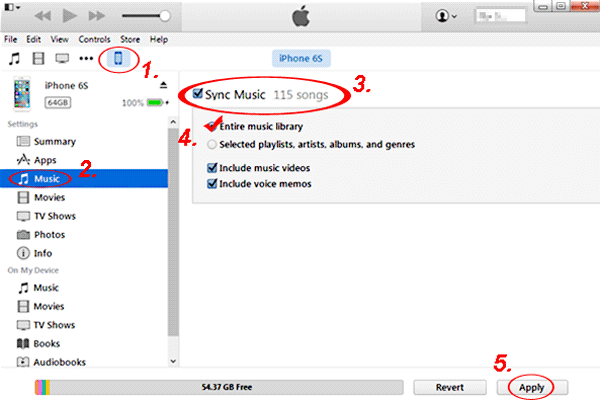
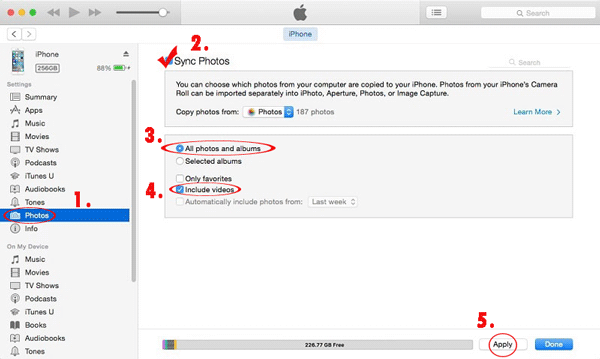
Step 5: Sync Photos and Videos to iPhone
In iTunes, click the "device" tab again and select "Photos." Then, check "Sync Photos," and choose the folder you created on your computer. Select "All folders" and check "Include Videos." Click "Apply" to finish the sync process.
Read If You Like:
Method 4: Move Data from iQOO to iPhone via Google Drive
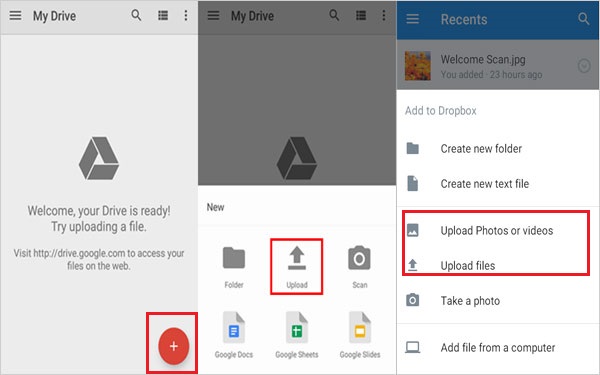
For those who depend on cloud services, using Google Drive is an effective method to transfer data from an iQOO device to an iPhone. This method is particularly useful for individuals with specific data types like contacts, calendars, and photos, as it removes the need for physical connections. Once Google Drive is set up on your iPhone, you can easily access and download your files at any time.
- On your iQOO, download and install the Google Drive app from the Google Play Store.
- Open Google Drive and sign in with your Google account.
- Tap the "+" button to upload the files you want to transfer (photos, videos, documents, etc.).
- Once the files are uploaded, install Google Drive on your iPhone from the App Store.
- Open Google Drive on your iPhone and sign in with the same Google account.
- Navigate to the uploaded files and download them to your iPhone.
Method 5: Email Data from iQOO to iPhone
For those looking for a simple way to transfer data from iQOO to iPhone, emailing files is a straightforward and often overlooked option. This method is especially useful for transferring a few important documents or photos without the need for extra apps or software. It's easy and effective, making it ideal for users who prefer a hassle-free transfer process.
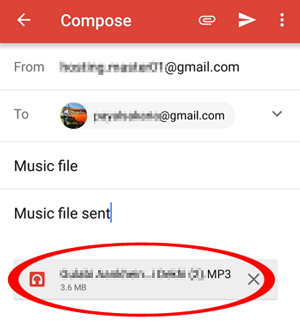
- Open the email app on your iQOO phone.
- Attach the files you want to transfer, such as photos, documents, or other small data.
- Send the email to your own email address.
- On your iPhone, open the email with the attachments.
- Download the attachments to your iPhone by tapping on the download icon.
- Save the files directly to your iPhone's Photos app or other suitable location.
Read If You Like:
FAQs about iQOO to iPhone Transfer
Q1. What is the fastest way to transfer data from iQOO to iPhone?
The quickest method is usually a wired transfer using a desktop application like MobiKin Transfer for Mobile, which can complete the process in 5-10 minutes. Wireless methods, such as Move to iOS or cloud services like Google Drive, tend to be slower and rely on the speed and stability of your Wi-Fi connection.
Q2. Do I need to reset my iPhone to transfer data from iQOO?
It depends on the method you choose. The Move to iOS app requires the iPhone to be new or factory-reset, as it transfers data during the initial setup. However, methods like MobiKin Transfer for Mobile, Google Drive, and Email do not require a reset and can be used at any time.
Q3. Can I transfer my purchased apps from iQOO to iPhone?
No, apps and their purchase licenses cannot be directly transferred from iQOO to iPhone, as they are sold through different app stores (Google Play Store vs. Apple App Store). You'll need to search for the iOS versions of your apps on the App Store and repurchase any paid apps.
The Bottom Line
That's all about transferring data from iQOO to iPhone. Which method do you prefer? Whether you want to transfer all your iQOO data or select specific items, MobiKin Transfer for Mobile is a great choice, and you can try it for free to switch from iQOO to iPhone. If you have any questions, feel free to leave a comment, and we'll assist you as soon as possible.
Related Article:
[4 Proved Ways] Transfer Text Messages from Android to iPhone
How to Transfer Contacts from Android to iPhone? (4 Quick & Safe Ways)
Best 5 Ways to Transfer Music from Android to iPhone In Minutes
[Fast Transfer] Top 8 Ways to Send Video from Android to iPhone
