
5 Means to Transfer Music from Phone to Computer [Android/iOS]
Nowadays, most people always use a mobile phone to listen to their favorite music. What if someday, you want to play music from your phone on a computer with better sound to enjoy it, you may ask yourself some questions like "How do I download music from phone to my computer?", "How to transfer music from my phone to my laptop?" or "What should I do can realize the music transfer from my phone to my computer?"
Fortunately, there are easy ways to transfer music from a phone to a computer. This guide will help you move songs from Android or iPhone to PC step by step. Let's get started.
- Way 1: How to Transfer Music from Phone to Computer by Using Assistant for Mobile
- Way 2: Music Transfer from Phone to My computer by Using Email
- Way 3. How to Transfer Music from Android to Computer by Using A USB Cable
- Way 4. How Do I Download Music to My Computer by Using Bluetooth
- Way 5. Two Ways for Music Copy from iPhone to Computer by Using iTunes/iCloud
Way 1: How to Transfer Music from Phone to Computer by Using Assistant for Mobile
When it comes to music transfer or managing files between phone and the computer, you may want a professional and efficient tool to do all the stuff, like transfer, import, export, edit, and so on. The best phone to computer transfer tool - MobiKin Assistant for Android and MobiKin Assistant for iOS, is definitely your best choice and the most suitable one for you.
Why choose MobiKin Assistant for Android?
- Transfer tons of files, such as contacts, text messages, call logs, apps, photos, music, movies, books, etc, between phone and computer easily.
- With only one click, you can back up or restore data on your phone without any loss.
- Safely work on various brands of mobile phones, for example, Samsung, Sony, Motorola, Google, Huawei, iPhone, iPad, and more. (Including the latest models).
- It supports two modes of connection: Wi-Fi connection and USB connection.
- 100% read-only, safe and easy to use.
Next, I will introduce the detailed information and steps of transferring music from Android and iPhone to your computer separately.
Part 1: Transfer Music from Android to Computer with Assistant for Android:
If you are an Android user, you need MobiKin Assistant for Android to transfer music to your computer. With this program, you can accomplish the music transfer from Android phone to PC/Mac with ease. Below are the specific guide:


Step 1: Launch the tool
Connect your phone to the computer with a USB cable and enable USB debugging. The program will check and install the required driver automatically if needed. Follow the on-screen instructions until your device is detected and the main interface appears.
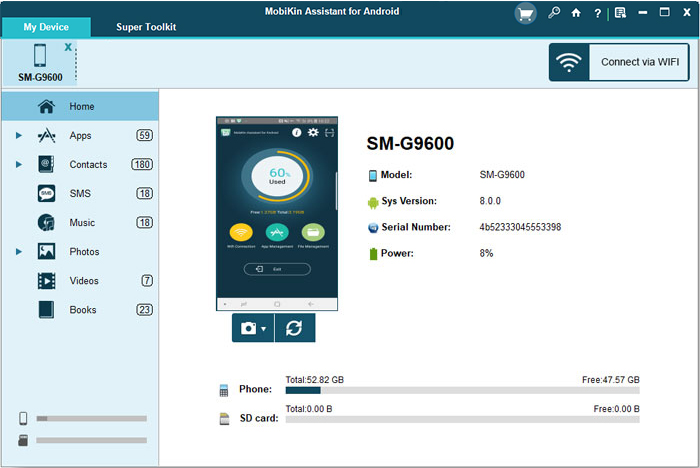
Note: Also, you can use Wi-Fi to connect your Android to the computer. If the program failed to download the driver or failed to detect your device after you finished the prompts, you should go to the page - "How to Do If the Driver Installation Failed?" to learn more.
Step 2: Transfer Music
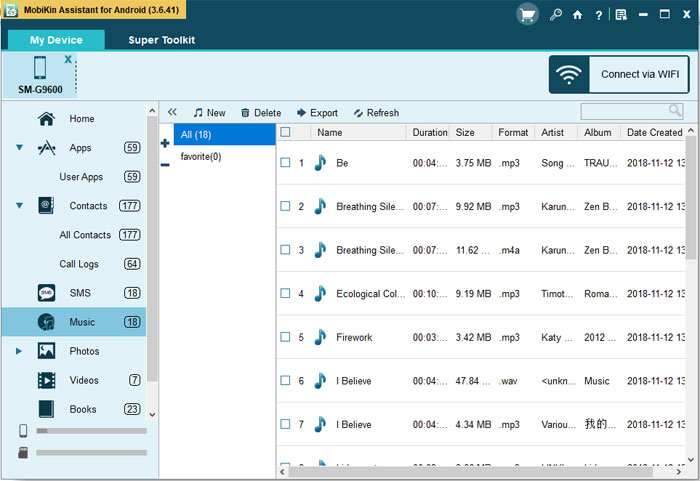
Tap "Music" in the left panel, you can see the information of your music, select the music that you want to transfer and click the button of "Export" on the top menu to commence.
Video Guide:
Some people asked: How do I get music on my phone? And how to download music to my phone from my laptop? Assistant for Android lets you easily transfer songs from your computer to your phone and manage music files both ways. It helps you download and move songs from your laptop to Android with simple steps. Download the right version to try its powerful features beyond basic file transfer.
Part 2: Transfer Music from iPhone to Computer with Assistant for iOS
To start things off, download this smart software on your computer:
Step 1: Launch the program and connect the iPhone
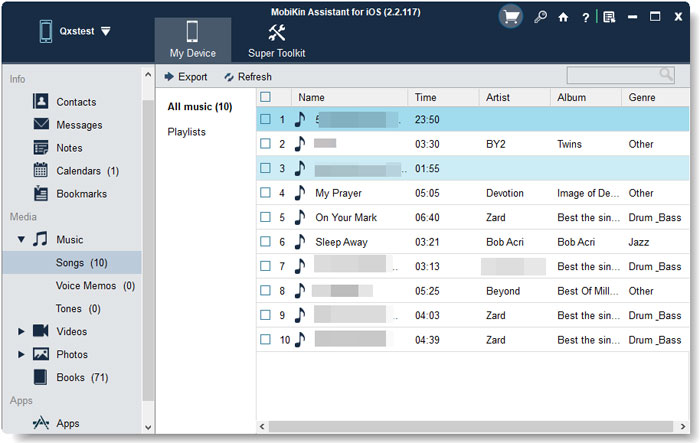
On your iPhone, hit the "Trust" button when the pop-up window asks you whether to trust this computer. After that, tap on "Continue" on the computer to make the program to go on. The interface will show as below when your iPhone successful connect with your computer using this program.
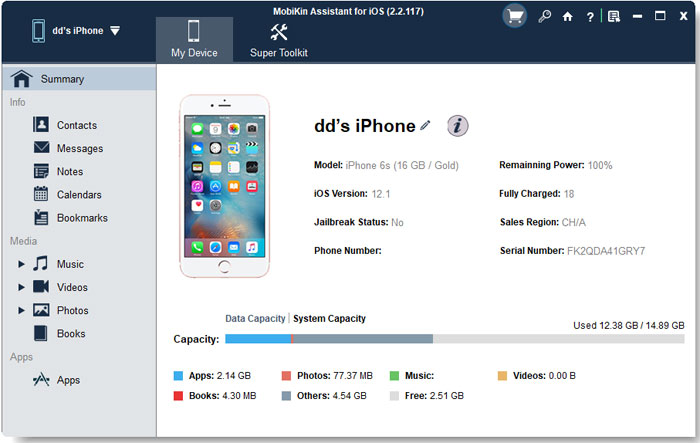
Note: Go to the page of "All Details about "Trust" or "Don't Trust" a Computer on iPhone/iPhone" when you can't see the popup on your iPhone. If your iPhone can't be detected by the transfer tool, please go to "What to Do If My iDevice Fails to Connect?" to learn.
Step 2: Transfer iPhone music to the computer
Choose the icon of "Music" and select the music that you'd like to transfer to your computer. Click the "Export" button to begin downloading the music from the iPhone to the computer.
Video Guide:
As you can see from the steps above, no matter which version of your phone, it's very easy to transfer music from your phone to the computer.
You May Want to Know:
- 4 Easy & Quick Ways to Transfer Music from Mac to Android
- How to Transfer Music from Mac to iPhone: 4 Easy Methods
Way 2: Music Transfer from Phone to My computer by Using Email
Using email to download music to a PC is a way that can be used both Android users and iPhone users. If you don't want to install any third-party application to transfer the music from your phone to the computer, using email to transfer can be one of your choices. Steps of music transfer from phone to my computer by using email lie as follow.
Step 1: Login your email account
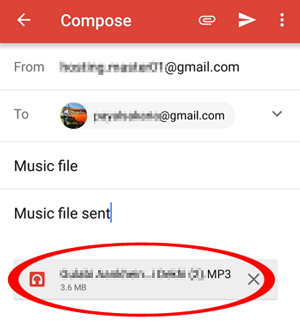
Go to your email app on the phone and draft an email. You should write another email as the receiver first, then, attach the music that you want to copy to your computer and send it.
Step 2: Download the music to the computer from the email
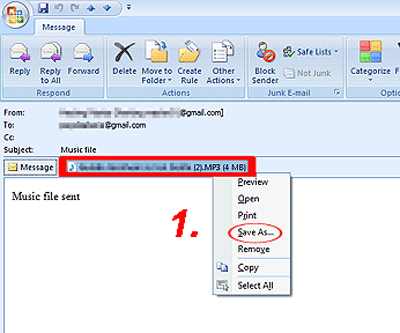
On the computer, sign in to your email account that receives the mail which has the music and right-click the attachment to select "Save As...", here, you can save the music to a folder that you want on the computer.
Way 3. How to Transfer Music from Android to Computer by Using A USB Cable
Using a USB cable may be very old-fashioned but simple for Android users to transfer music to the computer. If you are an iPhone user, using a USB cable can only transfer photos from your Android phone to the computer. In this way, you don't need to download any software that can finish music copy music from the hone to the computer. Here's how:
Step 1: Connect your phone
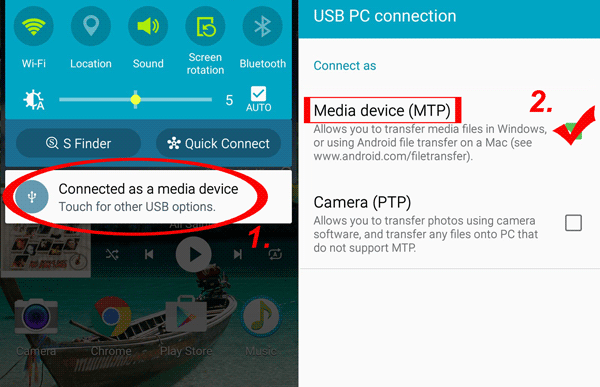
Drag down "Notifications Panel" from the top of your phone's screen, choose the option of "Media device(MTP)".
Step 2: Find the folder
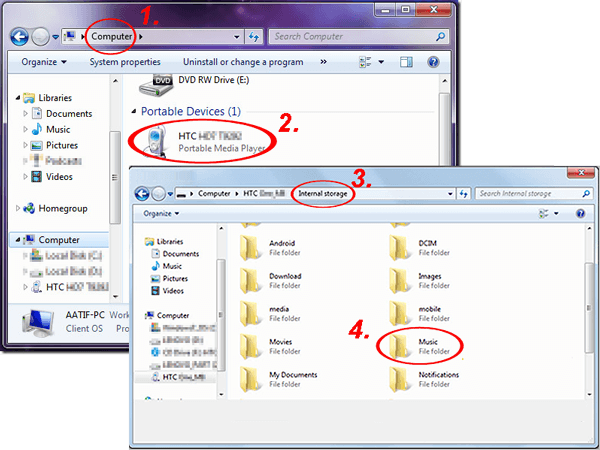
After connecting, double-click to enter "Computer" or use the shortcut - "Windows + E" to go to the interface. Then, go to your phone under the section of "Portable Devices", enter "Internal storage" and find the folder named "Music". Go to the folder, you will find all the music is saved in it.
Step 3: Drag and drop
Built a folder to save your music on the computer first, and choose the music that you'd like to copy on "Music" folder. Drag and drop them to the new folder to finish the copy.
Way 4. How Do I Download Music to My Computer by Using Bluetooth
Bluetooth can also be used to help you to transfer music to your phone. However, only Android can use this method; Try AirDrop that works similarly to Bluetooth to transfer music between an iPhone and a Mac if you are an Apple user. Next, I will introduce the steps of using Bluetooth to download music from Android to pc.
Step 1: Turn on Bluetooth
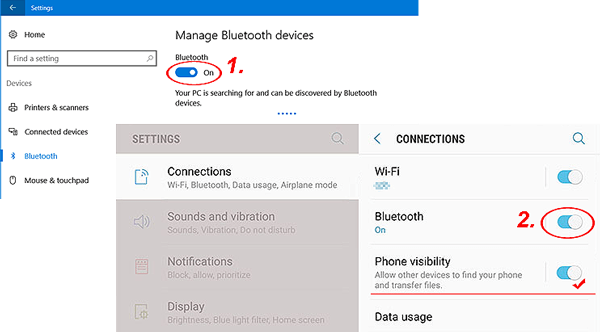
Go to the settings panel to switch on Bluetooth, don't forget to enable the "Shown to all" option that can be detected by your computer. Turn on the Bluetooth on your computer as well.
Step 2: Pair your phone with your computer
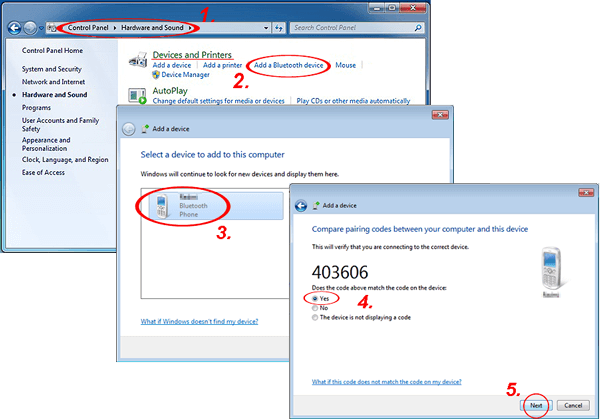
On your computer, open the "Control Panel", enter "Hardware and Sound", find "Devices and Printers" and click the option of "Add a Bluetooth device". Choose your device and your phone will receive a code. Tick "Yes" when it asks "Does the code above match the code on the device:" on the computer, then wait for pairing to complete.
Step 3: Transfer the music
Select the songs on the phone and choose "Bluetooth" to transfer.
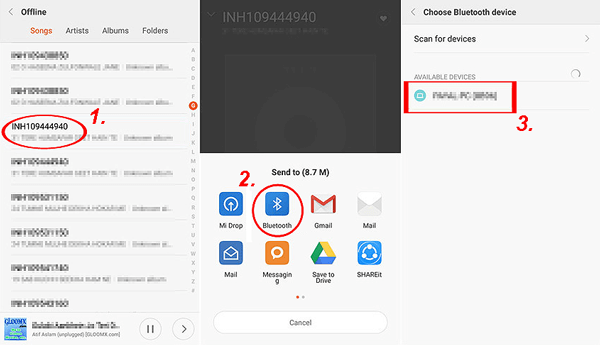
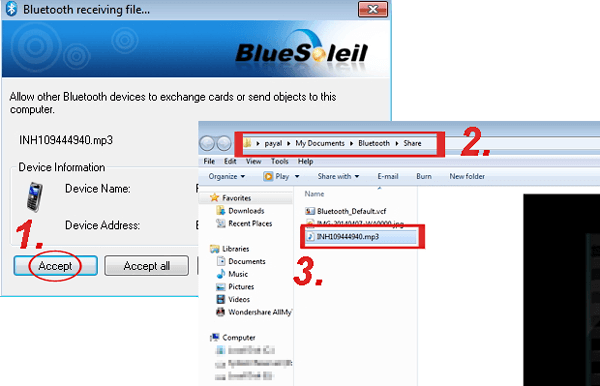
The window will popup on your computer, you need to click "Accept" to accept the music and you can find the songs by following the path: "My Documents\Bluetooth\Share".
Way 5. Two Ways for Music Copy from iPhone to Computer by Using iTunes/iCloud
Here are 2 ways for music transfer from iPhone to the computer. You can use iTunes and iCloud to transfer music from your phone to the computer. Here are the detailed steps:
Part 1: How to Use iTunes to Transfer Music to Computer:
As an Apple user, iTunes can be your choice to transfer music from iPhone to the computer. Here is the tutorial for you to handle. Remember to update your iTunes to the latest version.
Step 1: Connect your iPhone to the computer
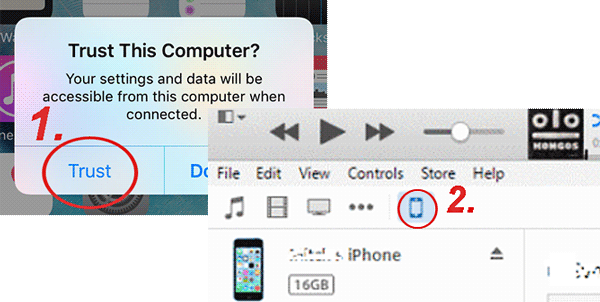
Tap the "Trust" option on your iPhone when you use a USB cable to connect your iPhone to the computer. Ensure your iPhone is detected by iTunes; it will show up in the left menu on the computer. If it is not your iPhone account, click the "Device" icon that is underneath the "Controls" button to change it.
Step 2: Transfer Music from iPhone to the computer via iTunes
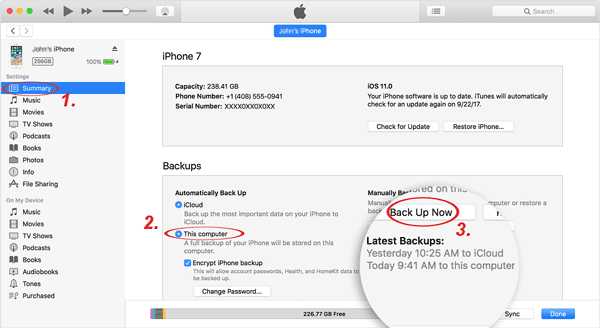
Click on the "Summary" option, choose the option of "This computer" under the "Backups" section, and then tap on "Back Up Now" to start the process. After the process is finished, you can listen to iPhone music on your computer now.
Part 2: How to Use iCloud to Download Music to Computer
Using iCloud Music Library to transfer music from iPhone to the computer can also be your choice. However, it will need iTunes to transfer music from iCloud Music Library to the computer, which means in that way, you need to switch between the two applications. Here are the steps.
Step 1: Turn on the "iCloud Music Library" on iPhone.
First, check out the internet on your phone; it must be stable. Then enter the "Settings" application on iPhone, press on the "Music" icon and switch on the button next to the "iCloud Music Library" which is under the "LIBRARY" section.
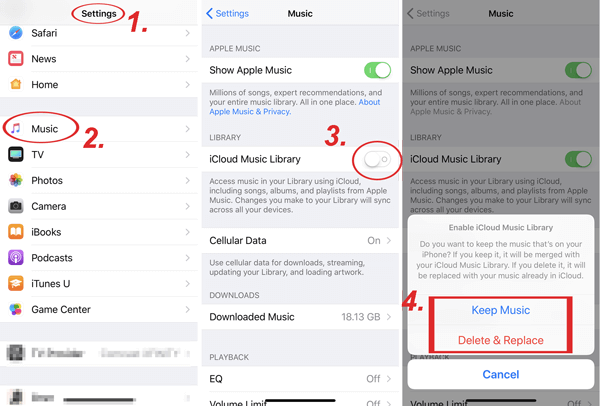
Here, there might be a pop-up window when you turn on the button and I want to remind you that if you want to keep the music from your iPhone, tap "Keep Music" and these songs will be uploaded to iCloud Music Library. If you choose "Delete & Replace", which means all music in your phone will be replaced by the music from iCloud Music Library.
Step 2: Transfer iPhone music from iCloud to iTunes.
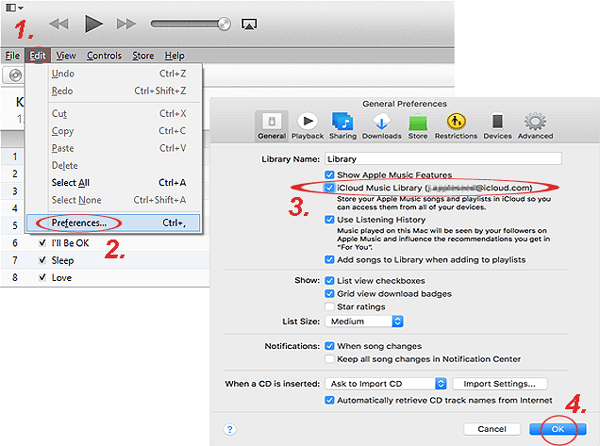
Launch the latest iTunes on your computer, click "Edit" and select "Preferences". When you go to the "General" panel, remember to tick the box of "iCloud Music Library" and click on the "OK" button to add the songs from iCloud Music Library to iTunes.
Step 3: Get music from iTunes to the computer.
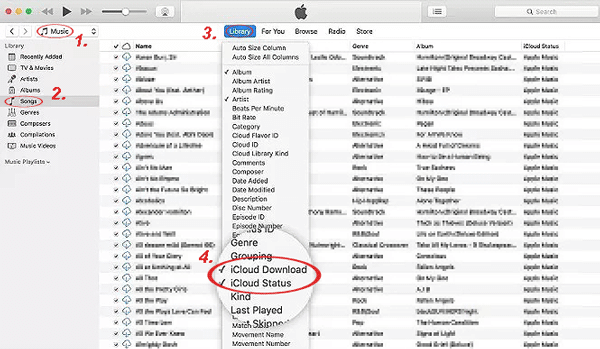
After that, click "Songs" under the "Music" section and tap on the icon of "Library". Then you can see "iCloud Download" and "iCloud Status", select them only and the songs from iCloud will show up. Select them and click the download icon to save them to your computer.
Ending Words
Here are five simple ways to transfer music from your phone to a computer, whether you use an Android or an iPhone device. After reading this article, you'll know which method is the easiest and most efficient. MobiKin Assistant for Android and MobiKin Assistant for iOS stand out as the best all-in-one transfer tool.
As we all know, practice is better than theory. So, if you want to know how to save music to your computer, why not try this program by following this tutorial? You will love this professional transfer tool.
Related Article:
How to Transfer Music from Android to iPhone in Minutes? Top 6 Options
3 Methods to Recover Deleted Music from iPhone with/without Computer
How to Recover Deleted Music on Android Like a Pro? Top 5 Methods
8 Best iPhone Music Manager/Management Software & Apps Review
