
[Resolved] 3 Easy Ways to Restore/Reset iPhone without iTunes
The function of iTunes is beyond your imagination. It is very simple and convenient to restore iPhone using iTunes. However, some users still refuse to use iTunes to restore iPhone. This may be because iTunes error occurs from time to time and cannot work normally, or you may not have iTunes installed at all. How do I restore my iPhone without iTunes? Fortunately, there are some ways to restore iPhone without iTunes.
Restoring an iPhone vs. Resetting an iPhone
When we search for "how can I restore my iPhone without iTunes" on the Internet, there are often many results about resetting iPhone. People tend to confuse restoring iPhone and resetting iPhone. In fact, these are two completely different concepts and involve two completely different processes.
- Resetting iPhone: It is a relatively easy method. It will clear all the data on the phone but will not affect the firmware and operating system version. It will reset all the settings on the device to the initial default settings.
- Restoring iPhone: If your iPhone encounters a problem that is difficult to solve, for example, unable to exit the iPhone DFU mode or recovery mode, or see an error code like 3194, 4013, 4014, etc., you can restore the iPhone to get out of the predicament.
Part 1: How to Restore iPhone without iTunes Using iOS System Recovery
As we said above, if you encounter some complex problems on your iPhone, for example, if you stay in the recovery mode, DFU mode, forget the iPhone password, or iTunes has an error code during the restore process, then we can use iOS System Recovery to restore iPhone without iTunes. This is the most professional iPhone system recovery tool to repair your iOS devices, including iPhone/iPad/iPod, back to normal on Windows and Mac.
Key features of iOS System Recovery:
- Restore iPhone from DFU mode or recovery mode without iTunes.
- Fix iPhone in almost all situations, such as iPhone battery draining, Touch ID not working, loop restart, charge issues, Apple logo, etc.
- Downgrade and Upgrade iOS to supported version freely.
- Fix iOS system issue with two repairing modes: Standard Mode and Advanced Mode.
- Work well with almost all iOS devices, covering iPhone 17/16/15/14/13/12/11/X/8/7/6, iPad, and iPod touch, etc.
- It is safe to use, and your privacy won't be compromised.


1-2-3 Steps of Restoring iPhone without iTunes by Using iOS System Recovery:
Step 1. Download and install iOS System Recovery on your PC or Mac. Launch it and connect your iPhone to the computer via a USB cable. Then, click on "More Tools" and choose "iOS System Recovery".
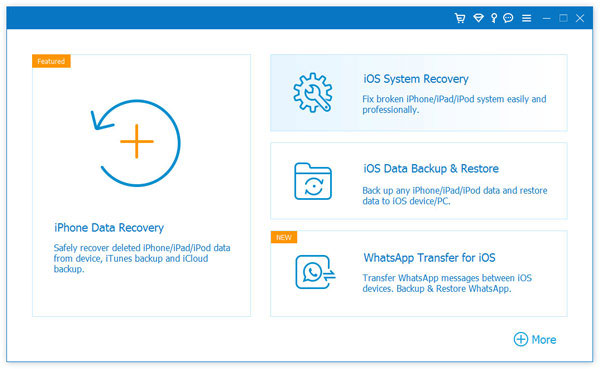
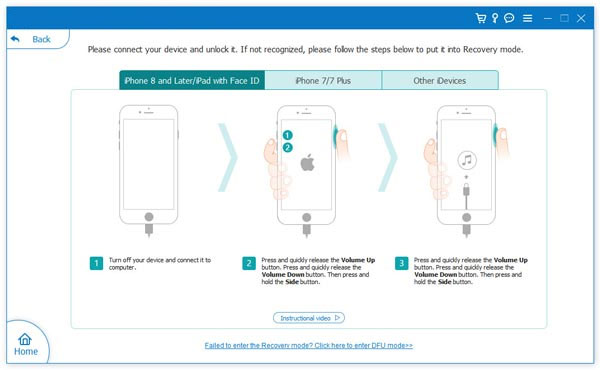
Step 2. Click the "Start" button, and it will detect the connected iPhone. Then, follow the on-screen directions to get the device into the DFU mode before repairing.
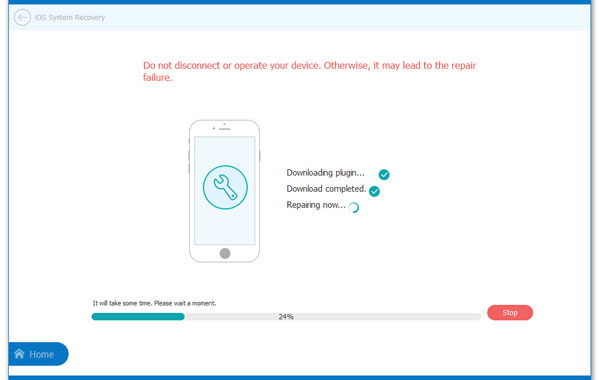
Step 3. Confirm your device information and tap on "Repair" to download the iOS firmware. And then, the software will start to fix your iPhone and restore it to normal.
Related Pages:
Part 2: How to Restore iPhone without iTunes from iCloud Backup
Method 1: Restore iPhone without iTunes using iCloud
iCloud is a convenient backup and restoration tool that allows users to easily restore their iPhone data without the need for iTunes. With iCloud, you can restore your contacts, photos, apps, and settings from a recent backup, bringing your iPhone back to its previous state.
However, there are a few things to keep in mind: ensure your iPhone is fully charged or plugged in, use a stable Wi-Fi connection to avoid interruptions, and make sure you have enough iCloud storage to restore the backup. Additionally, make sure your device is signed into the correct Apple ID, and the backup you want to restore is up to date.
- Ensure your iPhone is connected to a Wi-Fi network.
- Go to "Settings" > "General" > "Reset" > "Erase All Content and Settings" to wipe the device.
- After the restart, select your language and region, then connect to Wi-Fi.
- Sign in with your Apple ID and choose "Restore from iCloud Backup".
- Select the backup you wish to restore and begin the process.
- Wait for the restoration to complete as your iPhone downloads all data from the selected backup.
- Once done, follow the on-screen instructions to finalize the setup and sign back into your apps.
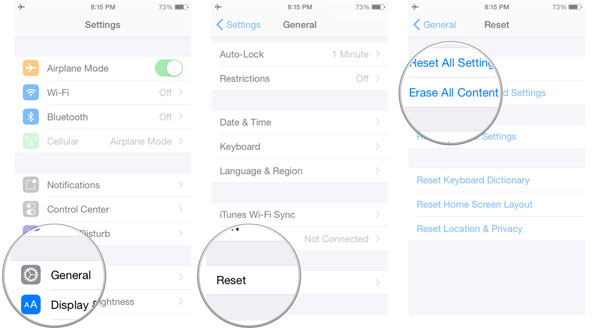
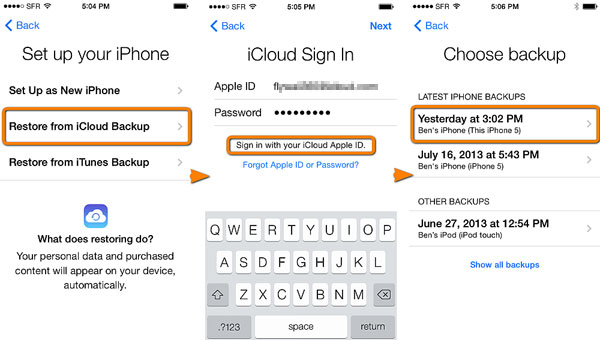
Method 2: How to Restore iPhone from iCloud Backup
If you've accidentally deleted or lost important data on your iPhone, such as contacts, text messages, photos, videos, music, etc., and don't want to rely on iTunes, you can use MobiKin Doctor for iOS. This software allows you to restore your iPhone from an iCloud backup without needing iTunes. Additionally, it also gives you the option to recover data directly from your iPhone.
Here's how you can restore iPhone from iCloud backup without iTunes using MobiKin Doctor for iOS. You can also download the free trial version to test the iPhone data recovery process before purchasing.
Key Features of MobiKin Doctor for iOS:
- Easily restore iPhone data from iCloud backups without iTunes.
- You can recover lost data directly from your iPhone, even without a backup.
- Allows you to preview the data before restoring it, ensuring you only recover what you need.
- Can restore a variety of data types, including contacts, messages, photos, videos, notes, call history, and more.
- Offers selective data recovery, so you can choose specific files to restore rather than restoring the entire backup.
- Works with all iPhone, iPad, and iPod touch models, including the latest iOS versions.
Steps to Restore iPhone from iCloud Backup Without iTunes:
Step 1: Launch MobiKin Doctor for iOS after downloading and installing it on your computer. From the left side panel, select "Recover from iCloud".
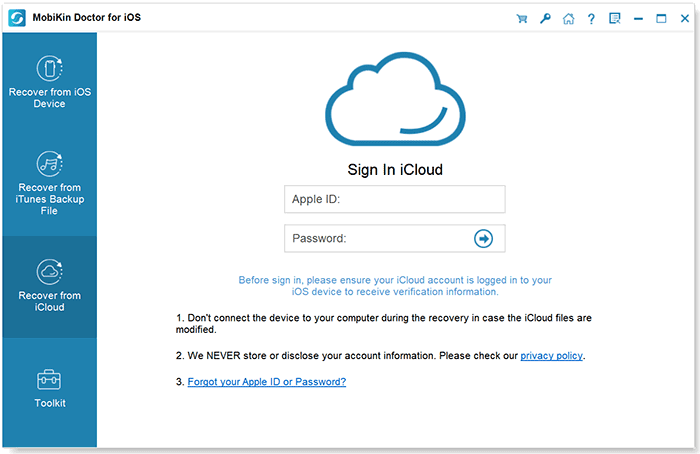
Step 2: Log in with your Apple ID and password. All available iCloud backups will be listed. Choose the backup record you want and select the file types you wish to restore. Then, click "Next".
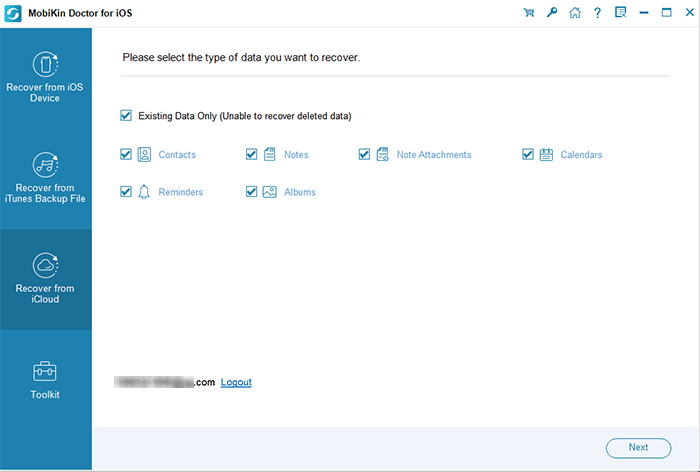
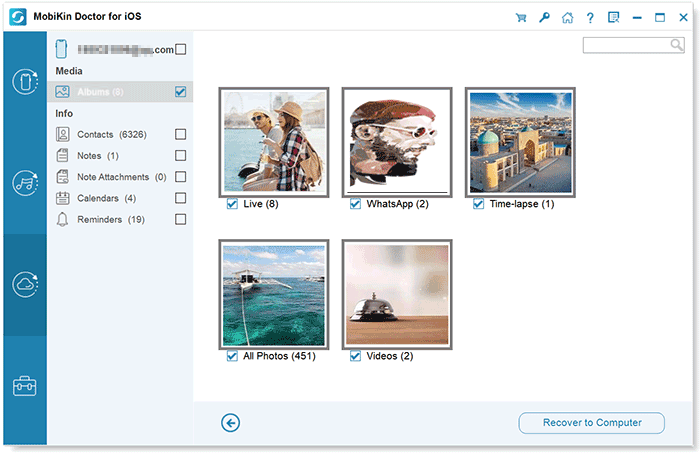
Step 3: The program will scan and display all backup files, such as photos, messages, contacts, etc., in categories. Preview the files and tick the ones you want to restore. Finally, click "Recover to Computer" to restore your iPhone data without iTunes.
Video Guide:
See Also:
Part 3: How to Reset iPhone without iTunes Using Factory Settings
I know that many people must be very concerned about how to reset iPhone without iTunes. Therefore, we have come to a section to tell you the easiest way to erase all data and restore iPhone to its default settings. The process is fairly simple. You don't need to download any tools, and all you need is the iPhone itself.
- Go to iPhone's Settings > iCloud > Find My iPhone. Enter your Apple ID and password to turn off the feature.
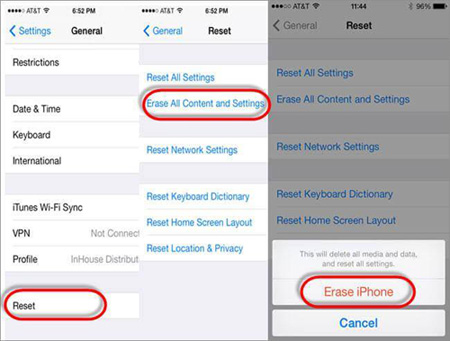
- Again, go to iPhone's Settings > General > Reset > Erase All Content and Settings.
- You will be asked to provide your Apple ID and Password.
- Tap on "Erase iPhone" from the pop-up window.
Words in the End
Let us make a review and summary quickly:
- If you want to restore data on an unresponsive iPhone, restoring iPhone is what you need to perform.
- Resetting iPhone is just restoring it to factory settings, and you can perform this operation without iTunes. But if your phone is in recovery mode or DFU mode, then resetting iPhone will not be available.
- If you lose important phone data, fortunately, you backed up your iPhone to iCloud, then you can restore your iPhone from the iCloud backup with the help of MobiKin Doctor for iOS.
- If your iPhone is in recovery mode or DFU mode and you want to restore iOS without iTunes, you need to use third-party software, such as iOS System Recovery.
Related Articles:
4 Ways to Fix iPhone Data Recovery Cannot Be Completed
Full Guide on How to Fix Error 6 while Restoring iPhone
