
How to Back Up and Restore ZTE Phone? 4 Dependable Methods
Always back up your phone, whether it's a ZTE or another Android device. A backup helps avoid unnecessary trouble because you can easily restore lost data instead of trying to recover it directly from the phone.
Therefore, we all have to remember to backup our mobile devices from time to time, because you never know when you will accidentally delete or lose valuable things. In this article, we have four different methods to perform ZTE backup and restore for reference.
Way 1. Complete ZTE Backup and Restore with USB
The most convenient point of an Android phone is that it allows users to connect it to a computer via USB, and then copy and paste the contents of the phone into the computer storage. Although this method is simple, it only supports a small number of file types, such as photos, music, and videos.
Step 1: Connect your ZTE phone to your computer via a USB cable. Drag down the notifications panel from the top of your ZTE phone's screen to choose the option of "USB connection" > "USB Mass Storage" > "OK".
Step 2: On your computer, you will see the ZTE phone become a removable disk on your computer once the USB connection is enabled.
Step 3: Double-click on the name of your ZTE phone to open its internal storage, then, you can browse all the folders and copy all the files inside to your computer.
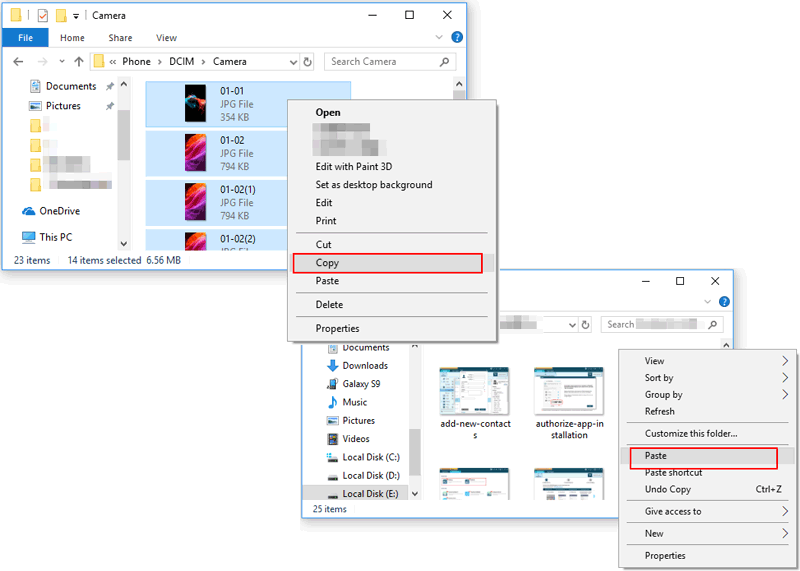
ZTE backup using USB is very easy, but there will be some problems. In addition to the shortcomings mentioned above that only a small number of file types are supported, it is also very clumsy and requires you to manually update this backup. If you want a more efficient way to ensure that this ZTE backup is always up to date, then read on.
Can't Miss:
- ZTE FRP Bypass: 5 Easy Options to Bypass FRP on ZTE Securely
- 6 Flexible Methods to Back Up WhatsApp Messages from Android Phone
Way 2. Backup and Restore ZTE on Computer via ZTE Backup & Restore [1-click Way]
For me, I don't like the manual method to consume a lot of time and energy. I am biased towards intelligent and efficient methods for ZTE backup and restore. I was lucky to meet MobiKin Backup Manager for Android, a reliable and easy-to-use ZTE backup and restore tool, which met all my requirements.
It can back up all the contents of the ZTE phone, including contacts, text messages, call logs, photos, videos, music, apps, etc. to the computer with one click, and then when I need it, I can restore the backup to my phone with one click.


How to backup and restore ZTE data using Android Backup and Restore:
Step 1. Launch the tool and connect your ZTE phone
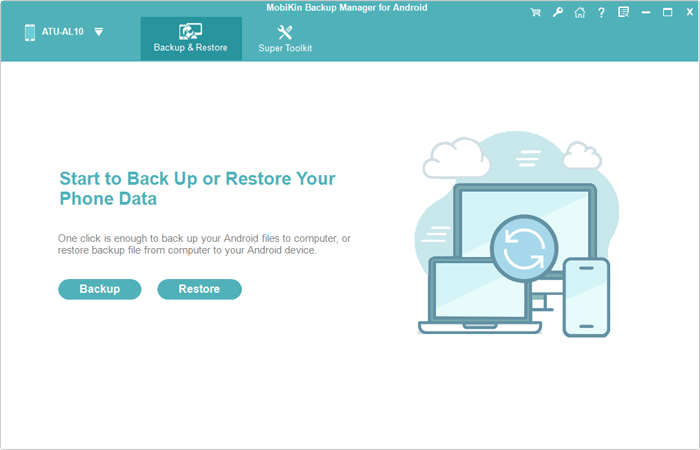
Launch the installed Android Backup and Restore program and connect your ZTE device to your computer using a USB cable. The software starts detecting the phone and you can see the following screenshot of the program interface.
Step 2. Back up ZTE data to computer
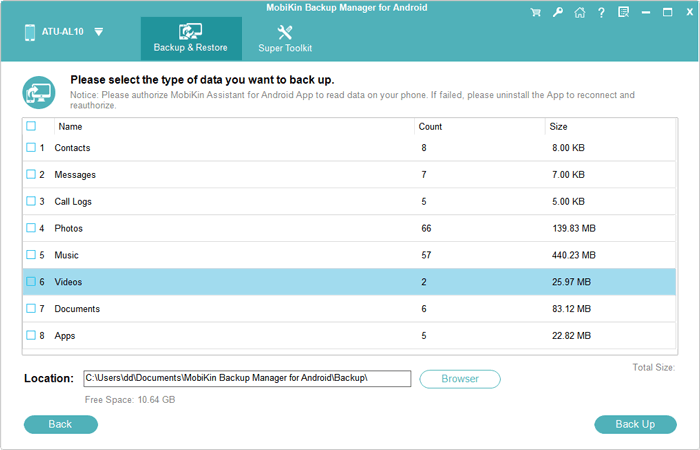
On the main interface, choose "Backup" to enter the data backup window. You only need to check the file type you want to back up (For instance, for ZTE contacts backup, you should tick off "Contacts" data type only), and then click "Back Up". Then this software will start to back up all selected data from ZTE to the computer.
Step 3. Restore data from backup to ZTE
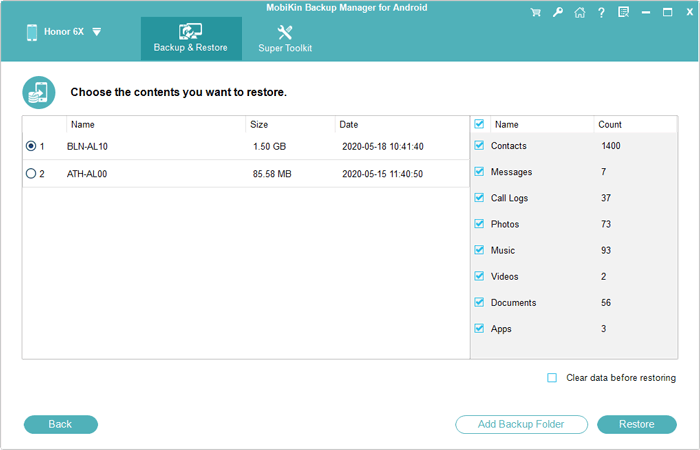
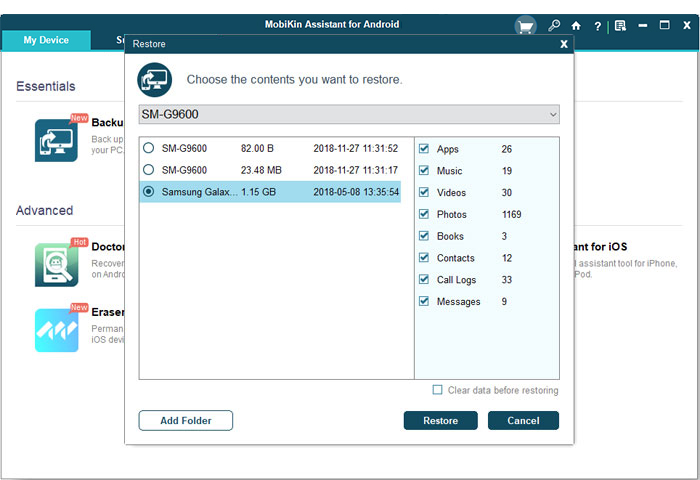
To restore data from the backup file to your ZTE device, you should choose "Restore" from the main interface to enter the data restoration window. Tick off the file types you want to restore and click "Restore".
More to Explore:
Way 3. Backup and Restore ZTE Data via ZTE File Manager
MobiKin Assistant for Android is another powerful Android data transfer and manager tool, which can not only back up and restore ZTE phone simply, but also can manage ZTE data on computer directly. If you need to better manage your ZTE phone, such as edit contact info, group texting, install & uninstall apps, manage playlists, etc., this ZTE file manager is your best assistant.
Why Recommend MobiKin Assistant for Android?
- Support to backup and restore ZTE phone on computer with 1 click.
- You can preview files before backing up and restoring ZTE.
- It is compatible with various file types, including contacts, SMS, call logs, photos, videos, music, apps, etc.
- The best Android phone desktop manager to export, import, edit, delete, and manage device data on a computer.
- Widely compatible with all types of ZTE phones, including ZTE Axon, Blade, Nubia, RedMagic, Voyage, S, etc., as well as other Android devices like Samsung, Huawei, Xiaomi, Sony, Oppo, OnePlus and so forth.
- Mac version is also available: Assistant for Android (Mac).
Let's get down to the details of how to back up ZTE ZMax PRO/Axon 11 by using MobiKin Assistant for Android.
Step 1. Connect your ZTE phone to the computer where you have installed the Assistant for Android. Launch the program and it will detect your ZTE device and require you to enable USB debugging on your device. Just follow the prompts on the main screen to make your phone be recognized by the program.
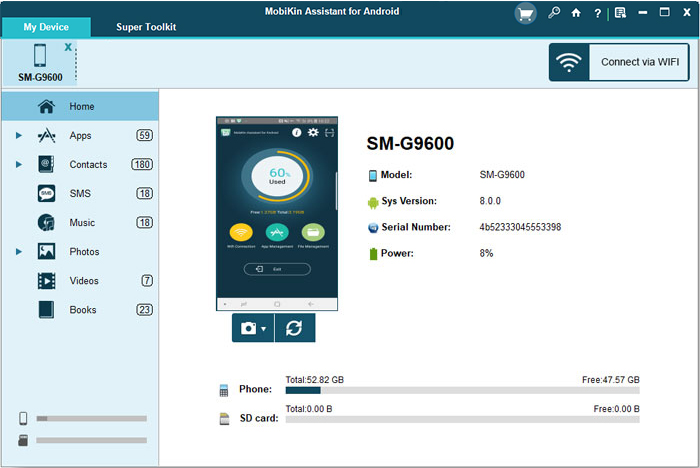
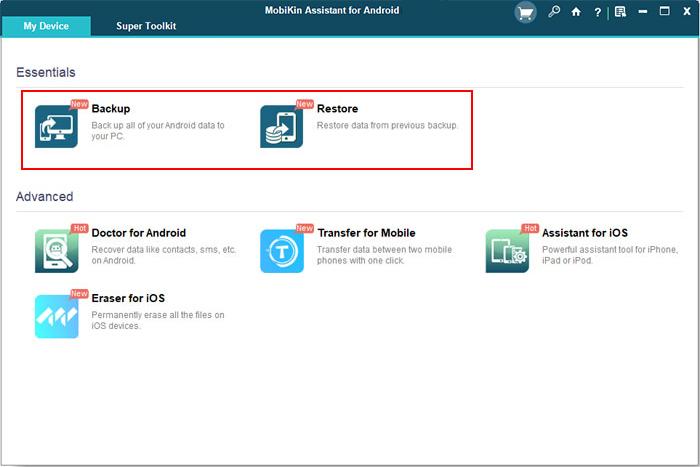
Step 2. Tap on "Super Toolkit" on the top menu and you will enter the 1-click backup and restore function.
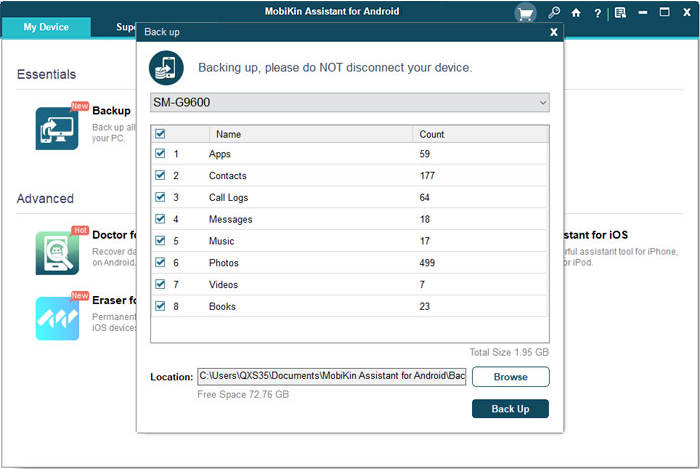
- Backup Your ZTE Data to Computer
Tap on "Backup" and choose the content you wish to back up. Then, specify an output folder on your computer and click "Back Up" to begin the process of backing up ZTE phone data to computer.
- Restore Data to ZTE Device
Tap on "Restore" and tick the files you wish to restore to your ZTE phone. Click on the "Restore" button and the restoration process will be initiated immediately.
Video Tutorial
Way 4. Backup and Restore ZTE Axon with Google Account
If you don't like desktop tools, fortunately, we can also choose cloud storage services to help us achieve ZTE backup and restore. Google allows you to automatically sync data like your contacts, calendars, documents, and even app purchases on your ZTE phone as long as you give it permission to do so. Then, how do I back up my ZTE phone and restore it with the help of Google Account? Below is the instruction.
Step 1. Go to "Settings" app on your ZTE phone and choose "Backup & reset" from the screen.
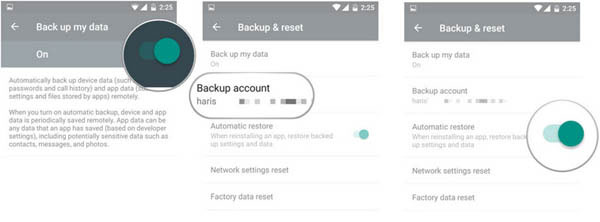
Step 2. Here, you will find the option of "Back up my data", just toggle it on.
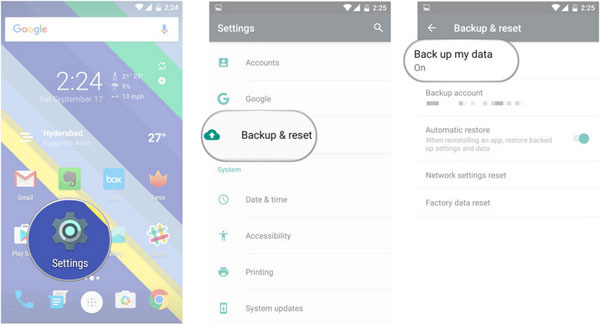
Step 3. When you need to restore data from your Google account to your ZTE phone, you should go back to the "Back & reset" page to check the Google account, which is associated in Backup account.
Step 4. Finally, you can switch on the feature "Automatic restore" which can restore settings and data back to your ZTE phone.
Words in the End
There are many ways to implement ZTE backup and restore, but the most efficient and easiest way is to use professional Android backup software - MobiKin Backup Manager for Android. It runs smoothly and is easy to use, comes with super compatibility and beautiful UI, won a place in the Android software market. If you want to try to use Assistant for Android to backup and restore a ZTE phone, please click the download button below.
Related Articles
How Do I Transfer Contacts from My ZTE Phone to My Computer? The Answer Lies Here!
How to Factory Reset ZTE Phone Safely? 5 Tried-and-true Techniques
How to Root ZTE Andriod Devices in One Click
Forgot Password on ZTE Phone? 5 Tips to Unlock ZTE Pattern without Losing Data
