
iPhone Stuck in Boot Loop? 8 Ways to Fix It [2026 Updated]
"I have an iPhone 16 that gets stuck on a boot loop. Unfortunately, my phone memory is full, and I'm two software updates behind. It refused to go into safe mode, and force restarting didn't help. Any help would be appreciated. Regards!" -- from Apple Support Community
That iPhone keeps restarting itself is a common occurrence, which most often occurs after the iOS 27 updates. It is likely that the Apple logo flashes on the screen, and then the device will be restarted again instead of booting up. Faced with it, you may try to fix iPhone stuck in boot loop but to no avail.
So frustrated with that? Not to worry. This tutorial will guide you on how to stop iPhone reboot loop in nine great ways.

Part 1: Why Is My iPhone Stuck in a Boot Loop?
The reason why iPhone/iPad stuck on boot loop can either be hardware or software-related. If you accidentally dropped your iPhone in water or ground ever, the issue arises from the hardware. Yet, in most cases, an iPhone boot loop is a result of software issues. Here are the main causes:
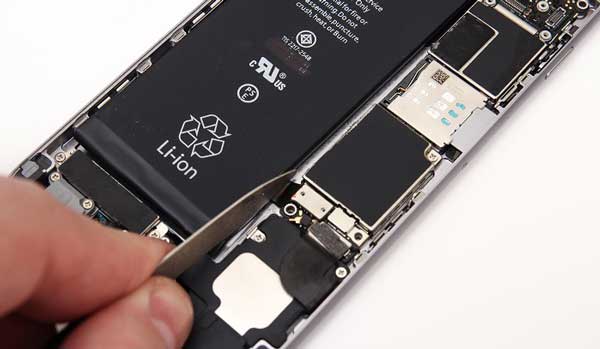
- Battery or hardware problems: A damaged battery, faulty battery connection, or other hardware issue may prevent your iPhone from receiving stable power, causing it to restart repeatedly.
- Failed iOS updates: An interrupted update, an unstable network connection during the update process, or an update error may leave your iPhone unable to start properly.
- iOS downgrade error: Downgrading iOS to an older version through an unsupported or unsuccessful process may cause system errors and leave your iPhone stuck in a boot loop.
- Jailbreak-related issues: An unsuccessful jailbreak, incompatible tweaks, or modified system files may destabilize iOS and prevent your iPhone from booting normally.
- Insufficient storage space: When your iPhone runs critically low on storage, system processes and software updates may fail, potentially causing startup problems.
- Other iOS system errors: Corrupted system files, incompatible software, or other unexpected iOS issues may also cause your iPhone to restart repeatedly instead of reaching the Home Screen.
Part 2: How to Fix an iPhone Stuck in a Boot Loop
Before trying any fixes, back up your iPhone to a computer or iCloud if you can still access the device. Some troubleshooting methods may erase your data, so having a backup can help you avoid losing important files. If your iPhone keeps restarting and you cannot access the system, start with the following fixes that may help it boot normally again.
Fix 1: Charge Your iPhone and Check the Charging Accessories
A low battery or a problem with the charging accessories may prevent your iPhone from starting properly. Connect your iPhone to a working wall charger using a reliable charging cable, and let it charge for at least 30 minutes. If it still keeps restarting, try another cable, power adapter, or outlet to rule out charging issues. If your iPhone continues to boot loop, the battery or other internal hardware may need to be checked by a qualified technician.
Fix 2: Force Restart Your iPhone
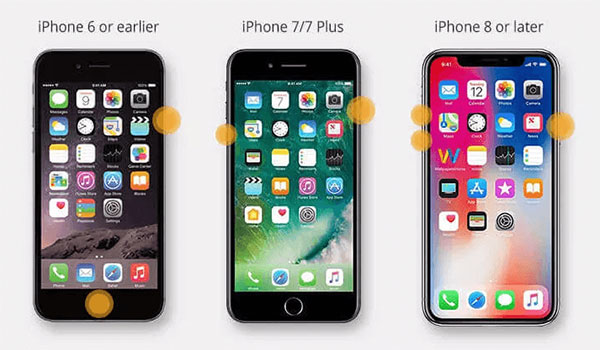
A force restart can help resolve temporary system glitches that cause your iPhone to keep restarting. The steps vary depending on your iPhone model.
- For iPhone 6s and earlier, including iPhone SE (1st generation): Press and hold the "Home" and "Power" buttons simultaneously. Keep holding them until the Apple logo appears, then release both buttons.
- For iPhone 7 and 7 Plus: Press and hold the "Power" and "Volume Down" buttons at the same time. Keep holding them until the Apple logo appears, then release both buttons.
- For iPhone 8 and later, including iPhone SE (2nd generation and later): Quickly press and release the "Volume Up" button, then quickly press and release the "Volume Down" button. Next, press and hold the "Side" button until the Apple logo appears, then release it.
After your iPhone restarts, enter your passcode if prompted. If it remains stuck in a boot loop, move on to the next fix.
Fix 3: Free Up iPhone Storage
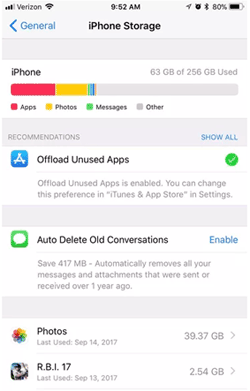
If your iPhone's storage is almost full, iOS may have trouble completing system tasks or installing updates, which can sometimes contribute to startup problems. If you can access your iPhone, go to "Settings" > "General" > "iPhone Storage" to see what's taking up space. Delete apps you no longer use, remove large videos or downloads, or move photos and other files to a computer to free up space. Once you've cleared some storage, restart your iPhone and check whether the boot loop is resolved.
You May Wonder:
Fix 4: Update iOS in Recovery Mode
If your iPhone keeps restarting and you can't access the Home Screen, try updating iOS in Recovery Mode. This can help fix system issues without erasing your data, provided the update succeeds.
- Connect your iPhone to a computer using a USB cable. Open Finder on a Mac running macOS Catalina or later, or open the Apple Devices app on a Windows PC. If that app isn't available, you can use iTunes.
- Put your iPhone into Recovery Mode. For iPhone 8 and later, quickly press and release the "Volume Up" button, then the "Volume Down" button. Next, press and hold the "Side" button until the Recovery Mode screen appears. For other models, use the button combination for your specific iPhone.
- When your computer prompts you to update or restore your iPhone, choose "Update". This will reinstall iOS while attempting to keep your data.
- Wait for the process to finish without disconnecting your iPhone. If the download takes longer than 15 minutes and your device exits Recovery Mode, let the download finish, then put your iPhone back into Recovery Mode and try again.
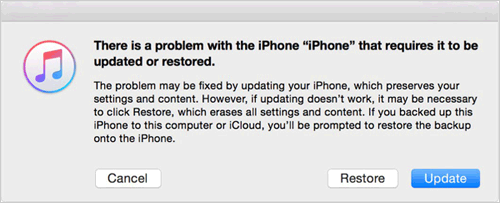
If the update doesn't work, move on to the next fix. Avoid choosing "Restore" unless you're prepared to erase your iPhone, as this option deletes your data.
Fix 5: Reset All Settings
If your iPhone can still boot up and you can access the Settings app, resetting all settings may help resolve system issues that cause repeated restarts. This won't delete your photos, messages, apps, or other personal data, but it will reset settings such as network preferences, privacy settings, and Apple Pay cards.
- To do this, go to "Settings" > "General" > "Transfer or Reset iPhone" > "Reset" > "Reset All Settings". Enter your passcode if prompted, then confirm your choice and wait for your iPhone to restart.
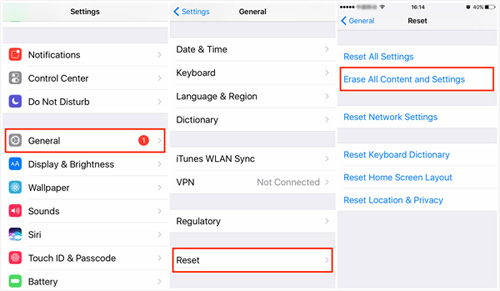
If your iPhone is stuck in a boot loop and you can't access Settings, skip this method and continue to the next fix.
Know More:
Fix 6: Restore iPhone in Recovery Mode
If updating iOS in Recovery Mode didn't fix the boot loop, you can try restoring your iPhone. Keep in mind that this process erases all data and settings on your device, so only proceed if you have a backup or are willing to lose your data.
- Connect your iPhone to a computer and open Finder on a Mac, or the Apple Devices app or iTunes on a Windows PC.
- Put your iPhone into Recovery Mode using the button combination for your model.
- When prompted, select "Restore" instead of "Update".
- Follow the on-screen instructions and wait for the process to finish. Keep your iPhone connected throughout the process.
- Once the restore is complete, set up your iPhone and restore your data from a backup if available.
Fix 7: Contact Apple Support for Hardware Issues
If your iPhone keeps restarting after trying the fixes above, the problem may be related to its battery, internal components, or other hardware. This is especially likely if your device was recently dropped, exposed to liquid, or has signs of physical damage. In this case, contact Apple Support or visit an Apple Authorized Service Provider to have your iPhone checked. Avoid opening the device or attempting hardware repairs yourself, as this could cause further damage. Before sending your iPhone for service, back up your data if possible and ask about available repair options and costs.
Part 3: How to Get an iPhone Out of a Boot Loop Without Losing Data
Some Apple users may care more about "iPhone boot loop fix no restore". To effectively and safely tackle this issue, it is recommended to ask for help from a 3rd-party tool - iOS System Recovery. With this professional product, you can easily fix iPhone stuck on boot loop without restore. This program specializes in fixing almost all kinds of system problems for various models of iOS devices.
Main features of iOS System Recovery:
- Fix iPhone stuck in boot loop with no data loss.
- It also troubleshoots other 50+ iPhone/iPad issues, including iPhone battery draining fast, iDevice's screen not responding, iPhone Error 4013, iTunes errors, and so many more.
- Offer two repairing modes to help settle iOS system problems.
- Upgrade or downgrade iOS to a version available.
- Run smoothly on overall iDevices, containing iPhone 18/17/16/15/14/13/12/11/X/8, all iPad series, etc.
- It won't divulge your privacy.


How to fix boot loop on iPhone/iPad without data loss using iOS System Recovery?
Step 1. Run iOS System Recovery on your computer
Install and open iOS System Recovery on a computer after the installation. Then select "iOS System Recovery" from its interface.
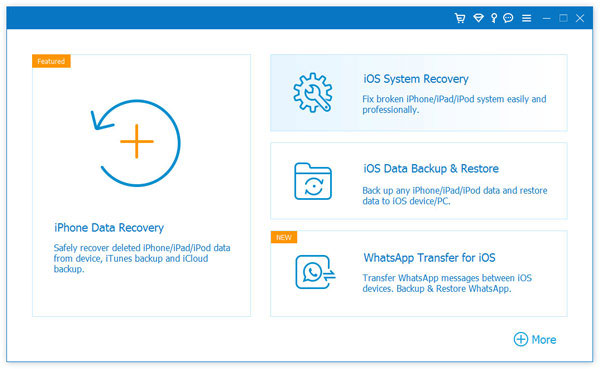
Step 2. Connect your iPhone to the computer
Connect your iOS device to the same computer through a USB cable and tap on "Start".
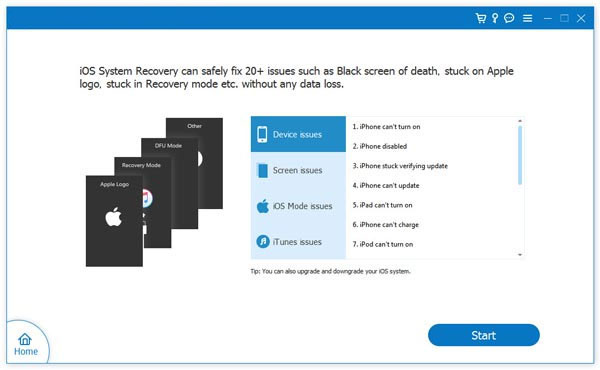
Step 3. Repair iPhone stuck in boot loop
This utility will detect the information of your iDevice. You can check it and tap on "Repair". If the detected info is wrong, pick the right one and hit "Repair" again.
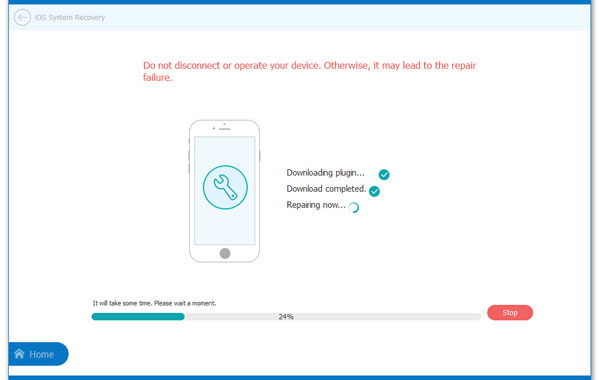
Step 4. Reboot your iPhone
Wait for the repair to complete. And at last, restart your iPhone. You will then find it can work as it always does.
Ending Words
So much for today's post. You can now follow the above-stated fixes to resolve iPhone stuck in the boot loop. And if you've tried some of them and the issue is still all up in the air, don't hesitate to go for the dedicated tool - iOS System Recovery. It would certainly be able to quickly overcome your boot loop errors on your iPhone/iPad.
Have any issues regarding your iOS or even Android devices? Please let us know in the comments.
Related Articles:
iPhone Blue Screen Fix: How to Fix Blue Screen of Death on iPhone
Touch ID Not Working on iPhone? 14 Fixes Are Here!
What if iPhone Won't Restore? Here Are the Full List of Fixes
iPad White Screen Troubleshooting: How to Fix iPad White Screen of Death?
